Portal Templates
Large Firm & Enterprise
Portal templates are available on Large Firm and Enterprise plans.
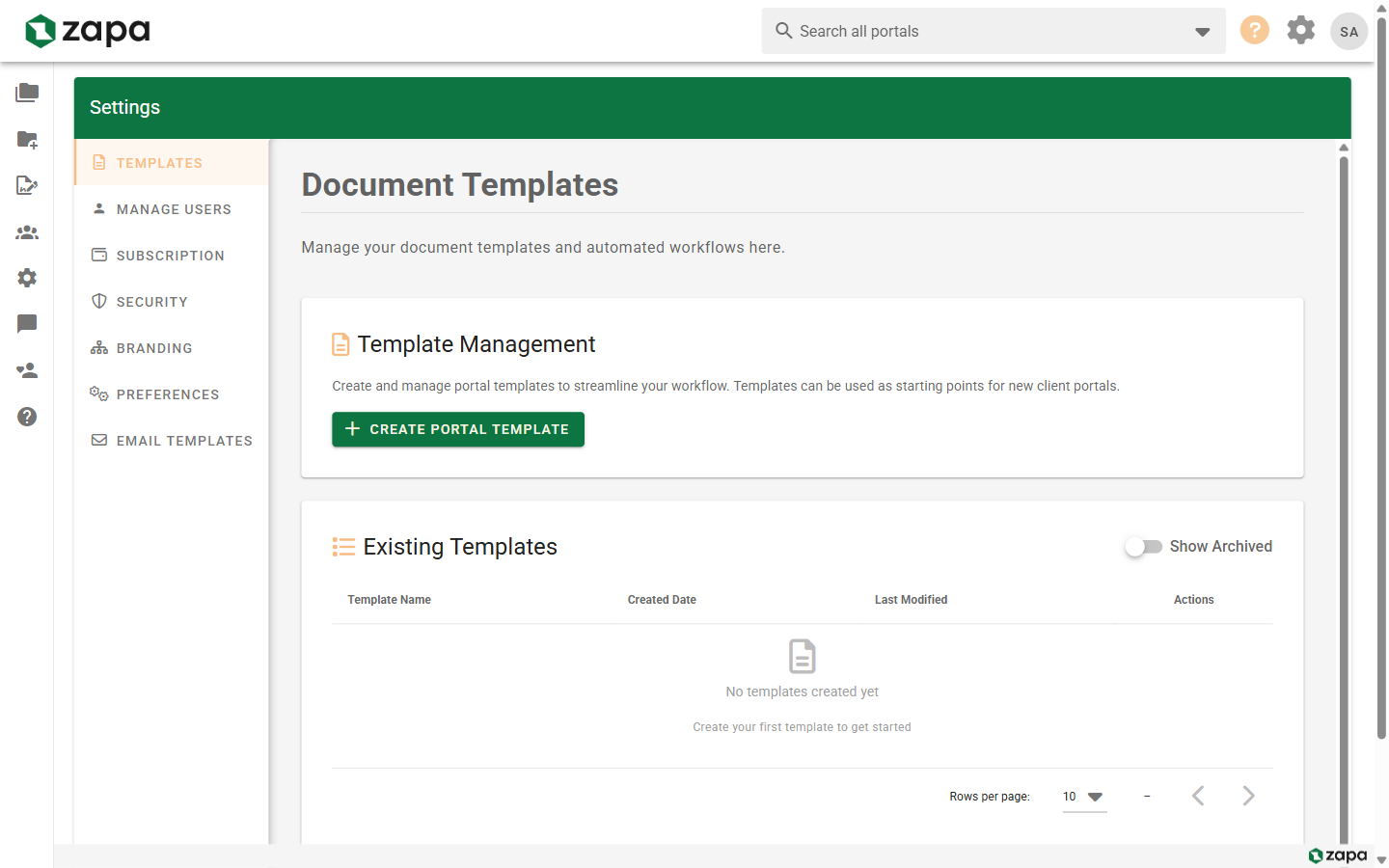
Portal templates let you create standardized portal structures that can be reused for new clients. Templates save time and ensure consistency across your organization.
What Templates Include
A template can include:
- Folder structure - Pre-defined folders and subfolders
- Default settings - Privacy, workflow state, permissions
- Tags - Auto-applied tags for new portals
Creating a Template
From Scratch
- Go to Settings → Templates
- Click New Template
- Enter a template name (e.g., "Tax Client", "Legal Matter")
- Configure the template:
- Add folders and subfolders
- Set default workflow state
- Configure default permissions
- Click Save Template
From an Existing Portal
- Open a well-organized portal
- Click the menu icon (three dots)
- Select Save as Template
- Enter a template name
- Choose what to include:
- Folder structure (files not included)
- Settings and permissions
- Tags
- Click Create Template
Managing Templates
Viewing Templates
- Go to Settings → Templates
- See all organization templates
Editing Templates
- Go to Settings → Templates
- Click on a template
- Modify folder structure or settings
- Click Save
Changes don't affect portals already created from the template.
Deleting Templates
- Go to Settings → Templates
- Click the delete icon on a template
- Confirm deletion
Deleting a template doesn't affect existing portals.
Using Templates
Creating a Portal from Template
- Click New Portal
- In the portal creation dialog, select a template
- Enter the portal name
- Click Create
The portal is created with:
- All folders from the template
- Default settings applied
- Tags auto-assigned
Template Selection
If your organization has multiple templates:
- Templates are listed alphabetically
- Most-used templates may be suggested
- You can still create blank portals without a template
Template Examples
Tax Client Template
📁 Tax Documents
   📁 Personal Information
   📁 Income
   📁 Deductions
   📁 Prior Year Returns
📁 Correspondence
📁 Final Returns
Legal Matter Template
📁 Pleadings
📁 Discovery
   📁 Requests
   📁 Responses
📁 Correspondence
📁 Evidence
📁 Research
Real Estate Transaction
📁 Property Documents
📁 Contracts
📁 Inspections
📁 Financing
📁 Closing Documents
📁 Insurance
Template Best Practices
Standardize Naming
Use consistent folder naming across templates:
- Clear, descriptive names
- Same structure for similar use cases
- Easy for guests to understand
Keep It Simple
- Start with essential folders
- Add complexity only when needed
- Remember guests need to navigate too
Document Your Templates
Create an internal guide:
- When to use each template
- What each folder is for
- Any special procedures
Review Regularly
- Update templates as needs evolve
- Remove unused templates
- Gather feedback from team
Sharing Templates
Templates are organization-wide:
- All team members can use templates
- Only admins can create/edit templates
- Templates are not shared between organizations
Limitations
Templates do not include:
- Files (only folder structure)
- Guest invitations
- Active tasks
- Workflow history
Related Topics
- Creating Portals - Portal basics
- Workflow States - Custom workflow configuration
- Team Management - Admin settings