File Actions
Learn about all the actions available for managing files within your portals.
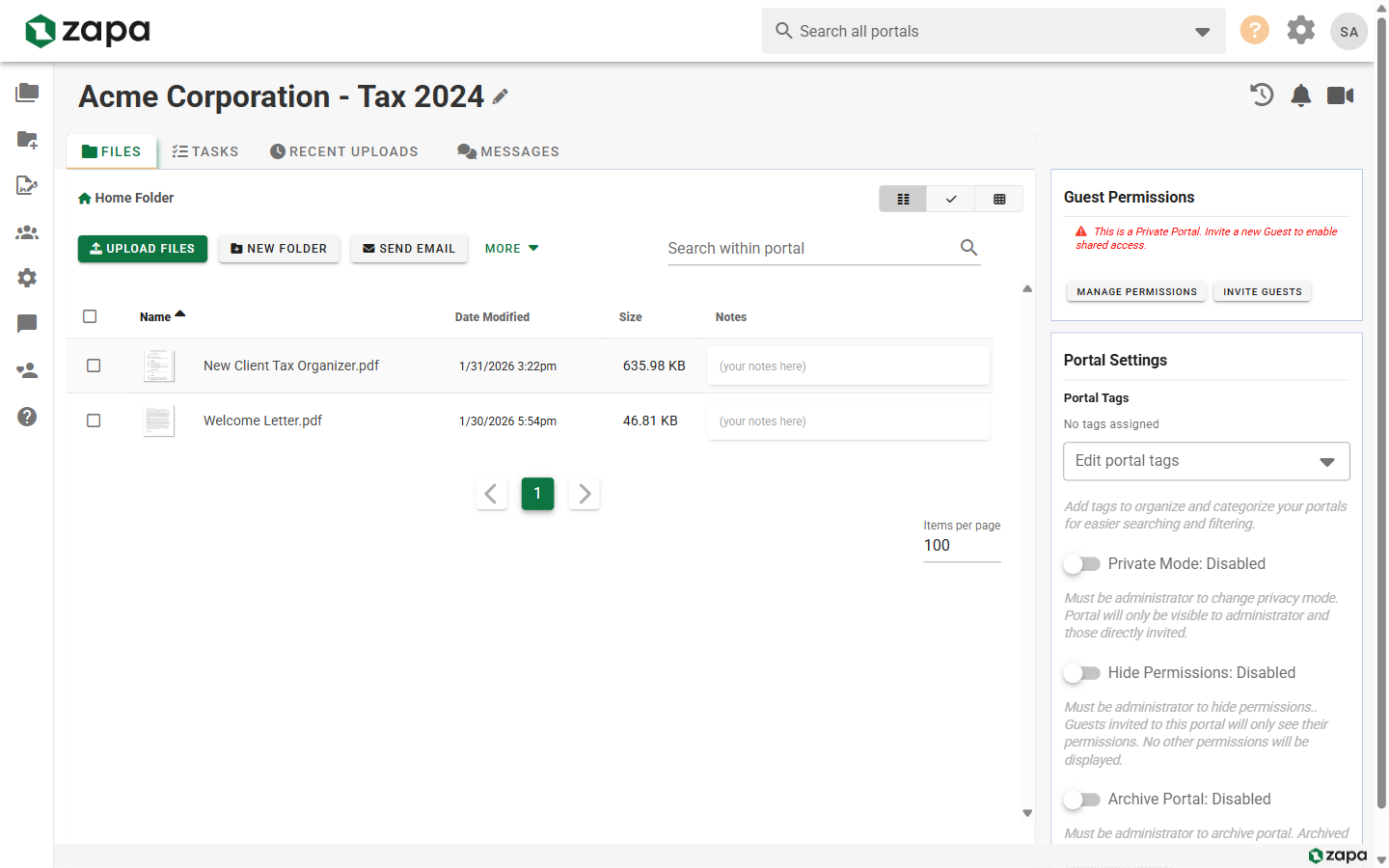
Accessing File Actions
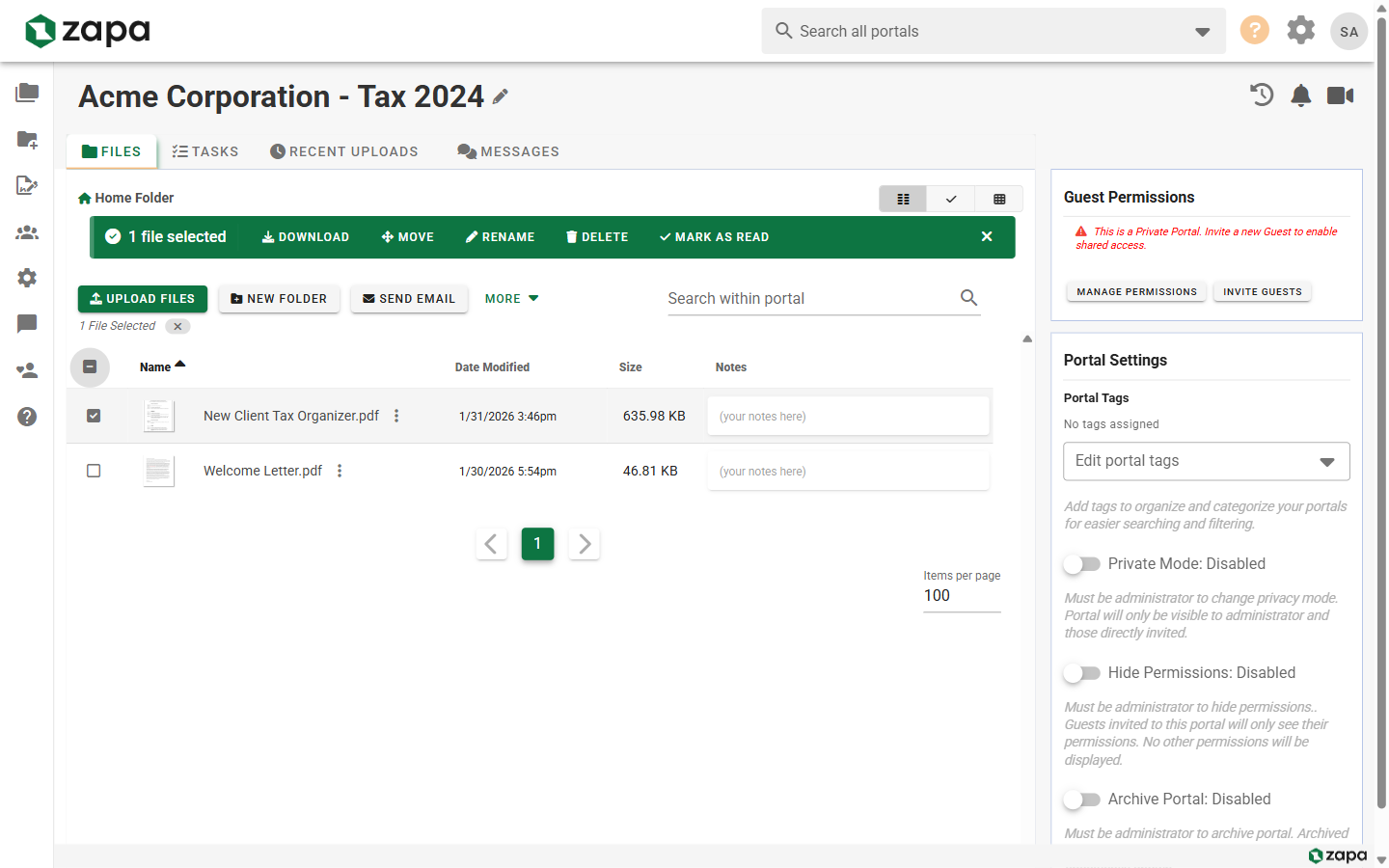
Selecting a File
Click the checkbox to select a file. A selection banner appears with quick actions:
File Actions Menu
Hover over a file and click the more actions button (⋮) to see all available options:
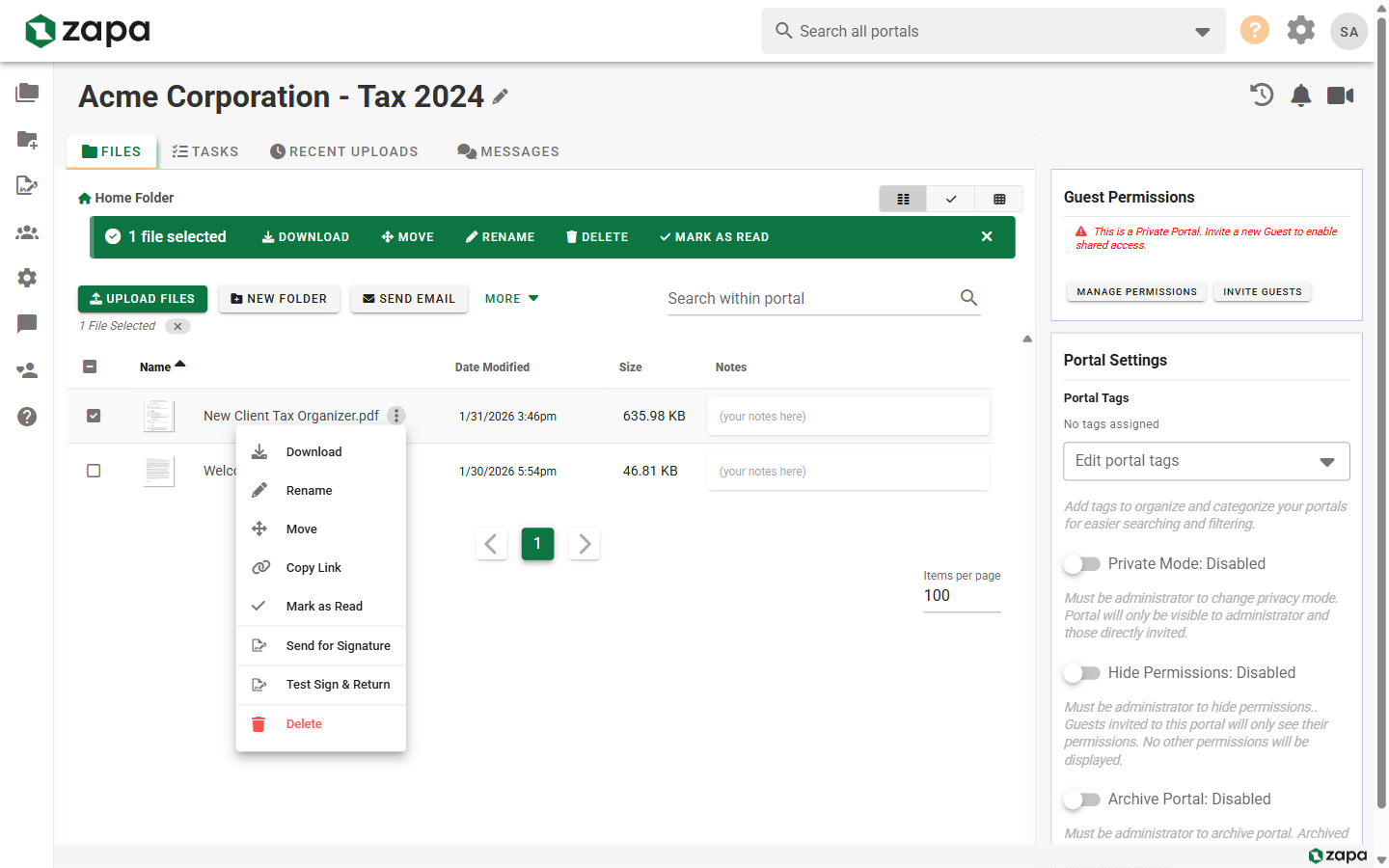
There are two ways to access file actions:
Action Menu (Three Dots)
- Hover over any file in the file list
- Click the three-dot menu icon (⋮)
- Select an action from the dropdown
Right-Click Context Menu
Right-click on any file to open the context menu with all available actions.
Available Actions
Download
Downloads the file to your computer.
How to use:
- Click the file's action menu
- Select Download
- File saves to your downloads folder
For multiple files, select them first, then use the bulk download option.
Rename
Change the file's name while keeping its extension.
How to use:
- Click the file's action menu
- Select Rename
- Enter the new name
- Click Save
Renaming a file does not affect any signature requests associated with it.
Move
Move the file to a different folder within the portal.
How to use:
- Click the file's action menu
- Select Move
- Choose the destination folder
- Click Move
Copy Link
Get a shareable link to the file.
How to use:
- Click the file's action menu
- Select Copy Link
- Link is copied to clipboard
Link recipients must have portal access to view the file.
Mark as Read
Mark a file as read to remove the "Unread" indicator.
How to use:
- Click the file's action menu
- Select Mark as Read
Files are automatically marked as read when you open them for preview.
PDF-Specific Actions
These actions are available only for PDF files:
Send for Signature (Beta)
Initiate a signature request for the PDF document.
Requirements:
- File must be a PDF
- You must have signature permissions
- Currently in Beta - available to internal beta users only
How to use:
- Click the PDF's action menu
- Select Send for Signature
- Follow the signature workflow
Test Sign & Return (Beta)
Preview how the signing experience will look for recipients.
Requirements:
- File must be a PDF with signature fields
- You must be an admin or have manage permissions
- Currently in Beta - available to internal beta users only
How to use:
- Click the PDF's action menu
- Select Test Sign & Return
- Simulate the signing experience
- No changes are saved
Destructive Actions
Delete
Permanently remove a file from the portal.
How to use:
- Click the file's action menu
- Select Delete
- Confirm the deletion
Deleted files cannot be recovered. This also cancels any pending signature requests.
Bulk Actions
Selecting Multiple Files
- Click + Drag - Draw a selection box around files
- Ctrl/Cmd + Click - Select individual files
- Shift + Click - Select a range of files
- Select All - Use the checkbox in the header
Available Bulk Actions
When multiple files are selected:
| Action | Description |
|---|---|
| Download | Downloads all selected as ZIP |
| Move | Moves all to a destination folder |
| Delete | Deletes all selected files |
File Uploads
Upload Button
Click the Upload button in the toolbar to:
- Select files from your computer
- Upload multiple files at once
Drag and Drop
Simply drag files from your computer and drop them:
- Onto the file list area
- Into a specific folder
Upload Progress
During upload:
- Progress bar shows completion percentage
- Cancel button available
- Files appear immediately after completion
Permission-Based Actions
Available actions depend on your permissions:
| Permission | Actions Available |
|---|---|
| View Only | Download, Copy Link |
| Upload | + Upload files |
| Rename | + Rename, Move |
| Delete | + Delete |
| Manage | + All administrative actions |
Keyboard Shortcuts
Speed up your workflow with keyboard shortcuts:
| Shortcut | Action |
|---|---|
Delete | Delete selected files |
Enter | Open/preview selected file |
Ctrl+A | Select all files |
Escape | Deselect all |
Related Topics
- Managing Files - File management overview
- Sending for Signature - Signature workflow
- Portal Permissions - Understanding permissions