File Preview
Zapa Client Portals provides in-browser preview for many common file types, so you can view documents without downloading them.
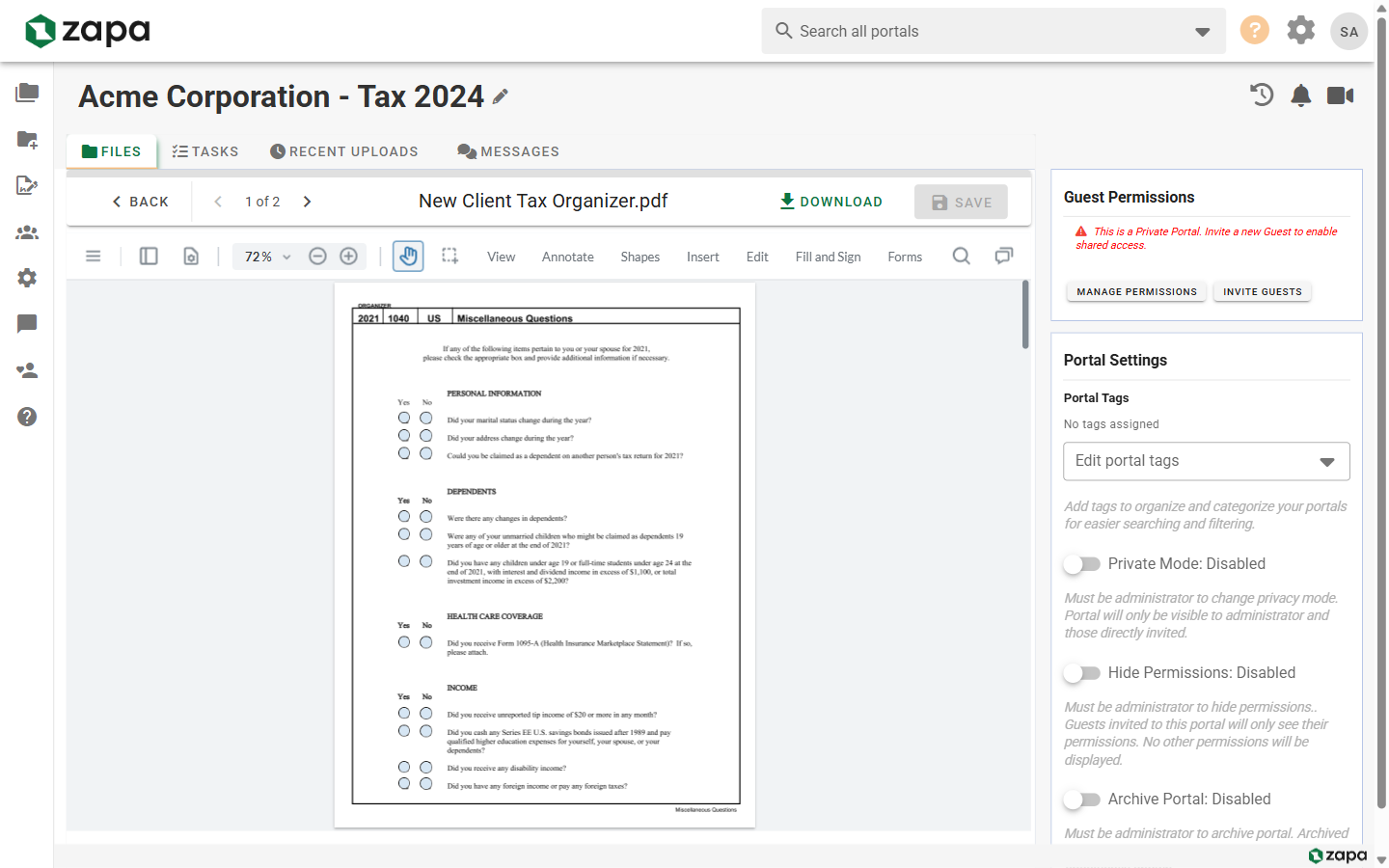
Previewing Files
Opening a Preview
- Navigate to a portal
- Click on any file in the file list
- The preview opens in a modal dialog
Closing the Preview
- Click the X button
- Press the
Escapekey - Click outside the preview modal
Supported File Types
Document Previews
| Type | Extensions | Features |
|---|---|---|
.pdf | Full preview, zoom, page navigation, signature fields | |
| Images | .jpg, .png, .gif, .webp | Zoom, pan |
| Word | .doc, .docx | Basic preview (converted) |
| Excel | .xls, .xlsx | Spreadsheet view |
| Text | .txt, .csv | Plain text display |
Video Previews
| Type | Extensions | Features |
|---|---|---|
| MP4 | .mp4 | Play, pause, seek |
| WebM | .webm | Play, pause, seek |
Unsupported Files
For unsupported file types:
- A download prompt appears
- Or file information is displayed
PDF Preview Features
Navigation
- Page Navigation - Previous/next page buttons
- Page Counter - Shows current page of total
- Scroll - Scroll through the document
- Jump to Page - Enter a page number directly
Zoom Controls
- Zoom In/Out - Magnify or reduce view
- Fit to Width - Fit document to window width
- Fit to Page - Show entire page
Signature Fields
If the PDF has signature fields:
- Fields are highlighted
- "Send for Signature" action available
- View existing signatures
Image Preview Features
View Controls
- Zoom - Scroll to zoom in/out
- Pan - Click and drag to move around
- Reset - Return to default view
Navigation
For multiple images, use:
- Arrow keys to navigate between files
- Next/Previous buttons
Download from Preview
While previewing any file:
- Click the Download button in the preview toolbar
- File downloads to your computer
Print from Preview
For documents and PDFs:
- Click the Print button
- Select your printer
- Configure print settings
- Print the document
Mobile Preview
On mobile devices:
- Touch to zoom
- Pinch to resize
- Swipe to navigate pages
- Landscape mode recommended for documents
Accessibility
The preview interface supports:
- Keyboard navigation
- Screen reader compatibility
- High contrast mode
Troubleshooting
Preview Not Loading
- Check your internet connection
- Try refreshing the page
- Clear browser cache
- Download and open locally
Slow Preview
Large files may take time to load:
- Wait for progress indicator to complete
- For very large files, download instead
Unsupported Format
If preview shows "Download" only:
- The file format isn't supported for preview
- Download to view with local software
Related Topics
- File Actions - All file operations
- Managing Files - File management overview
- File Comments - Discussing files