Inviting Guests
Guests are external users (typically clients) who have access to specific portals. Unlike team members, guests only see the portals they've been explicitly invited to.
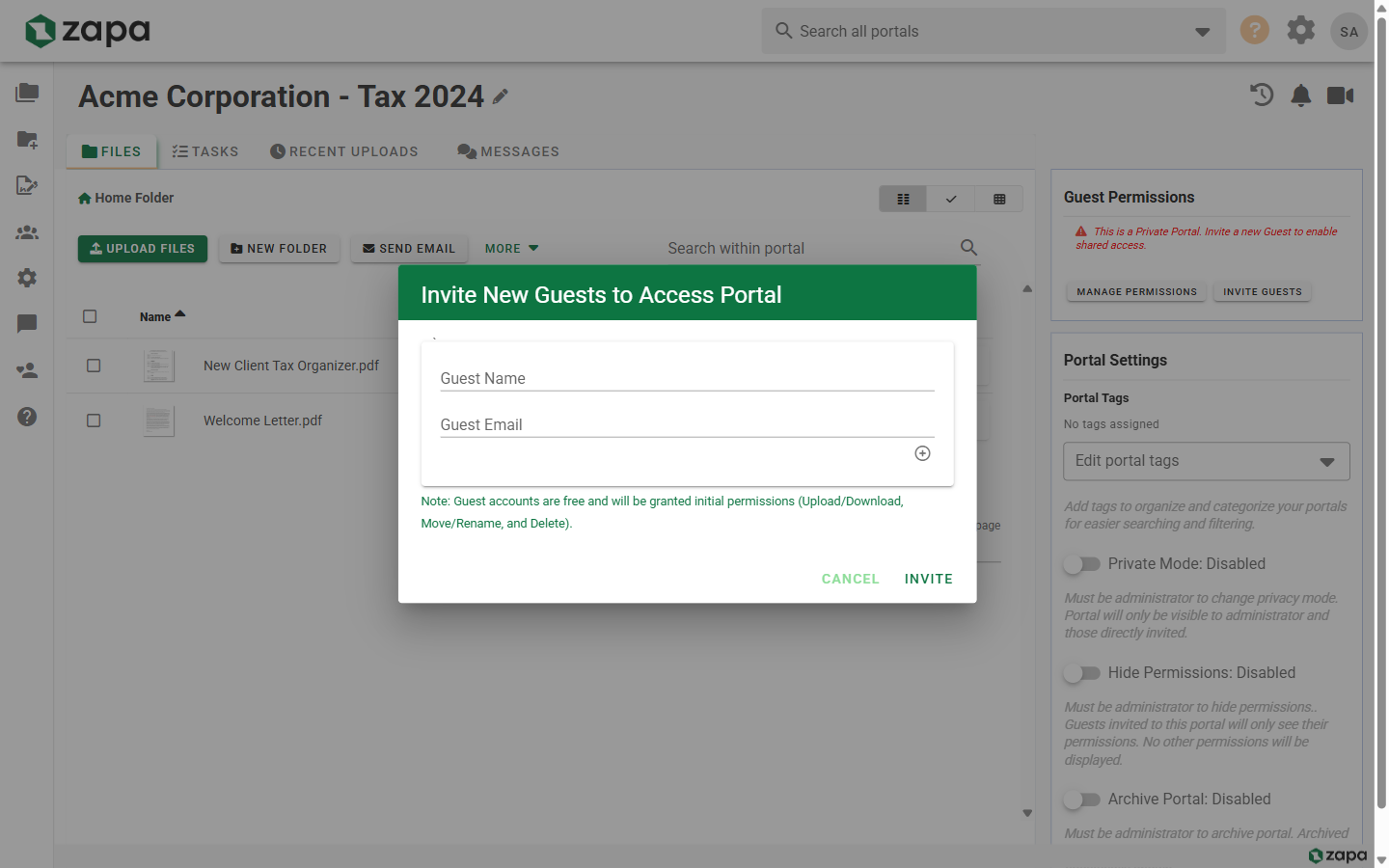
Understanding User Types
| Type | Access | Typical Use |
|---|---|---|
| Admin | All portals + settings | Organization owners |
| Member | Assigned portals | Team members, employees |
| Guest | Invited portals only | Clients, external parties |
Inviting a Guest to a Portal
Quick Invite
- Open the portal
- Click Invite in the toolbar (or the person+ icon)
- Enter the guest's email address
- Click Send Invitation
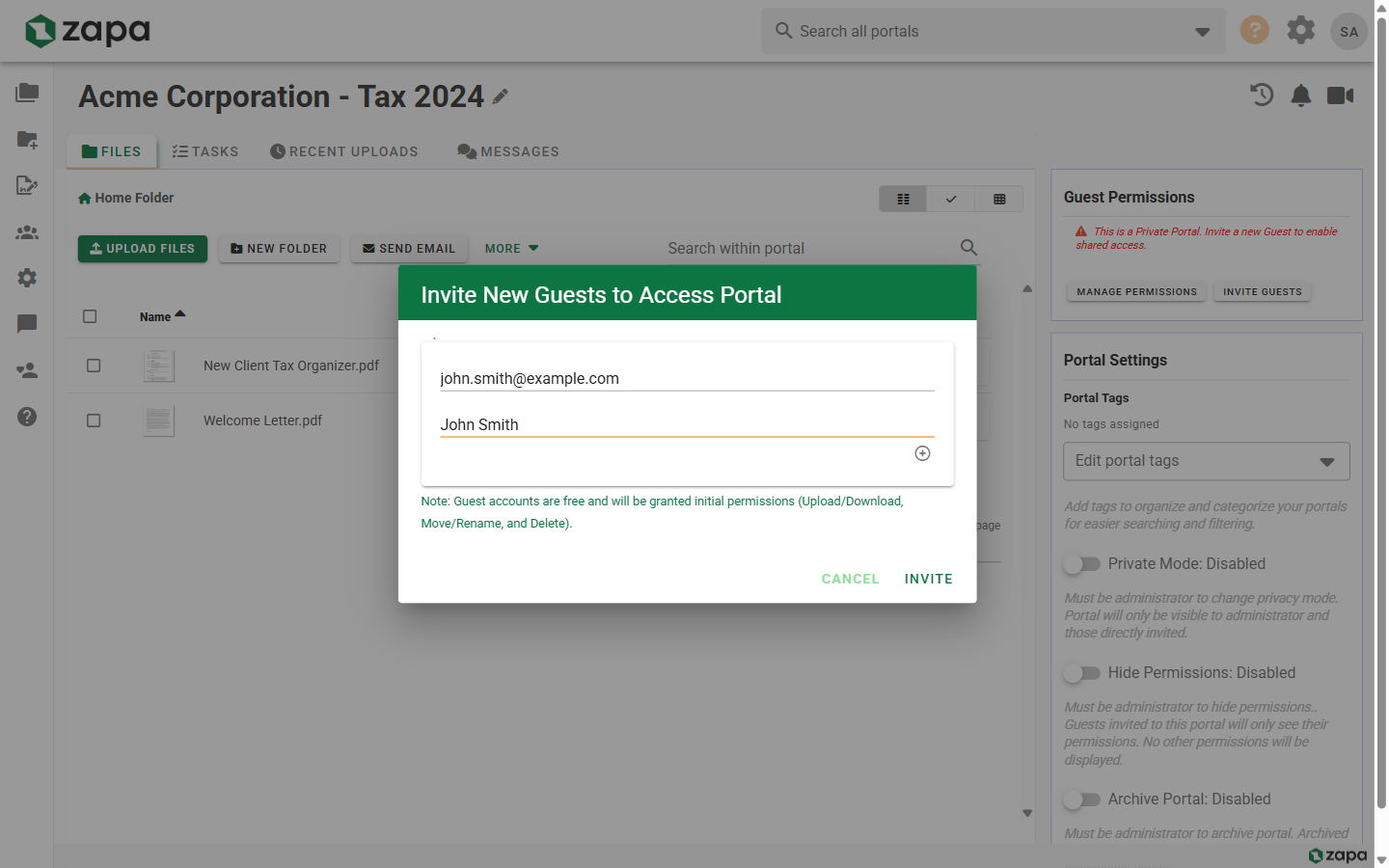
The guest receives an email with instructions to access the portal.
Invite with Custom Message
- Open the portal
- Click Invite
- Enter the guest's email address
- Add a personal message (optional)
- Click Send Invitation
Your custom message appears in the invitation email.
Invitation Process
For New Guests
When you invite someone who doesn't have an account:
- They receive an invitation email
- They click the link to create an account
- They set their password
- They're automatically taken to the portal
For Existing Guests
If the guest already has an account:
- They receive a notification about the new portal
- They can accept the invitation from:
- The email link
- Their portal list (invitation appears as pending)
Managing Guest Access
Viewing Portal Guests
- Open the portal
- Click the Members tab or icon
- View all guests with access
Guest Permissions
Granular guest permissions are available on Large Firm and Enterprise plans.
Control what guests can do in the portal:
| Permission | Description |
|---|---|
| View | See files and folders |
| Download | Download files |
| Upload | Add new files |
| Delete | Remove files |
| Comments | Add/view comments |
To modify permissions:
- Open the portal
- Go to Members
- Click the settings icon next to the guest
- Adjust permissions
- Click Save
Removing Guest Access
- Open the portal
- Go to Members
- Click the remove icon next to the guest
- Confirm removal
The guest immediately loses access to the portal.
Viewing Portals by Guest
See all portals associated with each guest:
- Navigate to Portals → By Guest view
- Expand a guest to see their portals
- Click a portal to open it
This view helps you:
- See which portals each client can access
- Quickly find all work for a specific client
- Manage guest relationships
Guest Notifications
Guests automatically receive email notifications for:
- Portal invitations - When invited to a new portal
- File uploads - When new files are added
- Task assignments - When tasks are assigned to them
- Signature requests - Documents requiring their signature
- Reminders - Upcoming task due dates
Email template customization is available on Large Firm and Enterprise plans. See Email Templates.
Converting Guests to Members
If a guest needs broader access, they can be converted to a team member:
- Go to Settings → Manage Users
- Find the guest in the user list
- Click Convert to Member
- Assign appropriate permissions
Bulk Invitations
To invite multiple guests at once:
- Open the portal
- Click Invite
- Enter multiple email addresses (comma-separated)
- Click Send Invitations
All guests receive individual invitation emails.
Guest Experience
What Guests See
Guests have a simplified interface showing:
- Only their invited portals
- Files and folders they can access
- Tasks assigned to them
- Signature requests for them
Guest Limitations
Guests cannot:
- Create new portals
- Access organization settings
- See other portals or team members
- Invite other users
Troubleshooting
Invitation Not Received
- Check the spam/junk folder
- Verify the email address is correct
- Resend the invitation from the Members panel
- Contact support if issues persist
Guest Can't Access Portal
- Verify they've accepted the invitation
- Check their permission settings
- Ensure the portal isn't archived or deleted
- Have them sign out and back in
Guest Seeing Wrong Portals
- Guests only see portals they're explicitly invited to
- Verify the correct email was invited
- Check for duplicate accounts with different emails
Related Topics
- Guest Quickstart - Share this with your clients
- Creating Portals - Set up new portals
- Portal Permissions - Detailed permission settings
- Email Templates - Customize invitation emails
- Team Management - Manage team members