Settings Overview
The Settings page is your central hub for managing organization configuration, team members, billing, and customization options.
Accessing Settings
- Click your profile menu in the top-right corner
- Select Settings
- Or navigate to
/settingsdirectly
Only users with admin privileges or edit settings permission can access all settings tabs.
Settings Tabs
The Settings page is organized into tabs, each covering a different area:
| Tab | Description | Access |
|---|---|---|
| Templates | Portal template management | Large Firm+ |
| Manage Users | Team member and permission management | Admin/Member with permission |
| Subscription | Billing, plans, and invoices | Admin only |
| Security | MFA requirements and security settings | Admin/with edit permission |
| Branding | Logo, colors, subdomain, and white-labeling | Admin/with edit permission |
| Preferences | Terms, workflow states, and portal preferences | Admin/with edit permission |
| Email Templates | Customize notification emails | Admin/with edit permission |
| API Settings | OAuth clients for third-party integrations | Admin only (Enterprise) |
| Webhooks | Real-time event notifications | Admin only (Enterprise) |
Templates Tab
Portal templates are available on Large Firm and Enterprise plans.
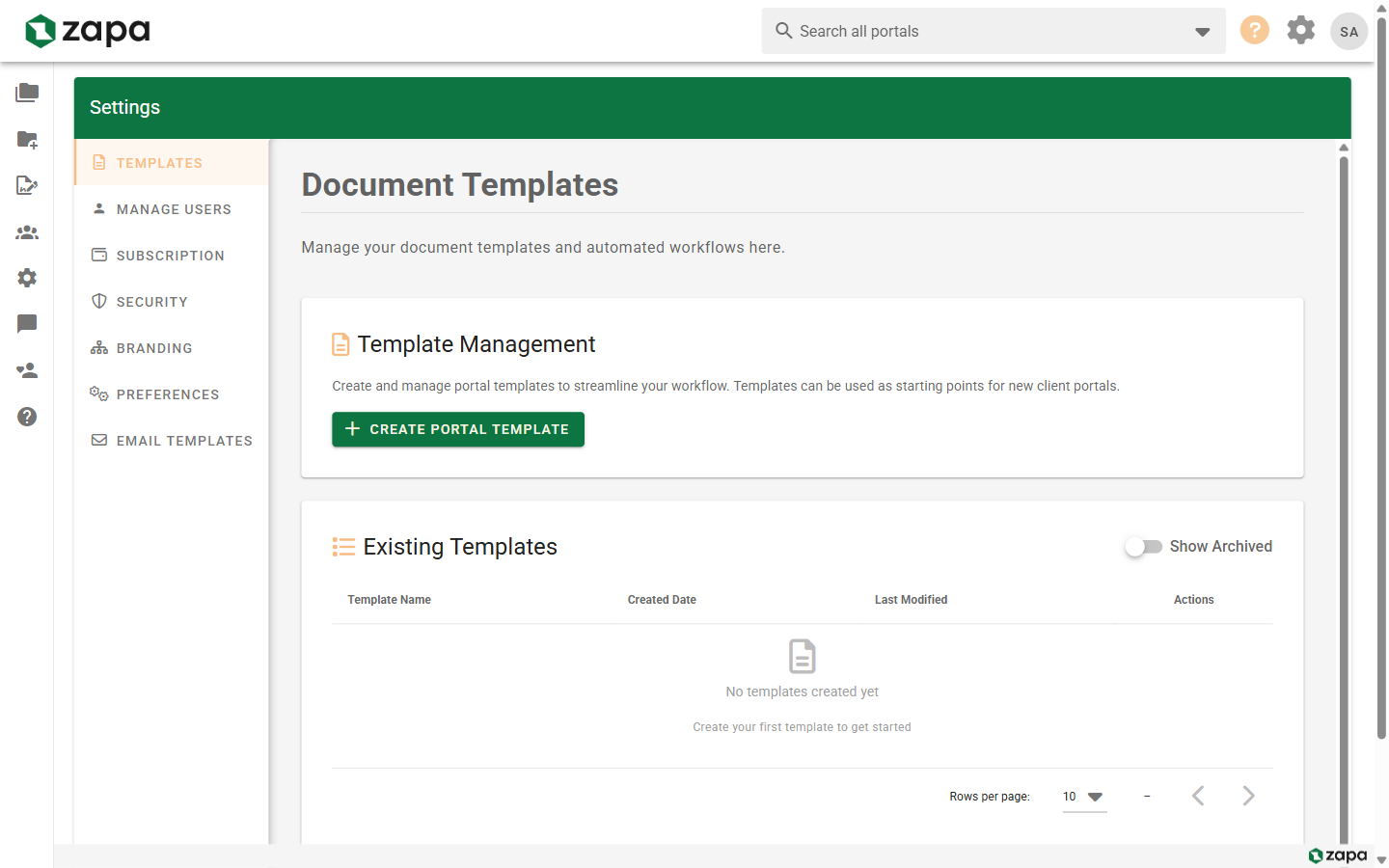
Manage reusable portal templates:
Features
- Create Template - Build new portal templates
- View Templates - See all organization templates
- Edit Templates - Modify template structure
- Archive/Delete - Manage template lifecycle
Template Table
View existing templates with:
- Template name
- Created date
- Last modified date
- Archive status
- Action buttons
See Portal Templates for detailed usage.
Manage Users Tab
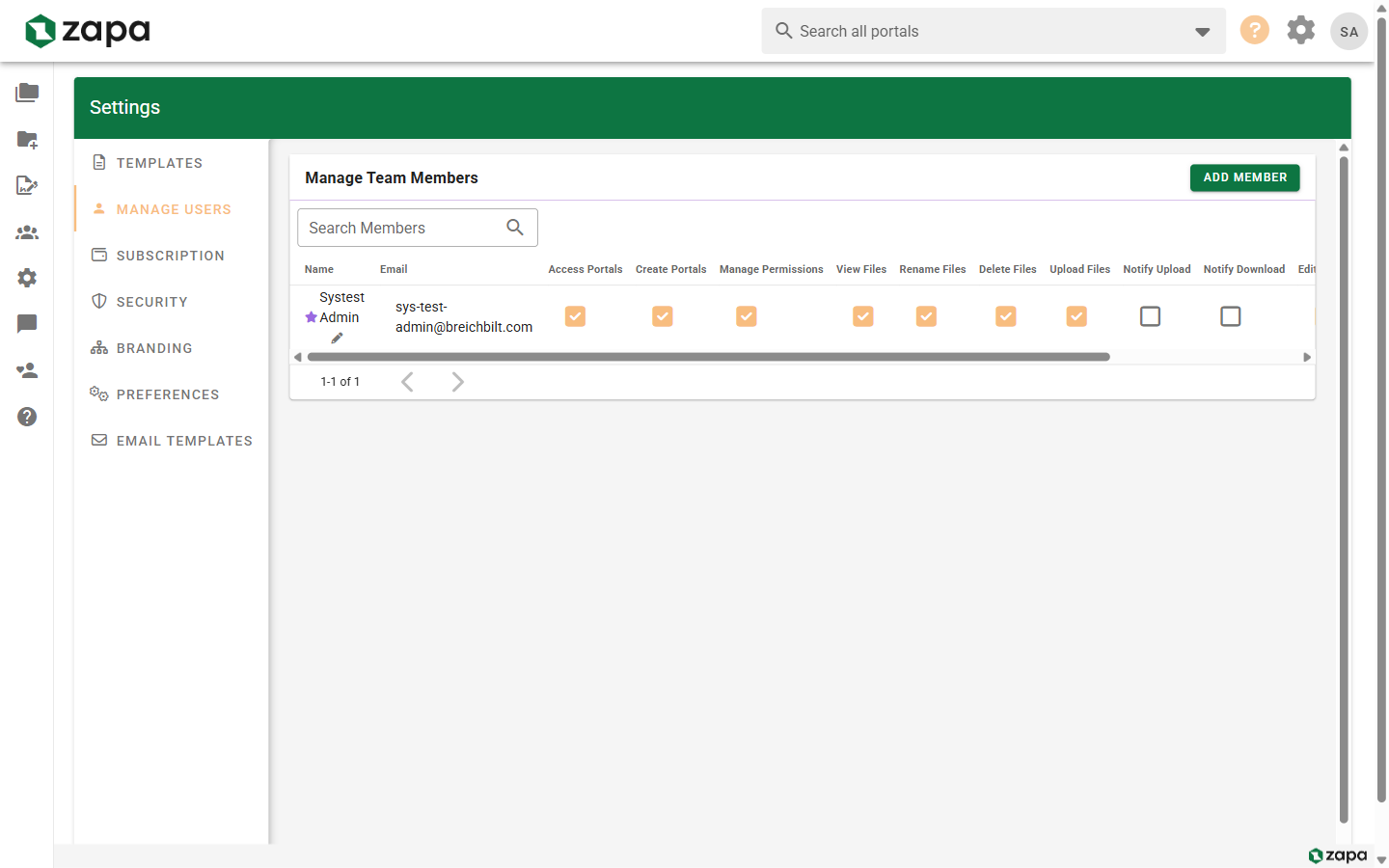
Control team membership and permissions:
User Table
View all organization members with:
- Name and email
- Role indicators (Admin star)
- Permission checkboxes
- Action buttons
Permissions Available
| Permission | Description |
|---|---|
| Access Portals | Can view portals |
| Create Portals | Can create new portals |
| Manage Permissions | Can change portal access |
| View Files | Can see file contents |
| Rename Files | Can rename files/folders |
| Delete Files | Can remove files |
| Upload Files | Can add new files |
| Upload Notification | Receives upload alerts |
| Download Notification | Receives download alerts |
| Edit Settings | Can access org settings |
| Manage Members | Can add/remove users |
Actions
- Add Member - Invite new team members
- Edit Permissions - Toggle individual permissions
- Edit Name - Update display names
- Delete Member - Remove from organization
See Team Management for complete details.
Subscription Tab
Manage billing and subscription:
Plan Selection
- View available plans (Professional, Large Firm, Enterprise)
- Compare features
- Upgrade or downgrade
Current Plan
- Current tier and status
- Next invoice amount
- Payment method on file
- Trial status (if applicable)
Billing Actions
- Edit Payment Method - Update credit card
- Cancel Plan - End subscription
- View Invoices - Download past invoices
Billing History
Table of past payments:
- Date
- Amount
- Description
- Invoice download link
See Billing for complete details.
Security Tab
Configure security requirements:
MFA Settings
- Require MFA for Vault Access - Force all users to enable MFA
- Grace Period - 7 days for users to comply
- MFA Methods - Authenticator apps or SMS
When MFA is required:
- Users see setup prompts
- Access blocked after grace period without MFA
- Both members and guests affected
See Security Settings for complete details.
Branding Tab
Customize your organization's appearance:
General Information
- Business Name - Organization display name
- Business Logo - Upload your company logo (max 100kb)
- Branded Login Link - Copy link for sharing
- Reply-To Email - Custom email for replies
Custom Subdomain
Custom subdomains are available on Large Firm and Enterprise plans.
- Set your subdomain (e.g.,
yourcompany.zapaclientportals.com) - Check availability
- Claim your subdomain
Primary Brand Color
Custom colors are available on Large Firm and Enterprise plans.
- Enter hex color code
- Preview color changes
- Apply to buttons and accents
White-Labeling
White-label options are available on Large Firm and Enterprise plans.
- Remove "Powered by Zapa" - Hide Zapa branding
- Fully branded experience for guests
See Branding for complete details.
Preferences Tab
Configure portal behavior:
Terms & Conditions
- Enter your terms text
- Toggle enforcement
- Guests must accept before access
Workflow States
Custom workflows are available on Large Firm and Enterprise plans.
Legacy Workflow Mode
- Enable/disable organization default workflow
- Edit standard workflow states
All Workflows
- View all custom workflows
- Create new workflows (up to 10)
- Edit workflow states and colors
- Delete unused workflows
See Workflow States for complete details.
Email Templates Tab
Custom email templates are available on Large Firm and Enterprise plans.
Customize notification emails:
Available Templates
| Template | When Sent |
|---|---|
| Guest Invitation | Inviting guests to portals |
| Member Invitation | Inviting team members |
| Task Reminder | Upcoming/overdue tasks |
| Portal Notification | File uploads and activity |
| Magic Link | Passwordless sign-in |
| Signature Request | Documents requiring signature |
Template Editor
For each template:
- Subject line
- Header content
- Body content
- Available variables
Actions
- Edit template content
- Preview changes
- Reset to default
- Save custom version
See Email Templates for complete details.
API Settings & Webhooks Tabs
API access and webhooks are available on the Enterprise plan and visible to admins only.
- API Settings - Enable API access and manage OAuth clients for integrations
- Webhooks - Subscribe to real-time event notifications
See API & Webhook Settings for complete details.
Settings Access by Role
Admin
Full access to all settings tabs and options.
Member with Edit Settings
Access to:
- Templates
- Manage Users (if also has manage members)
- Security
- Branding
- Preferences
- Email Templates
No access to: Subscription/Billing
Member without Edit Settings
Limited or no access to Settings page.
Guest
No access to Settings.
Upgrade Banner
If on Professional tier, an upgrade banner appears:
- Highlights locked features
- Shows benefits of upgrading
- Links to subscription settings
Related Topics
- Team Management - User management details
- Billing - Subscription management
- Branding - Customization options
- Security Settings - Security configuration
- Email Templates - Email customization
- Workflow States - Workflow configuration