Portal Messaging
Send messages and notifications to portal guests directly from within a portal, and keep a running history of every message sent.
The Messages Tab
Each portal has a Messages tab that shows the portal's message history in a conversation-style view:
- Messages appear as chat-style bubbles with the sender, recipients, and timestamp
- The most recent messages load first; click Load Earlier Messages to page back through older history (50 messages at a time)
- The history is shared — everyone with access to the portal's Messages tab sees the same conversation record
Sending Messages
From the Messages Tab
- Open a portal
- Click the Messages tab
- Click Send New Message
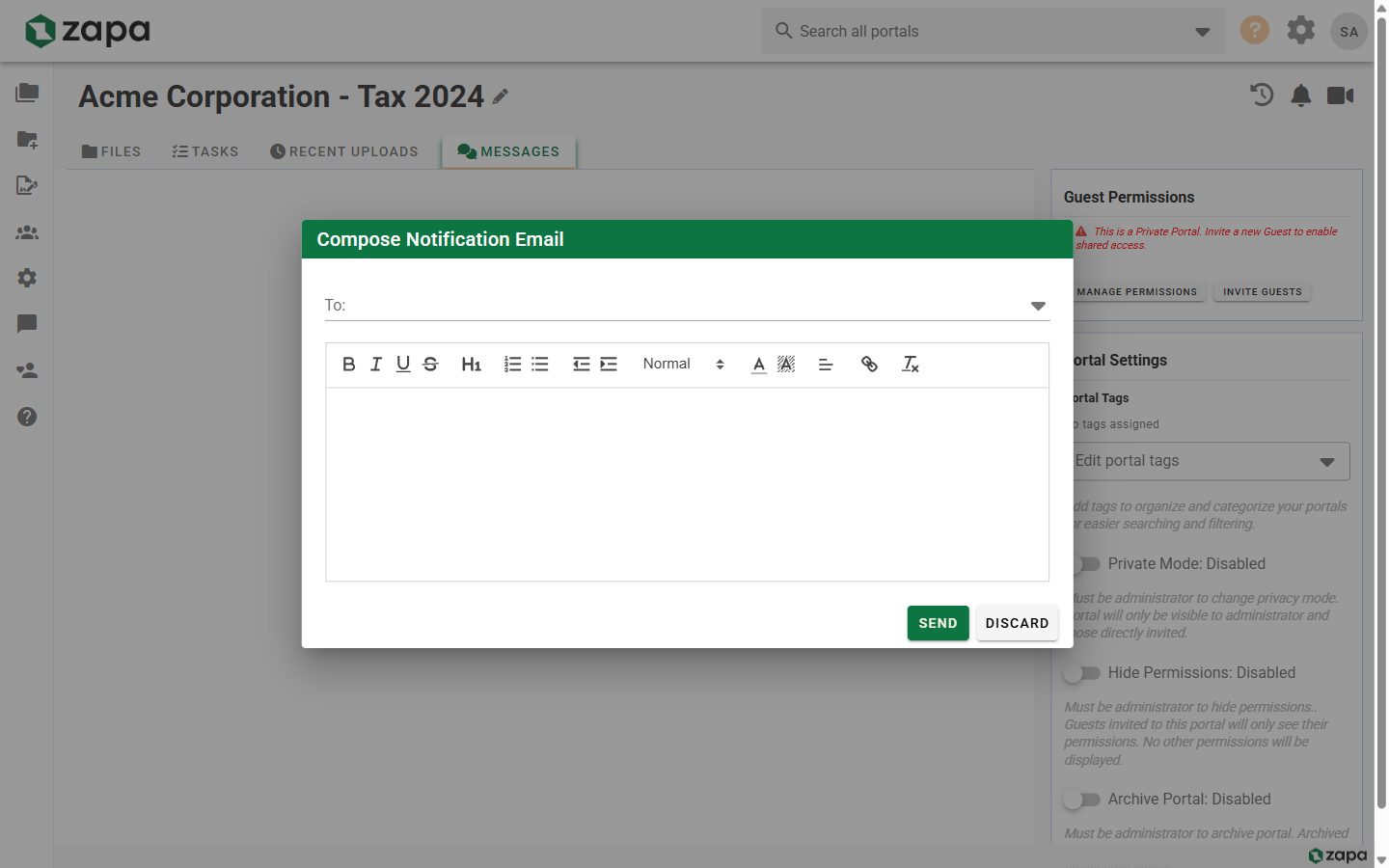
- Select recipients from the To: dropdown
- Compose your message using the rich text editor
- Click Send
Recipient Selection
Who you can send to depends on your role:
- Members and admins choose any combination of portal guests and team members from the recipients dropdown
- Guests send messages to the organization — the recipient is fixed, so clients can't message other guests
Message Composer Features
The message composer includes:
- Rich text formatting (bold, italic, lists, links)
- Multiple recipient selection with removable chips
- Preview of the message as recipients will see it
Sending File Notifications
Messages are also how file notifications are delivered:
- Send Email in the portal's file toolbar opens the same composer, pre-filled with a notification about recently uploaded files
- After you upload files, the Upload Notifications popup appears — choose recipients, add an optional message, review the email preview, and send a notification listing the new files
Notification Emails
When you send a message:
- Recipients receive an email notification
- The email includes your message content
- A link back to the portal is included, so recipients can sign in and respond
Replies from guests appear in the same Messages tab, keeping the whole exchange in one place.
Message History
All messages sent through a portal are logged:
- View sent messages in the Messages tab
- See who each message was sent to and when
- Use the history as a record of client communication for the engagement
Because message history lives with the portal, it's a useful audit trail — you never have to dig through your inbox to prove what was communicated and when.
Best Practices
Clear Subject Lines
Use descriptive openings so recipients know what's needed at a glance:
- "Documents ready for review"
- "Signature required by Friday"
- "Updated tax forms available"
Appropriate Recipients
Select the right recipients:
- All guests for general announcements
- Individual guests for specific requests
- Team members for internal updates
Keep It in the Portal
Prefer portal messages over direct email for client communication — messages are logged with the portal, include secure links instead of attachments, and respect your organization's branding and email templates.
Related Topics
- Inviting Guests - Add users to portals
- File Actions - Notify recipients about specific files
- Email Templates - Customize notification emails