Navigation Guide
Learn how to navigate Zapa Client Portals efficiently to access all features and functionality.
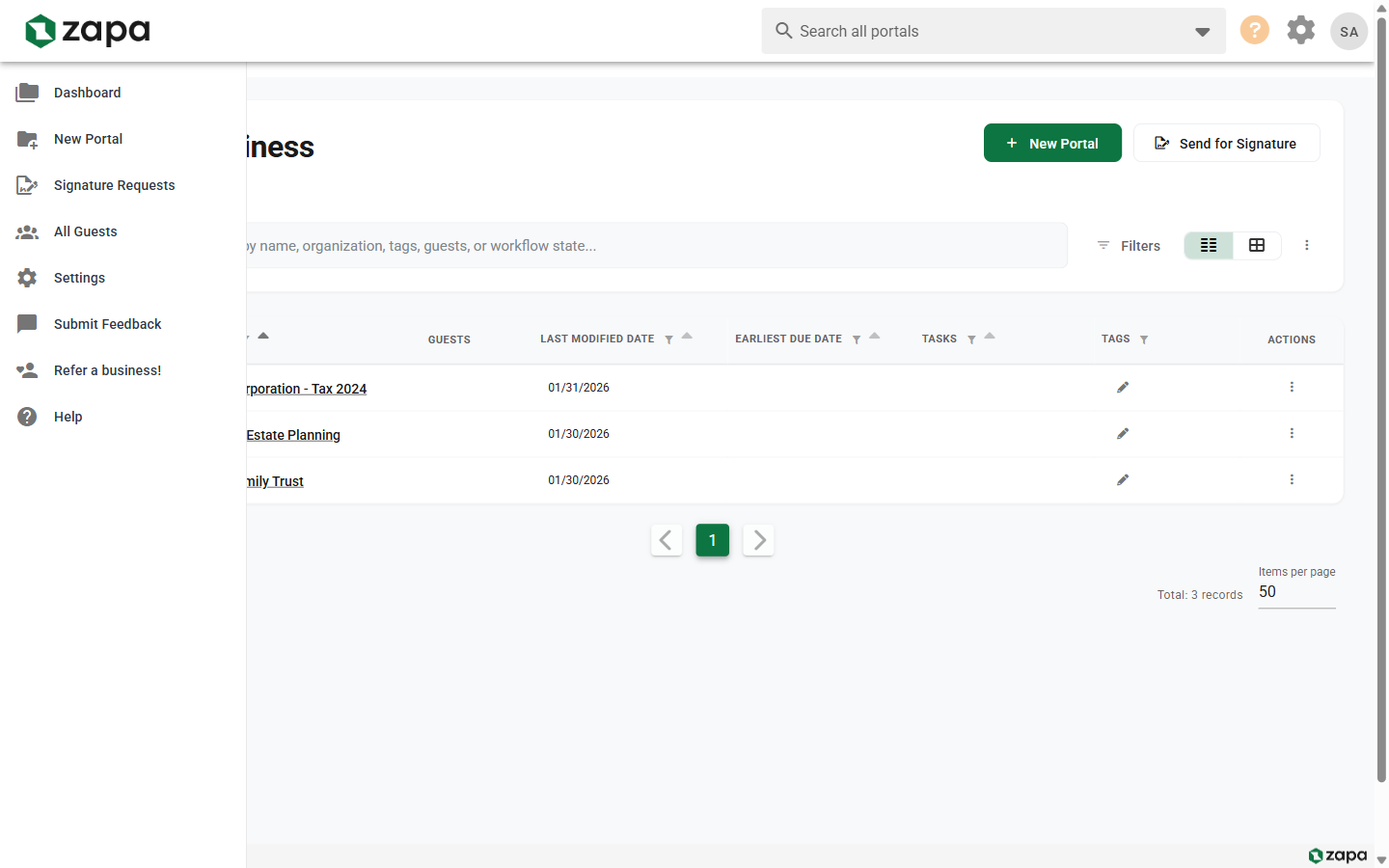
Main Navigation Areas
Top Navigation Bar
The top bar appears on all pages and contains:
- Organization Logo - Click to return to the main dashboard
- Page Title - Current page or portal name
- Navigation Links - Access to main sections
- Profile Menu - Account settings and sign out
Sidebar Navigation
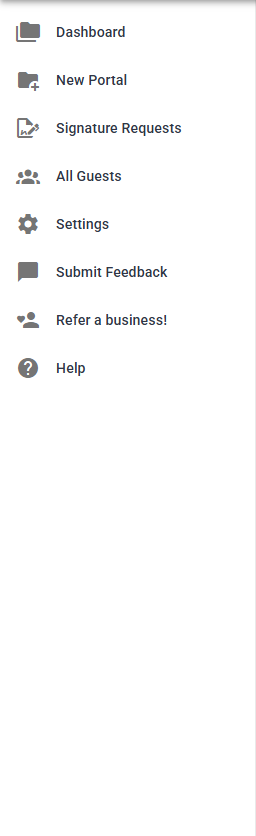
On desktop, the sidebar provides quick access to:
| Section | Description |
|---|---|
| Portals | All Portals dashboard |
| By Guest | Portals organized by guest |
| Signatures | Signature request tracking |
| Dashboard | Reports and analytics (Large Firm+) |
| Settings | Organization settings (Admin) |
The sidebar collapses on mobile devices to save space.
Profile Menu
Click your name or avatar in the top-right corner:
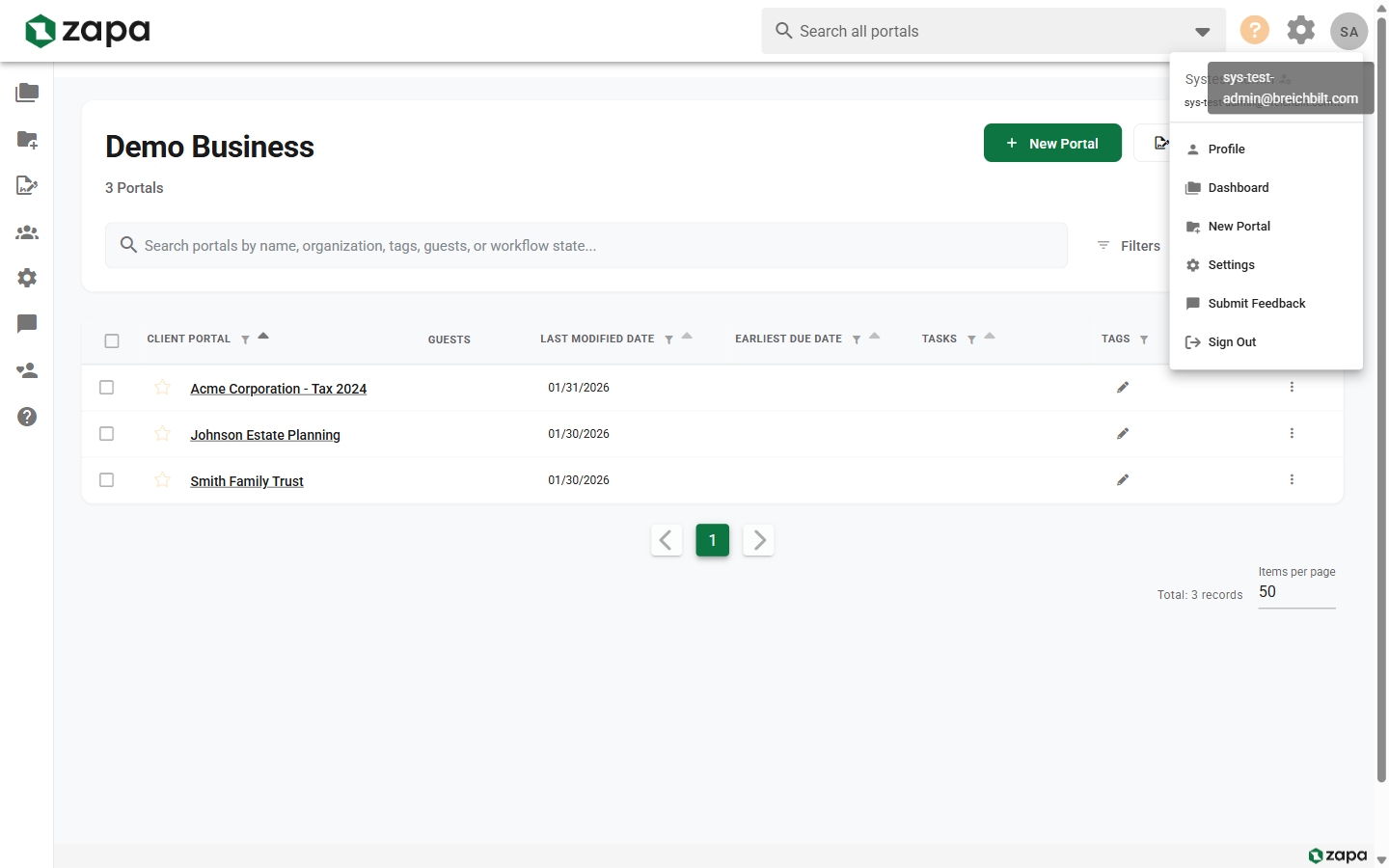
- Profile - Personal account settings
- Settings - Organization settings (if admin)
- Support - Access help resources
- Sign Out - End your session
Main Pages
Portals Dashboard (/vaults)
Your home base after signing in:
- View all client portals
- Create new portals
- Send documents for signature
- Search and filter portals
See All Portals View for details.
Portals by Guest (/guests)
Alternative view showing portals organized by guest:
- Expand each guest to see their portals
- Quickly find all work for a specific client
- Manage guest relationships
Individual Portal (/org/.../vault/.../folder/...)
Inside a portal, you have access to:
- Files - Upload, download, manage documents
- Tasks - Create and track task items
- Members - Manage guest access
- Activity - View portal history
- Settings - Portal-specific settings
Portal navigation tabs appear at the top of the content area.
Signatures (/signatures)
Track all signature requests:
- View pending and completed requests
- Resend or cancel requests
- Download signed documents
Settings (/settings)
Organization configuration (admin access):
Multiple tabs for different settings areas - see Settings Overview for details.
Profile (/profile)
Personal account settings:
- Display name
- Password changes
- MFA configuration
Breadcrumb Navigation
When inside a portal or deep in folders:
- Breadcrumbs show your current location
- Click any level to navigate back
- Portal name links to the portal root
Example: Portals > Smith Tax Return > 2024 Documents > W-2s
Keyboard Shortcuts
Speed up navigation with keyboard shortcuts:
| Shortcut | Action |
|---|---|
/ | Focus search bar |
n | New portal (on dashboard) |
Esc | Close dialogs/modals |
Mobile Navigation
On mobile devices:
Hamburger Menu
Tap the menu icon (three lines) to open navigation:
- Access all main sections
- Sign out option
- Profile access
Bottom Navigation
Some views include bottom navigation for common actions:
- Quick access to portal sections
- Floating action button for primary action
Gestures
- Swipe to navigate between sections
- Pull down to refresh content
- Swipe portal cards for quick actions
Quick Access Features
Global Search
From anywhere in the app:
- Click the search icon or press
/ - Type to search across:
- Portals
- Files
- Guests
- Tags
- Click a result to navigate directly
Recent Portals
Quick access to recently viewed portals:
- Appears in the sidebar or profile menu
- Shows last 5-10 visited portals
- Click to open immediately
Favorites
Star portals for quick access:
- Favorites appear at top of portal list
- Filter to show only favorites
- Quick access from any page
URL Structure
Understanding URLs helps with navigation:
| Pattern | Page |
|---|---|
/vaults | All Portals dashboard |
/guests | Portals by Guest view |
/signatures | Signature tracking |
/settings | Settings (default tab) |
/settings?step=2 | Settings (specific tab) |
/profile | User profile |
/org/{id}/vault/{id}/folder/{id} | Specific portal folder |
You can bookmark frequently used pages or share links to specific portals.
Navigation for Different Roles
Admins
Full access to all navigation:
- All portals in organization
- Settings and configuration
- User management
- Billing
Members
Access based on permissions:
- Assigned portals only (or all, if permitted)
- Limited settings access
- No billing access
Guests
Simplified navigation:
- Only "My Portals" view
- Individual portal access
- Profile settings only
- No organization settings
Troubleshooting Navigation
Page Not Loading
- Check internet connection
- Refresh the page
- Clear browser cache
- Try signing out and back in
Access Denied
- Verify you have permission for that page
- Contact your admin for access
- Check if the resource still exists
Broken Links
- Portal may have been deleted
- File may have been removed
- Try navigating from the main dashboard
Related Topics
- All Portals View - Main dashboard
- Profile Settings - Account settings
- Settings Overview - Admin settings