Security Settings
Configure organization-wide security settings to protect your data and meet compliance requirements.
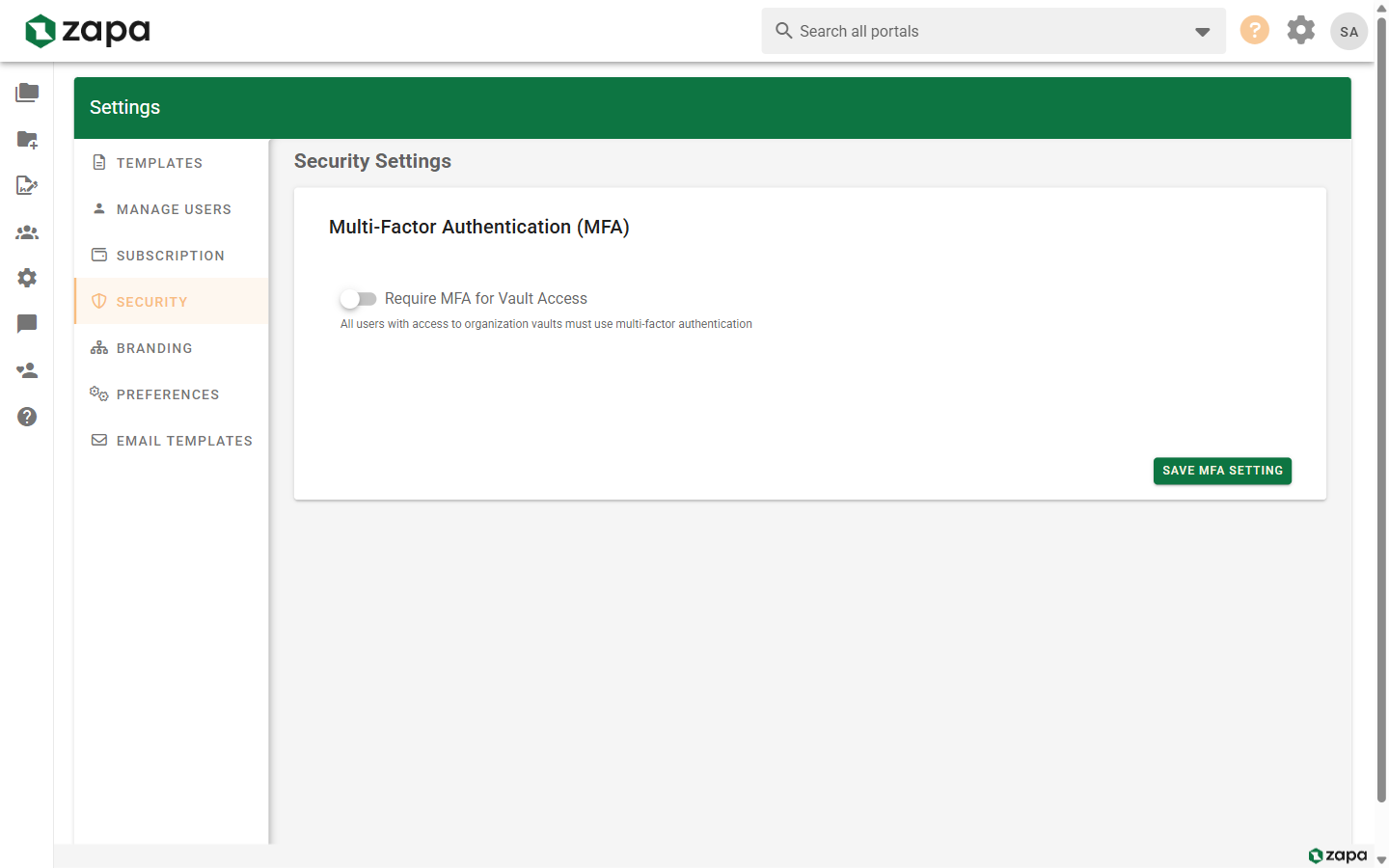
Accessing Security Settings
- Go to Settings
- Click the Security tab
Only admins can access security settings.
Multi-Factor Authentication (MFA)
MFA Enforcement
Organization-wide MFA enforcement is available on Large Firm and Enterprise plans.
Require all users to enable MFA:
- Find MFA Requirements
- Toggle Require MFA for all users
- Set grace period (days for users to comply)
- Save
When enabled:
- Existing users see MFA setup prompts
- Grace period countdown begins
- After grace period, MFA is required to access portals
- New users must set up MFA immediately
Grace Period
The grace period gives users time to set up MFA:
- Default: 7 days
- Configurable: 1-30 days
- Users see countdown on dashboard
- After expiration, portal access requires MFA
MFA for Guests
Control whether guests need MFA:
- Optional - Guests can choose
- Required - Guests must have MFA
- Required for portal access - MFA checked when accessing specific portals
Portal Security
Private Portals
Private portals are available on Large Firm and Enterprise plans.
Enable private portal capability:
- In Security settings, find Private Portals
- Enable the feature
- Portals can now be marked as private
Private portals:
- Hidden from most organization members
- Only visible to specifically assigned members
- Ideal for sensitive matters
See Portal Permissions for details.
Hide Guest Permissions
Available on Large Firm and Enterprise plans.
Control permission visibility for guests:
- Find Permission Display
- Toggle Hide permissions from guests
- Save
When enabled, guests don't see what permissions they have, creating a cleaner interface.
Terms and Conditions
Require acceptance of terms:
- Find Terms & Conditions
- Toggle Require terms acceptance
- Add your terms text
- Save
Users must accept terms:
- Before accessing portals
- Terms display on first visit
- Acceptance is logged
Customizing Terms
Enter your terms text in the editor:
- Use plain text or basic formatting
- Include relevant legal language
- Update as needed
Users see updated terms on next visit if changed.
Session Security
Session Timeout
Configure how long sessions remain active:
- Find Session Settings
- Set timeout duration
- Save
Options:
- 1 hour
- 4 hours
- 8 hours
- 24 hours
- 7 days
Shorter timeouts are more secure but less convenient.
Remember Device
Control "Remember this device" functionality:
- Enabled - Users can skip MFA on trusted devices
- Disabled - MFA required every sign-in
Audit Logging
Vault Access Logs
Track who accesses portals:
| Tier | Logging Level |
|---|---|
| Professional | Basic (recent activity) |
| Large Firm | Standard (30 days) |
| Enterprise | Extended (1 year+) |
What's Logged
Audit logs capture:
- User identity
- Action performed
- Timestamp
- IP address (optional)
- File/portal affected
Viewing Audit Logs
Audit log viewing in the UI is available on Large Firm and Enterprise plans.
- Open a portal
- Click Activity or Audit
- View chronological activity
Or for organization-wide:
- Go to Settings
- Find Audit Logs
- Filter and search logs
Single Sign-On (SSO)
SSO is available on Enterprise plans.
Connect to your identity provider:
Supported Providers
- SAML 2.0
- Azure AD
- Okta
- Google Workspace
- OneLogin
SSO Configuration
- Contact support to enable SSO
- Provide your IdP metadata
- Configure user provisioning
- Test the connection
- Enable for users
SSO Benefits
- Centralized user management
- Single password for users
- Automatic provisioning/deprovisioning
- Enhanced security
Compliance
HIPAA Support
HIPAA support is available on Enterprise plans with BAA.
For healthcare organizations:
- Business Associate Agreement (BAA) available
- HIPAA-compliant storage and transmission
- Audit logging for compliance
- Additional security controls
SOC 2
SOC 2 compliance support is available on Enterprise plans.
Zapa maintains SOC 2 Type II certification:
- Annual audits
- Security controls documented
- Compliance reports available
Contact sales for compliance documentation.
Security Best Practices
For Administrators
- Enable MFA enforcement
- Use short session timeouts
- Review audit logs regularly
- Limit admin access
- Keep user list current
For Users
- Use strong, unique passwords
- Enable MFA
- Don't share accounts
- Sign out on shared devices
- Report suspicious activity
Troubleshooting
MFA Not Working for Users
- Check MFA is set up correctly
- Verify device time synchronization
- Have user reconfigure MFA if needed
- Use backup codes if available
Users Locked Out
- Admin can reset MFA
- Send password reset
- Check account isn't disabled
Audit Logs Missing Data
- Verify logging is enabled
- Check retention period
- Contact support for older logs
Related Topics
- MFA Setup - User MFA configuration
- Portal Permissions - Access control
- Team Management - User administration