Task Management
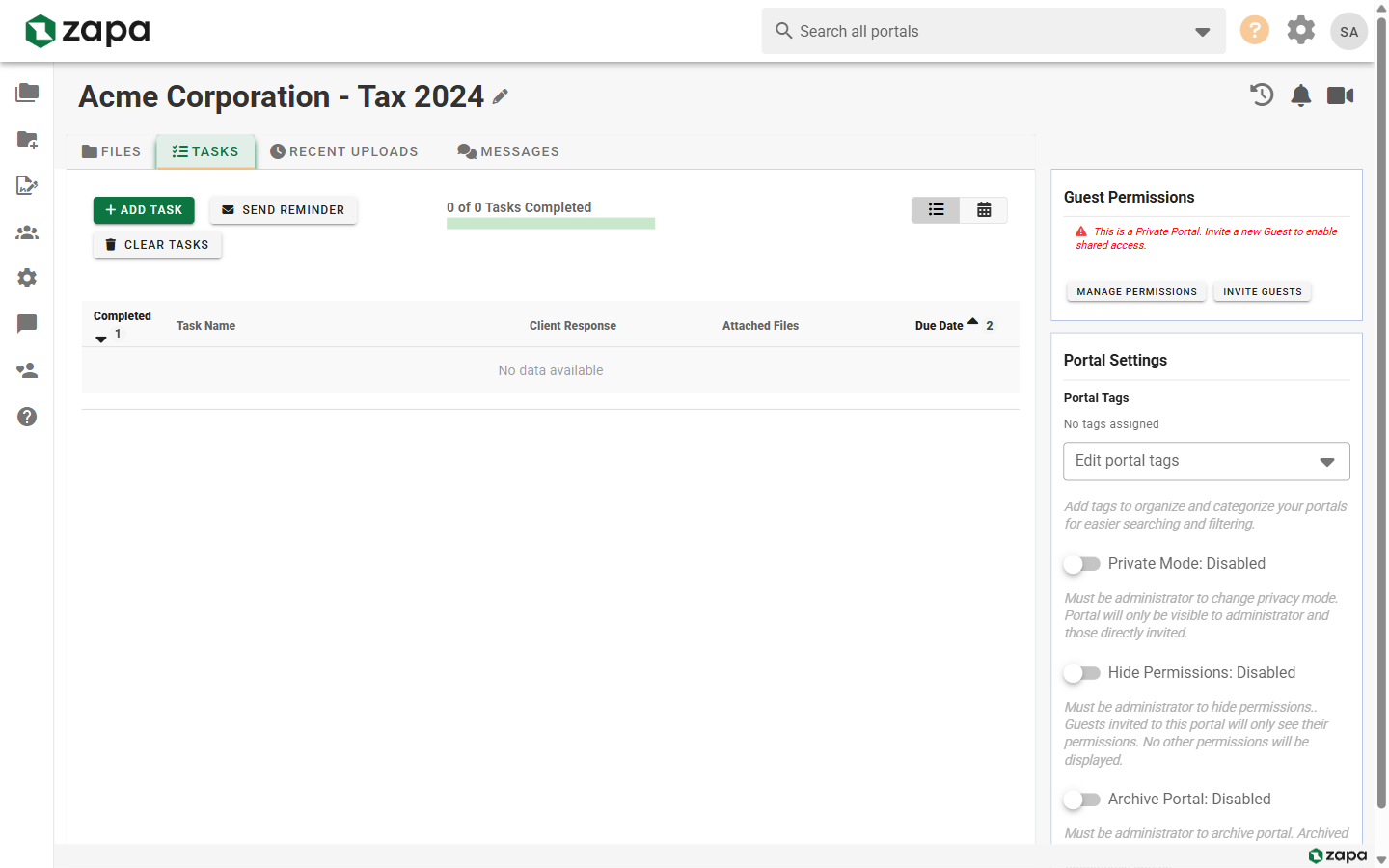
Tasks help you track work items, request files from clients, and manage deadlines within portals.
Overview
Tasks in Zapa Client Portals can be used to:
- Request documents from clients
- Track internal action items
- Set due dates and reminders
- Assign work to team members or guests
- Attach files to tasks
Creating Tasks
Adding a New Task
- Open a portal
- Navigate to the Tasks tab
- Click New Task or Add Task
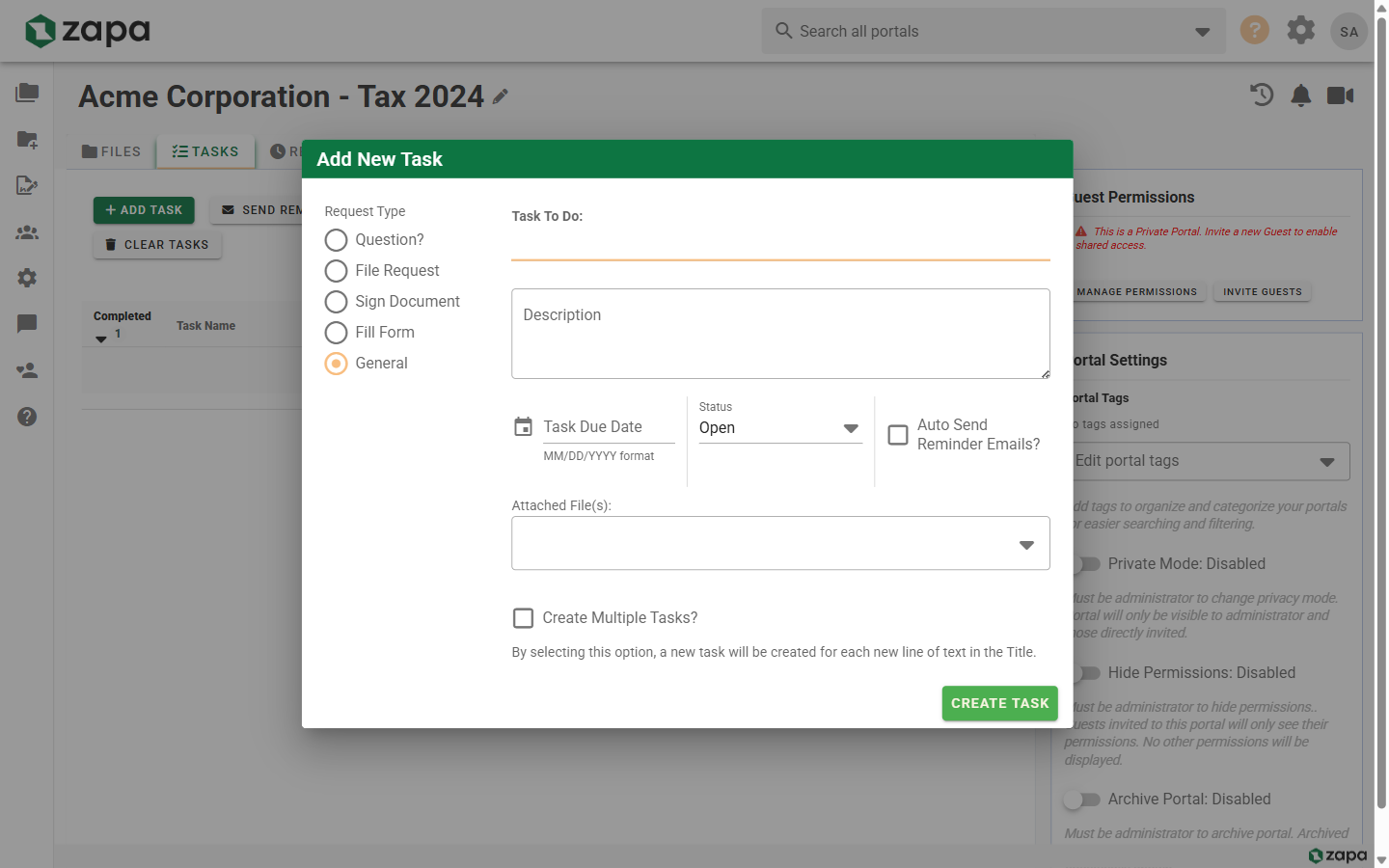
- Enter the task details:
- Task title
- Description (optional)
- Due date (optional)
- Assignee (optional)
- Click Create
Quick Task Creation
From the tasks list:
- Click the quick-add field
- Type a task title
- Press Enter to create
Add details later by editing the task.
Task Properties
Title
Clear, descriptive task name:
- "Upload 2024 tax documents"
- "Review and sign contract"
- "Provide bank statements"
Description
Additional details and instructions:
- Specific requirements
- File format requests
- Reference information
Due Date
Set deadlines:
- Click the due date field
- Select a date from the calendar
- Optionally set a specific time
Due dates trigger:
- Visual indicators as deadline approaches
- Reminder notifications
- Overdue highlighting
Assignee
Assign tasks to:
- Team members
- Guests in the portal
- Leave unassigned for general tasks
Managing Tasks
Viewing Tasks
See all tasks in a portal:
- Open the portal
- Click the Tasks tab
- View tasks in list format
Task Status
Tasks have two states:
- Open - Not yet completed
- Complete - Marked as done
Completing Tasks
- Click the checkbox next to a task
- Or open the task and click Mark Complete
- Completed tasks move to the "Done" section
Reopening Tasks
If a task was marked complete prematurely:
- Find the task in completed items
- Uncheck the checkbox
- Task returns to open status
Editing Tasks
- Click on a task to open it
- Edit any field:
- Title
- Description
- Due date
- Assignee
- Changes save automatically
Deleting Tasks
- Open the task
- Click Delete or the trash icon
- Confirm deletion
Task Comments
Discuss tasks with collaborators:
Adding Comments
- Open a task
- Scroll to the comments section
- Type your comment
- Click Add Comment or press Enter
Attaching Files
Attach files to task comments:
- In the comment area, click Attach File
- Select a file from your computer or the portal
- The file links to the comment
Useful for:
- Providing completed documents
- Sharing reference materials
- Uploading requested files
Task Reminders
Automatic Reminders
Task reminders are sent automatically:
- Before due date (configurable)
- On due date
- When overdue (optional)
Sending Manual Reminders
- Open a task
- Click Send Reminder
- A notification is sent to the assignee
Configuring Reminders
Organization admins can configure:
- Reminder timing (days before due)
- Reminder frequency
- Enable/disable overdue reminders
Using Tasks for File Requests
A common workflow for collecting client documents:
Creating a File Request
- Create a task like "Please upload W-2 forms"
- Assign to the guest who should upload
- Set a due date
- Add instructions in the description
Tracking Submissions
When the client uploads:
- They can drop the file onto the File Request task — the file is attached and the task is marked complete automatically
- Or upload directly to the portal, in which case you mark the task complete yourself
Files a team member attaches to a File Request are linked to the task but leave it open.
Best Practices
- Create one task per document type
- Use clear, specific names
- Set reasonable due dates
- Include format requirements
Task Notifications
Email Notifications
Recipients receive emails for:
- New task assignments
- Due date reminders
- Task comments and updates
Notification Settings
Control notifications in profile settings:
- Enable/disable task emails
- Set reminder preferences
Filtering and Sorting
On the tasks tab:
Filters
- All Tasks - Everything
- My Tasks - Assigned to you
- Open - Not yet complete
- Completed - Done tasks
- Overdue - Past due date
Sorting
- Due date (soonest first)
- Created date
- Assignee
- Alphabetical
Task Reports
Advanced task reporting is available on Large Firm and Enterprise plans.
View task metrics:
- Completion rates
- Average completion time
- Overdue task trends
- Tasks by assignee
Related Topics
- Managing Files - File uploads and organization
- Inviting Guests - Adding clients to portals
- File Comments - Commenting on files