Video Chat
Large Firm & Enterprise
Video chat is available on Large Firm and Enterprise plans.
Zapa Client Portals includes built-in video chat, allowing you to meet with clients directly within a portal without needing external meeting tools.
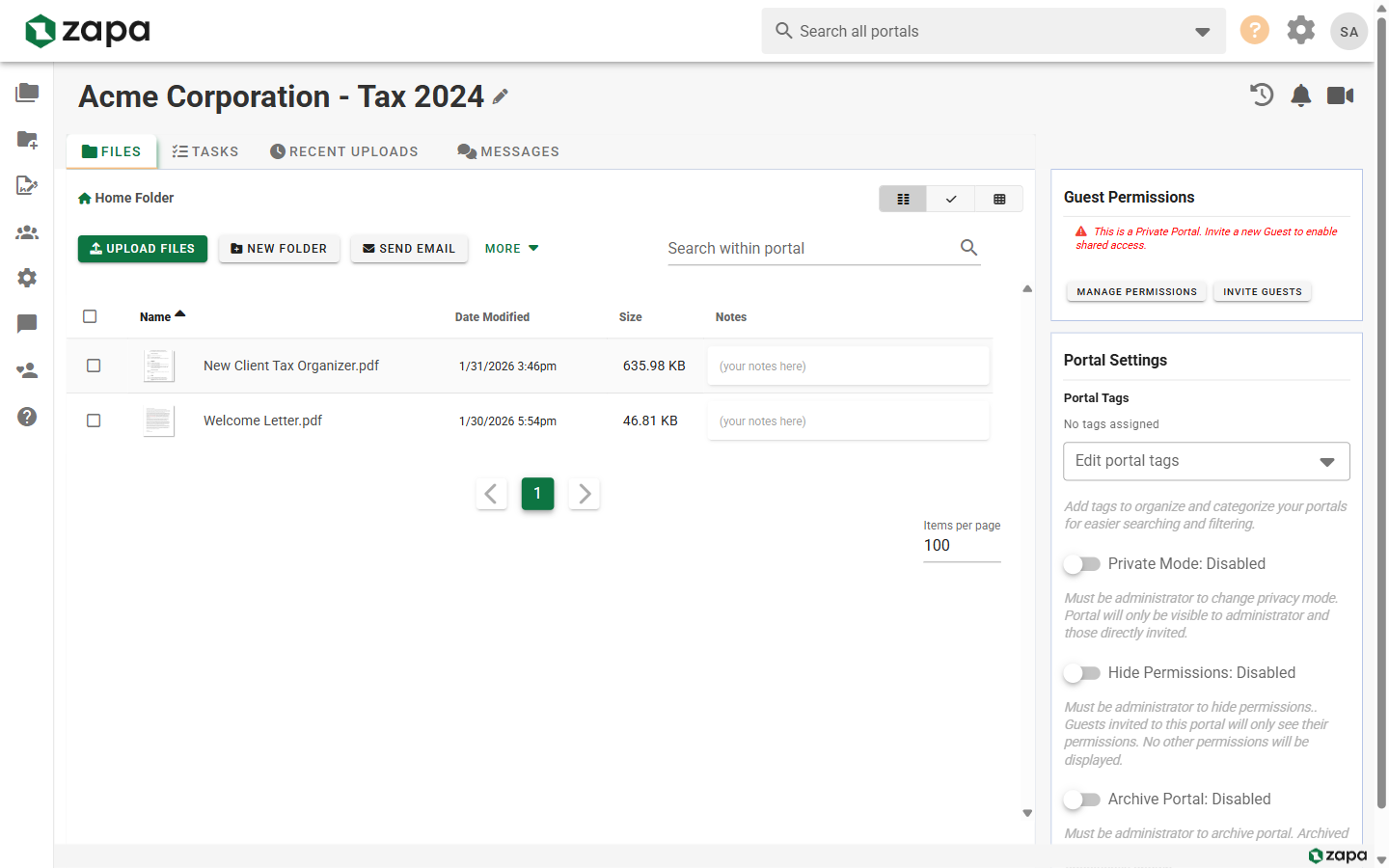
Starting a Video Call
From a Portal
- Open the portal where you want to meet
- Hover over the Video Chat button to see the tooltip
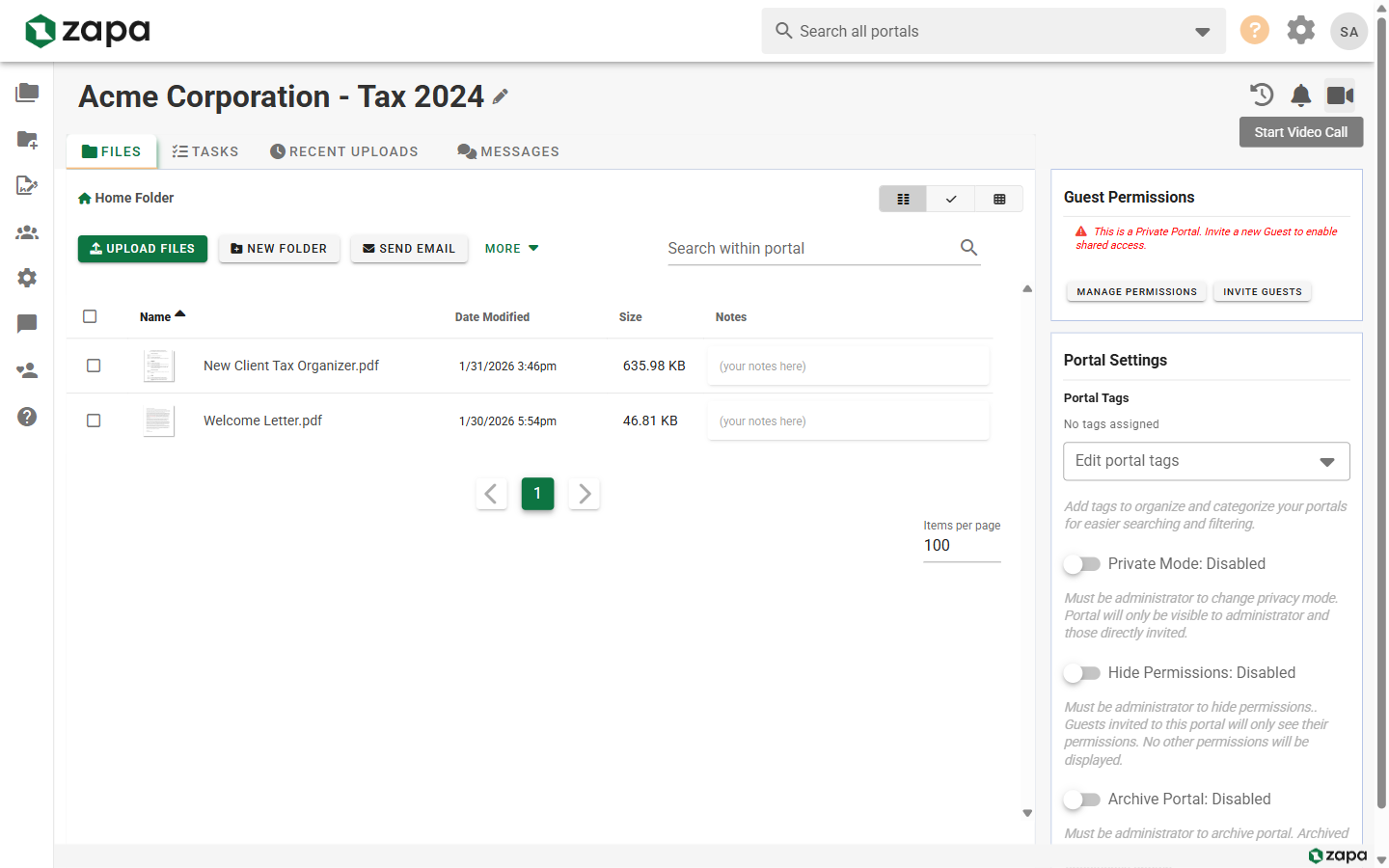
- Click the Video Chat button in the toolbar
- Allow camera and microphone access when prompted
- Wait for the other participant to join
Inviting Participants
When you start a call:
- Other users viewing the portal see a "Join Call" button
- You can notify participants they should join
- The call stays active until everyone leaves
Video Chat Interface
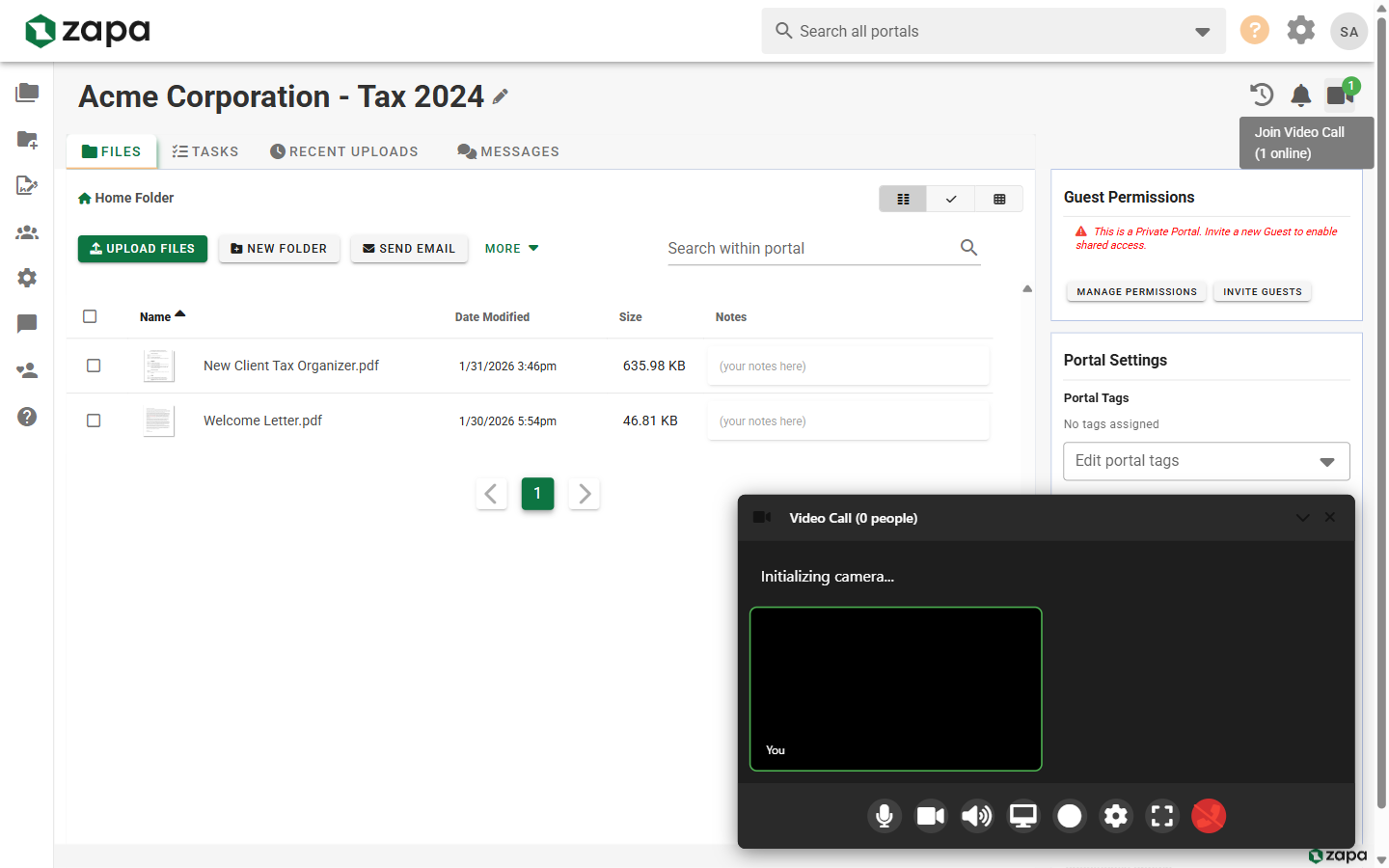
When you start a video call, the video chat interface appears:
Controls
The video interface includes:
- Camera toggle - Turn video on/off
- Microphone toggle - Mute/unmute audio
- Screen share - Share your screen
- End call - Leave the meeting
Video Views
- Gallery view - See all participants equally
- Speaker view - Active speaker is larger
- Minimize - Collapse video to small overlay
Audio Settings
Adjust audio during the call:
- Select microphone source
- Select speaker/output
- Adjust volume levels
Screen Sharing
Share your screen during calls:
- Click the Share Screen button
- Choose what to share:
- Entire screen
- Application window
- Browser tab
- Click Share
- Click Stop Sharing when done
Screen sharing is useful for:
- Reviewing documents together
- Walking through the portal
- Demonstrating features
- Collaborative work
Meeting Within Portal Context
Video chat in Zapa is designed for portal-specific meetings:
View Files Together
While on a call:
- Navigate the portal normally
- Open and view files
- Both participants see their own view
- Use screen share to show specific content
Document Review
- Start a video call
- Open the document to discuss
- Screen share if needed
- Discuss in real-time
Presence Indicators
See who's active in a portal:
- Online - Currently viewing the portal
- In Call - Participating in video chat
- Idle - Recently active
Presence helps you know when to start a call.
Technical Requirements
Browser Support
Video chat works in:
- Chrome (recommended)
- Firefox
- Safari
- Edge
Permissions Required
- Camera access (for video)
- Microphone access (for audio)
- Screen sharing permission (for sharing)
Network Requirements
For best quality:
- Stable internet connection
- Minimum 1 Mbps upload/download
- Lower latency is better
Troubleshooting
Camera Not Working
- Check browser permissions for camera
- Ensure camera isn't used by another app
- Try selecting a different camera source
- Refresh the page
Audio Issues
Can't hear others:
- Check speaker/headphone volume
- Verify correct output device selected
- Check browser isn't muted
Others can't hear you:
- Check microphone isn't muted
- Verify microphone permissions
- Select correct microphone source
- Check system microphone settings
Connection Problems
- Refresh the page and rejoin
- Check internet connection
- Disable VPN if using one
- Try a different browser
Screen Share Not Available
- Use a supported browser
- Grant screen share permissions
- Some browsers limit screen share options
Best Practices
Before the Call
- Test your camera and microphone
- Find a quiet location
- Ensure good lighting
- Close unnecessary applications
During the Call
- Mute when not speaking (reduces echo)
- Look at the camera when speaking
- Share relevant documents via screen share
- Keep the call focused
For Client Meetings
- Schedule calls in advance
- Share portal link beforehand
- Have documents ready to discuss
- Record key takeaways after
Privacy and Security
Video calls in Zapa are:
- Encrypted end-to-end
- Contained within the portal
- Not recorded by default
- Accessible only to portal members
Related Topics
- Creating Portals - Set up portals for clients
- Managing Files - Documents to discuss
- File Comments - Asynchronous collaboration