Sending for Signature
Zapa Client Portals includes built-in electronic signatures, allowing you to send documents for signing directly from the platform.
Overview
The signature workflow:
- Select or upload a PDF
- Detect or place signature fields
- Assign fields to recipients
- Send the request
- Track progress and receive signed document
Starting a Signature Request
From the Dashboard
- Click Send for Signature in the top toolbar
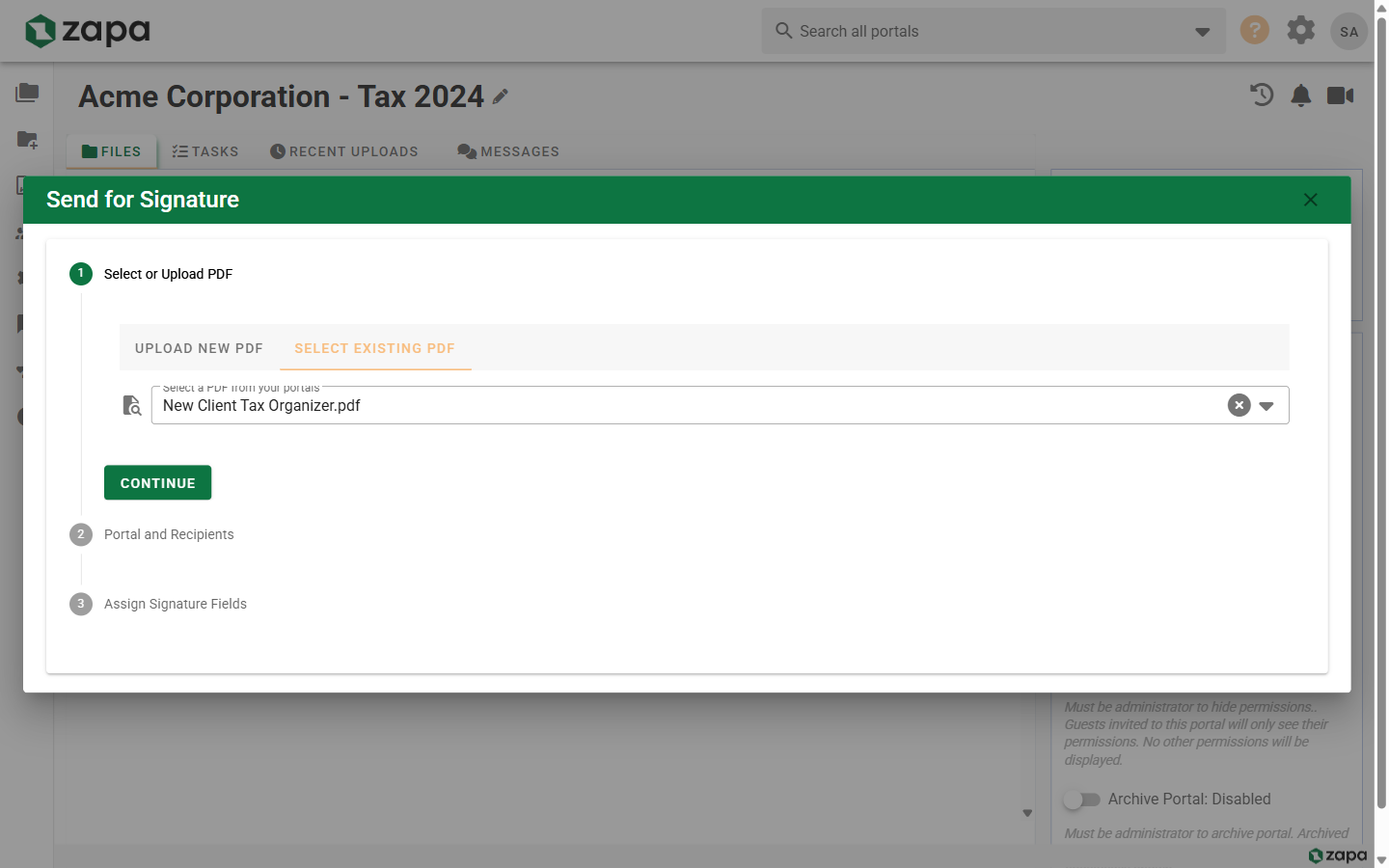
- Upload a PDF or select one from your portals
- Configure recipients and fields
From a Portal
- Open a portal with the PDF
- Right-click the file or click the action menu
- Select Send for Signature
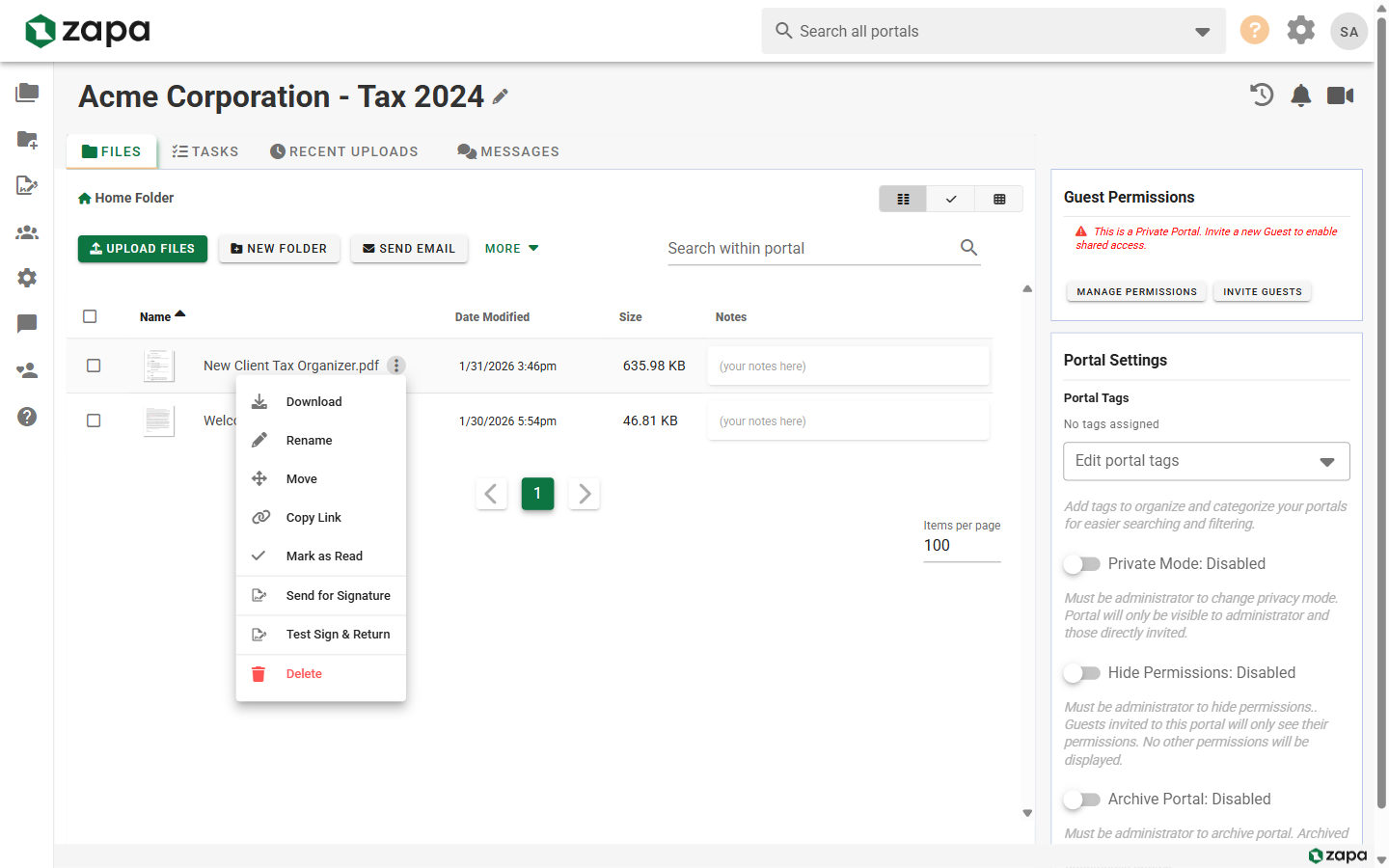
- The file is pre-selected in the signature workbench
From File Preview
- Click a PDF to preview it
- Click the Send for Signature button
- Continue with recipient configuration
Selecting the Document
Upload New PDF
- Click the upload area or drag a PDF
- Only PDF files are accepted
- Wait for the upload to complete
Select Existing PDF
- Click the Select Existing PDF tab
- Search or browse your portals
- Click to select the file
Automatic Field Detection
Zapa automatically detects form fields in PDFs:
- Signature fields - Places for signatures
- Initial fields - Initial boxes
- Date fields - Date entry areas
- Text fields - Form text inputs
After detection:
- Review the detected fields
- Remove any incorrectly detected fields
- Add additional fields manually if needed
Manual Field Placement
For PDFs without form fields:
Adding Signature Fields
- Click Add Signature Field
- Click on the PDF where the signature should go
- Resize the field if needed
- Repeat for additional signatures
Adding Other Fields
Available field types:
- Signature - Full signature
- Initials - Initial boxes
- Date - Auto-filled signing date
- Text - Custom text entry
- Checkbox - Check boxes
Assigning Recipients
Adding Recipients
Each signature request can have multiple recipients:
- Click Add Recipient
- Enter recipient email address
- Enter recipient name
- Repeat for additional recipients
Assigning Fields to Recipients
Each field must be assigned to a recipient:
- Click on a field
- Select the recipient from the dropdown
- The field color matches the recipient
Signing Order
Configure whether recipients sign:
- In parallel - Any order, all receive request immediately
- In sequence - Specific order, each waits for previous
Review and Send
Before sending:
- Review all field placements
- Verify recipient assignments
- Add an optional message
- Click Send for Signature
Recipients receive email notifications with signing links.
Bulk Signature Requests
Send the same document to multiple portals:
- On the dashboard, select multiple portals (checkboxes)
- Click Send for Signature
- Upload or select your PDF
- Configure fields
- The document is sent to guests in each selected portal
Email Notifications
Recipients receive:
- Signature request - Link to sign
- Reminders - If not yet signed
- Completion - When all signatures complete
Senders receive:
- Completion notifications - When fully signed
- Status updates - Optional progress updates
Best Practices
Document Preparation
- Use clear, high-quality PDFs
- Place signature lines in the original document
- Include printed name lines near signatures
- Add date fields next to signatures
Field Placement
- Make signature fields large enough
- Position near signature lines
- Use initials for multi-page documents
- Add date fields for verification
Recipient Management
- Verify email addresses before sending
- Use clear recipient names
- Consider signing order carefully
- Limit recipients to necessary parties
Troubleshooting
Fields Not Detected
- PDF may not have form fields
- Try manual field placement
- Ensure PDF isn't image-only (scanned)
Recipient Not Receiving Email
- Check spam/junk folder
- Verify email address
- Resend the request from tracking
- Contact support if persists
Upload Failing
- Ensure file is PDF format
- Check file size limits
- Try a different browser
- Contact support for large files
Related Topics
- Signing Documents - How recipients sign
- Tracking Signatures - Monitor request status
- Managing Files - File management