Signing Documents
This guide covers how recipients sign documents using Zapa Client Portals' integrated PDF signing experience.
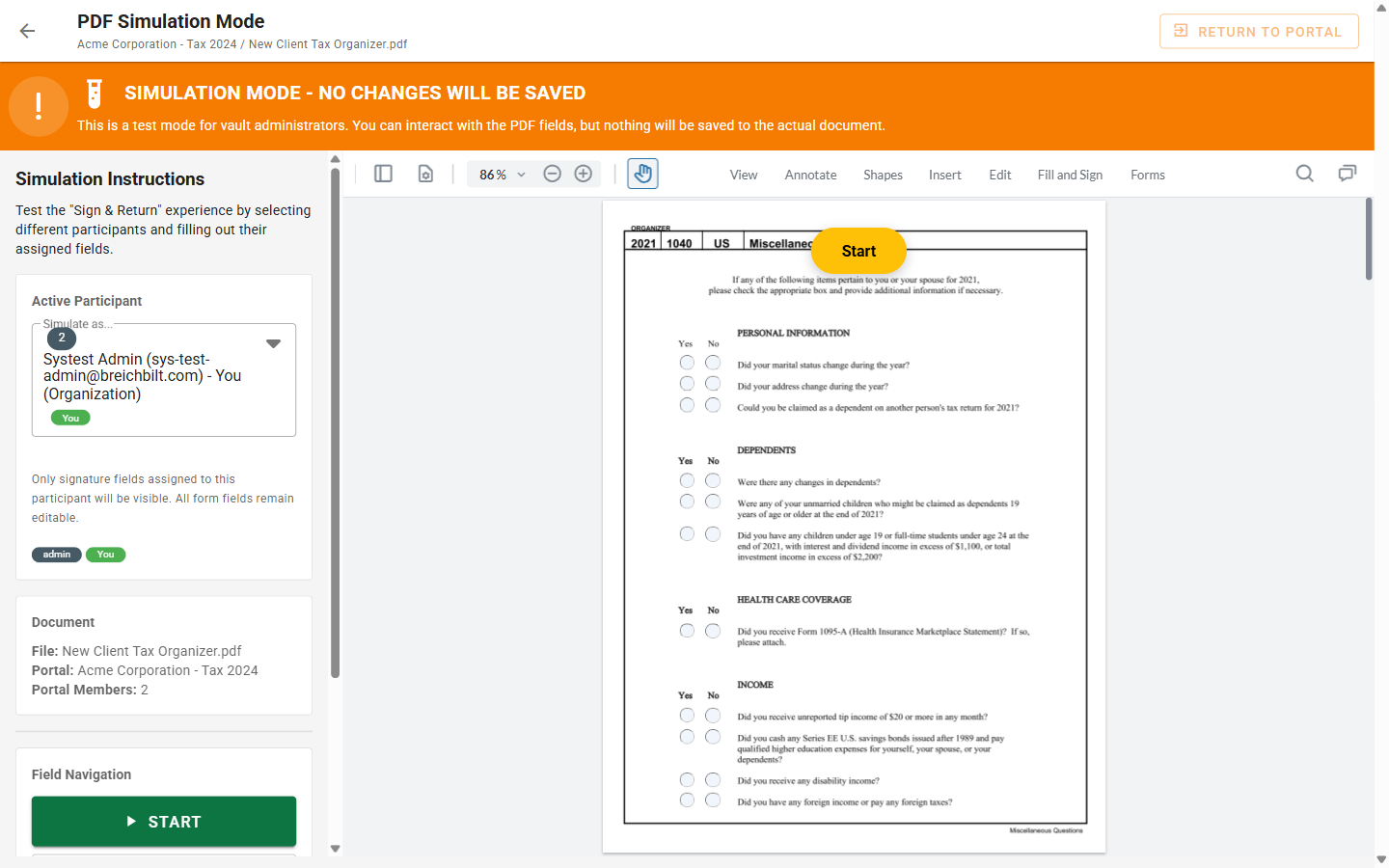
Receiving a Signature Request
When you're requested to sign a document, you'll receive:
- Email Notification - A message with a link to sign
- Portal Notification - If you have portal access, you'll see the request in your portal
Email Notification
The signature request email includes:
- Document name and description
- Sender information
- Secure link to sign the document
- Expiration date (if set)
Click the link in the email to open the signing workbench directly.
The PDF Signing Experience
Opening the Document
When you access a signature request:
- The document loads in the PDF viewer
- Signature fields are highlighted in yellow
- A progress indicator shows required fields
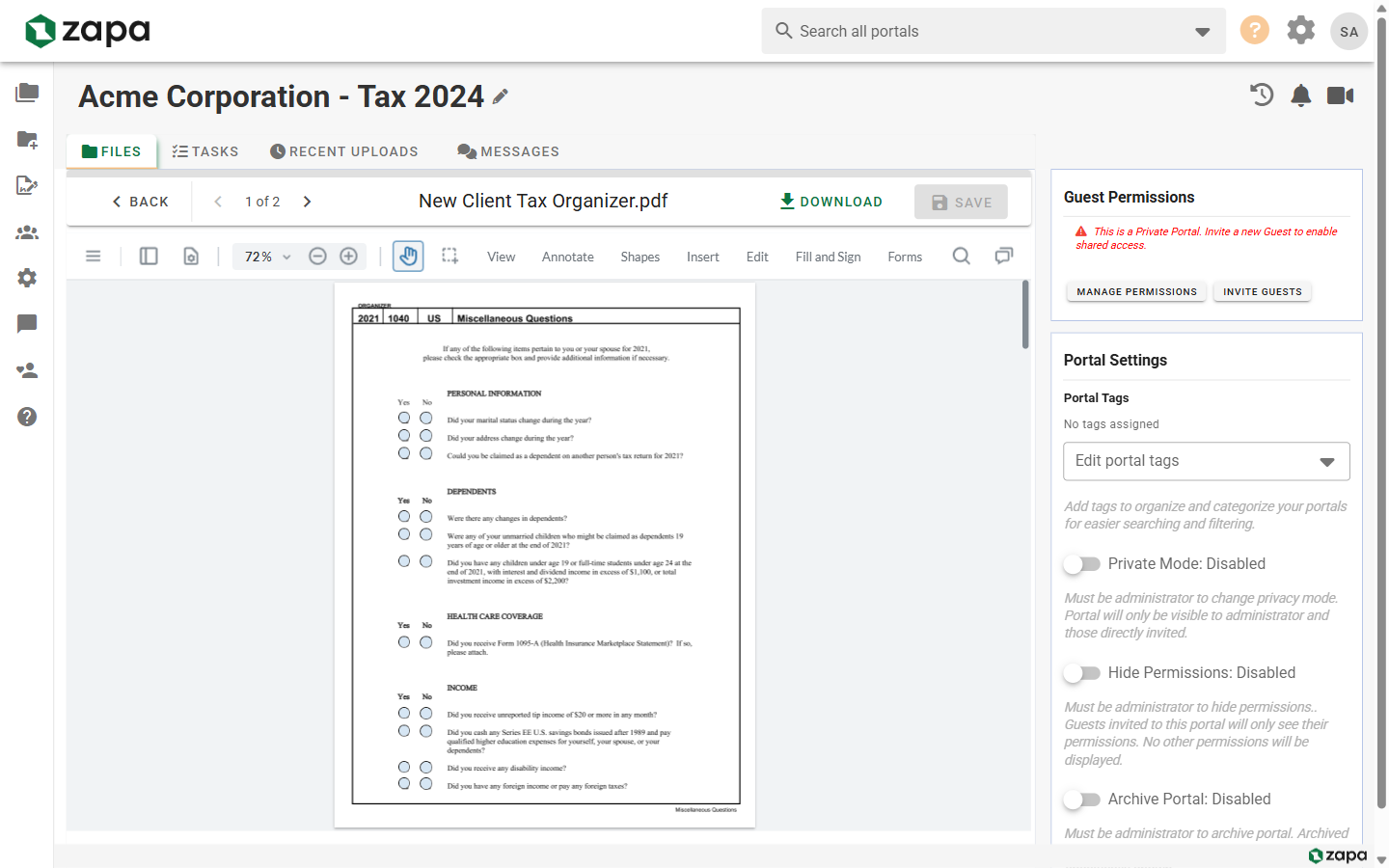
Navigating Signature Fields
The signing interface guides you through each required field:
| Element | Description |
|---|---|
| Yellow Fields | Fields requiring your input |
| Navigation Arrow | Points to the next required field |
| Progress Bar | Shows completion status |
| Field Counter | "X of Y fields completed" |
Types of Signature Fields
Documents may include various field types:
Signature Field
- Click to open the signature pad
- Draw your signature with mouse or finger
- Or type your name to auto-generate a signature
Initial Field
- For initialing individual pages or sections
- Smaller than a full signature
Date Field
- Automatically filled with current date
- Or manually selectable date
Text Field
- For typed information (name, title, company)
- May have format validation
Checkbox
- For acknowledgment or agreement items
- Click to check/uncheck
Creating Your Signature
Drawing a Signature
- Click on the signature field
- A signature pad opens
- Use your mouse, trackpad, or touch screen to draw
- Click Clear to try again
- Click Apply when satisfied
Typing a Signature
- Click on the signature field
- Select the Type tab
- Enter your name
- Choose a font style
- Click Apply
Saving Your Signature
Pro Tip
Your signature can be saved for future documents. Check "Save signature for future use" when applying.
Completing the Signing Process
Review Before Submitting
Before final submission:
- All required fields must be completed
- Review the document for accuracy
- Scroll through all pages
Submitting Your Signature
- Complete all required fields
- Click Submit or Complete Signing
- Confirm your submission
- Receive confirmation email
What Happens Next
After you sign:
- The document is saved with your signature embedded
- The sender is notified
- Other recipients (if any) are prompted to sign
- You receive a confirmation email
- Once all parties sign, everyone gets a copy
Viewing Signed Documents
From the Portal
If you have portal access:
- Navigate to the portal
- Find the signed document
- Click to view or download
From Email
Your confirmation email includes:
- Link to view the signed document
- PDF attachment (if enabled by sender)
Troubleshooting
Signature Fields Not Appearing
- Refresh the page
- Try a different browser
- Clear browser cache
- Contact the sender
Unable to Draw Signature
- Ensure JavaScript is enabled
- Try a different input method (mouse vs touch)
- Use the "Type" option instead
Link Expired
Signature request links expire for security. Contact the sender to:
- Resend the signature request
- Extend the expiration date
Completed but Sender Didn't Receive
- Check your confirmation email
- The sender may need to check their spam folder
- Contact the sender to verify receipt
Mobile Signing
Signing on Phone or Tablet
- Open the signature request link on your mobile device
- The interface adapts to your screen size
- Use your finger to draw signatures
- Pinch to zoom if needed
- Swipe to navigate pages
Best Practices for Mobile
- Use landscape orientation for easier signing
- Ensure good network connection
- Complete signing in one session
Security Features
Document Integrity
All signed documents include:
- Cryptographic hash verification
- Timestamp of each signature
- Audit trail of the signing process
Signer Verification
Each signature is linked to:
- Your email address
- IP address (for audit)
- Timestamp
- Browser information
Related Topics
- Sending for Signature - How to request signatures
- Tracking Signatures - Monitor signature requests