Signing In
This guide covers how to sign in to Zapa Client Portals, including first-time setup and password recovery.
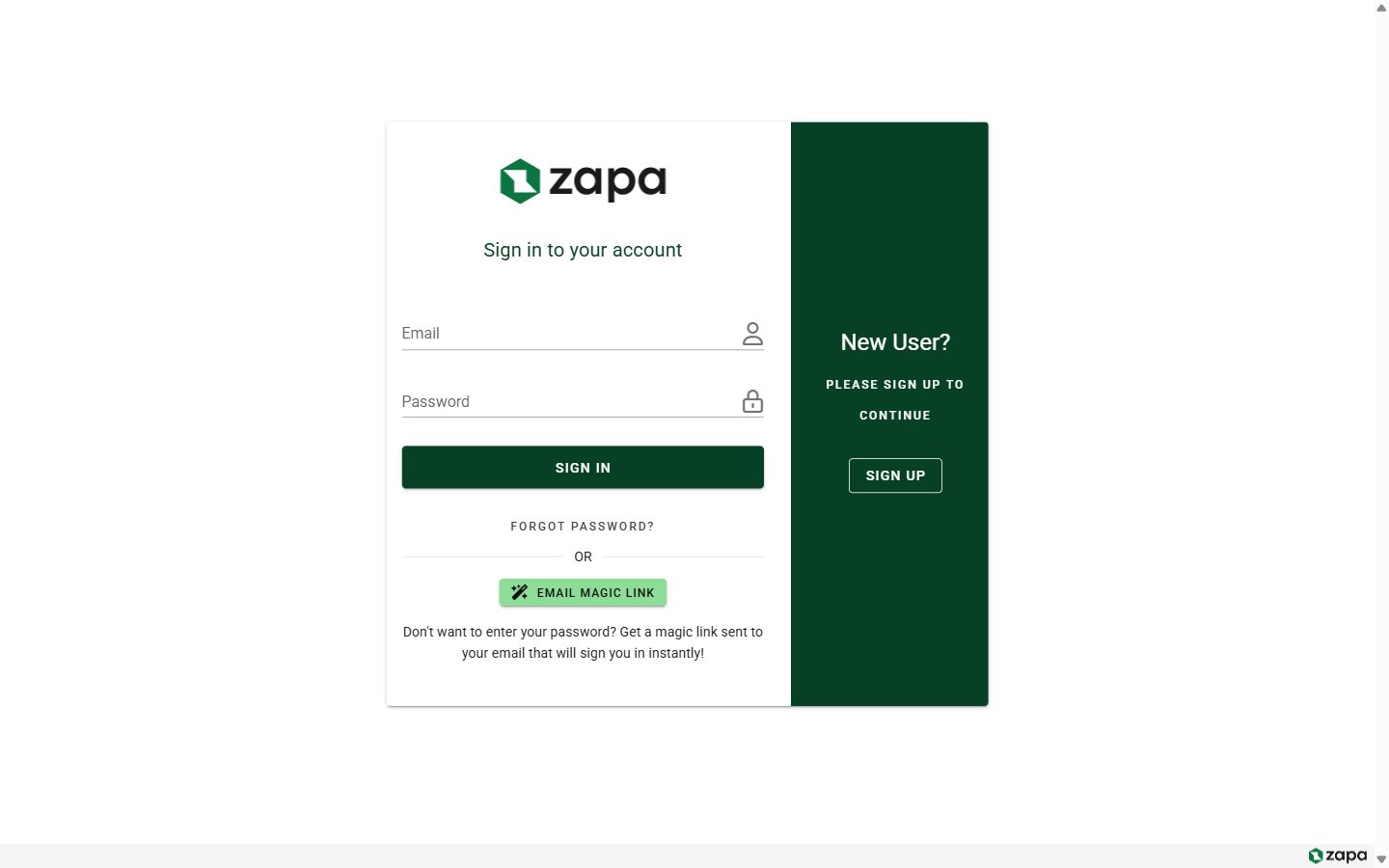
Sign In Methods
Zapa Client Portals offers multiple ways to access your account:
Email and Password
The most common sign-in method:
- Navigate to your organization's portal URL or the main Zapa sign-in page
- Enter your email address
- Enter your password
- Click Sign In
Magic Link
For passwordless sign-in:
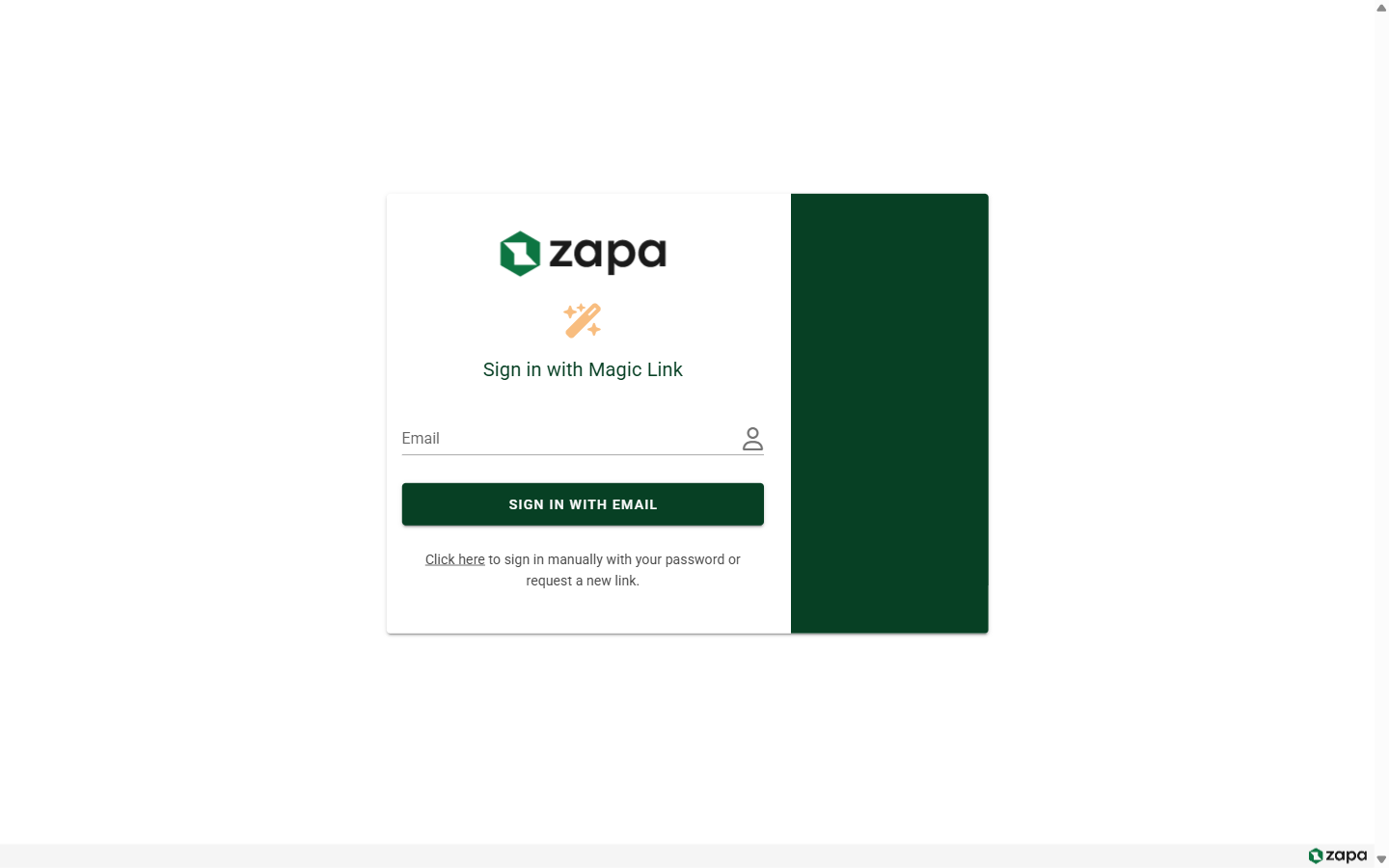
- On the sign-in page, click Sign in with Magic Link
- Enter your email address
- Check your email for the magic link
- Click the link to sign in automatically
Magic links expire after 15 minutes for security.
Custom Subdomain Access
Custom subdomain login is available on Large Firm and Enterprise plans.
If your organization has configured a custom subdomain (e.g., yourcompany.zapaclientportals.com), you can sign in directly through that URL. The page will display your organization's branding.
Multi-Factor Authentication (MFA)
If your account has MFA enabled, you'll need to complete an additional verification step:
- After entering your email and password, you'll see the MFA prompt
- Enter the 6-digit code from your authenticator app
- Click Verify to complete sign-in
For more information on setting up MFA, see MFA Setup.
First-Time Sign In
Invited as a Team Member
When you're invited to join an organization as a team member:
- Check your email for the invitation
- Click the invitation link
- Set your password
- Complete your profile information
- (Optional) Set up MFA if required by your organization
Invited as a Guest
When you're invited to access a specific portal as a guest:
- Check your email for the portal invitation
- Click the invitation link
- Create your account or sign in with an existing account
- Accept the portal invitation to access shared files
Password Recovery
If you've forgotten your password:
- On the sign-in page, click Forgot Password?
- Enter your email address
- Click Send Reset Link
- Check your email for the password reset link
- Click the link and enter your new password
- Sign in with your new password
Troubleshooting
"Account not found" Error
- Verify you're using the correct email address
- Check if you were invited to the correct organization
- Contact your organization admin if issues persist
Magic Link Not Received
- Check your spam/junk folder
- Verify the email address is correct
- Request a new magic link after 1 minute
- Contact support if the issue persists
MFA Code Not Working
- Ensure your device's time is synchronized correctly
- Use the latest code from your authenticator app
- If locked out, contact your organization admin
Related Topics
- MFA Setup - Configure multi-factor authentication
- Profile Settings - Update your account information