Profile Settings
Your profile contains your personal information and account security settings. Access your profile from the menu in the top-right corner of any page.
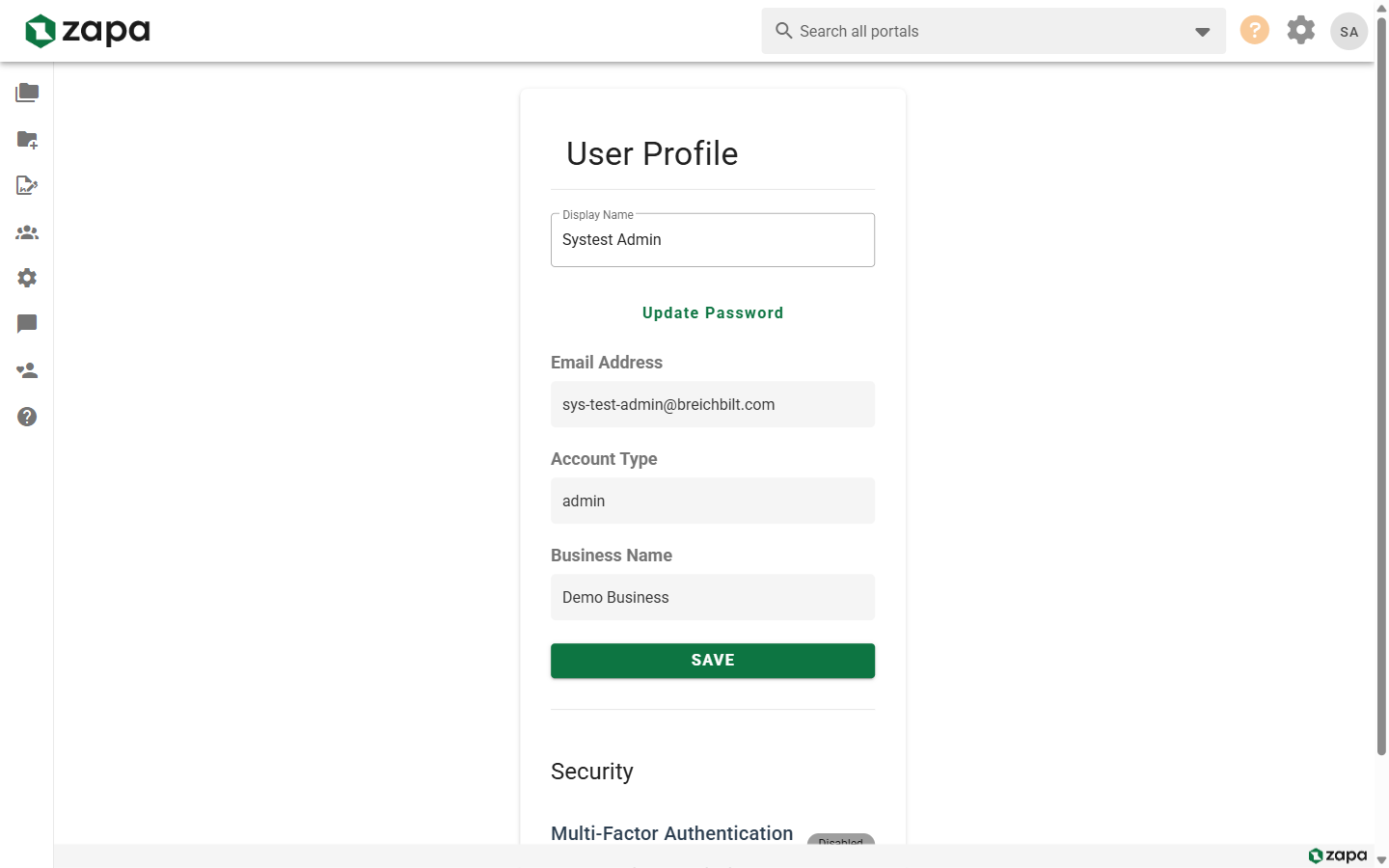
Accessing Your Profile
- Click your name or avatar in the top-right corner
- Select Profile from the dropdown menu
- Or navigate directly to
/profile
Profile Information
Display Name
Your display name appears throughout the platform:
- In portal member lists
- On signature requests
- In email notifications
- In video chat
To update your display name:
- Click the edit icon next to your name
- Enter your new display name
- Click Save
Email Address
Your email address is used for:
- Sign-in
- Receiving notifications
- Password reset
- Signature request notifications
To change your email address, contact your organization admin or support.
Account Type
Your profile shows your account type:
- Admin - Full access to organization settings and all portals
- Member - Access to assigned portals with permissions set by admin
- Guest - Limited access to specific portals you've been invited to
Security Settings
Change Password
To update your password:
- In your profile, find the Password section
- Click Change Password
- Enter your current password
- Enter your new password (must meet complexity requirements)
- Confirm your new password
- Click Save
Password requirements:
- Minimum 8 characters
- At least one uppercase letter
- At least one lowercase letter
- At least one number
- At least one special character
Multi-Factor Authentication
Manage your MFA settings from your profile:
- Enable MFA - Set up authenticator app
- Disable MFA - Remove MFA (if allowed by organization)
- View backup codes - Access your recovery codes
For detailed MFA instructions, see MFA Setup.
Notification Preferences
Control how and when you receive notifications:
Email Notifications
Choose to receive emails for:
- File uploads - When files are added to your portals
- File downloads - When guests download files
- Task assignments - When tasks are assigned to you
- Task reminders - Upcoming task due dates
- Signature requests - Documents requiring your signature
- Signature completions - When documents are fully signed
In-App Notifications
In-app notifications appear as badges and alerts within the platform:
- Unread file indicators on portals
- Task due date reminders
- Signature request status updates
Session Management
Active Sessions
View your currently active sessions:
- Current browser and device
- Last activity time
- Location (approximate based on IP)
Sign Out
To sign out of your current session:
- Click your profile menu
- Select Sign Out
To sign out of all sessions (security concern):
- Go to Profile settings
- Click Sign Out All Sessions
- You'll need to sign in again on all devices
Troubleshooting
Can't Change Profile Information
- Some fields may be managed by your organization admin
- Contact your admin if you need changes to restricted fields
Password Change Not Working
- Ensure you're entering your current password correctly
- Check that your new password meets all requirements
- Clear browser cache and try again
Not Receiving Email Notifications
- Check your spam/junk folder
- Verify notification preferences are enabled
- Ask your admin to check email delivery settings
Related Topics
- Signing In - Access your account
- MFA Setup - Secure your account
- Team Management - Managing team members (Admin)