Team Management
Manage your organization's team members, permissions, and user access from the Settings page.
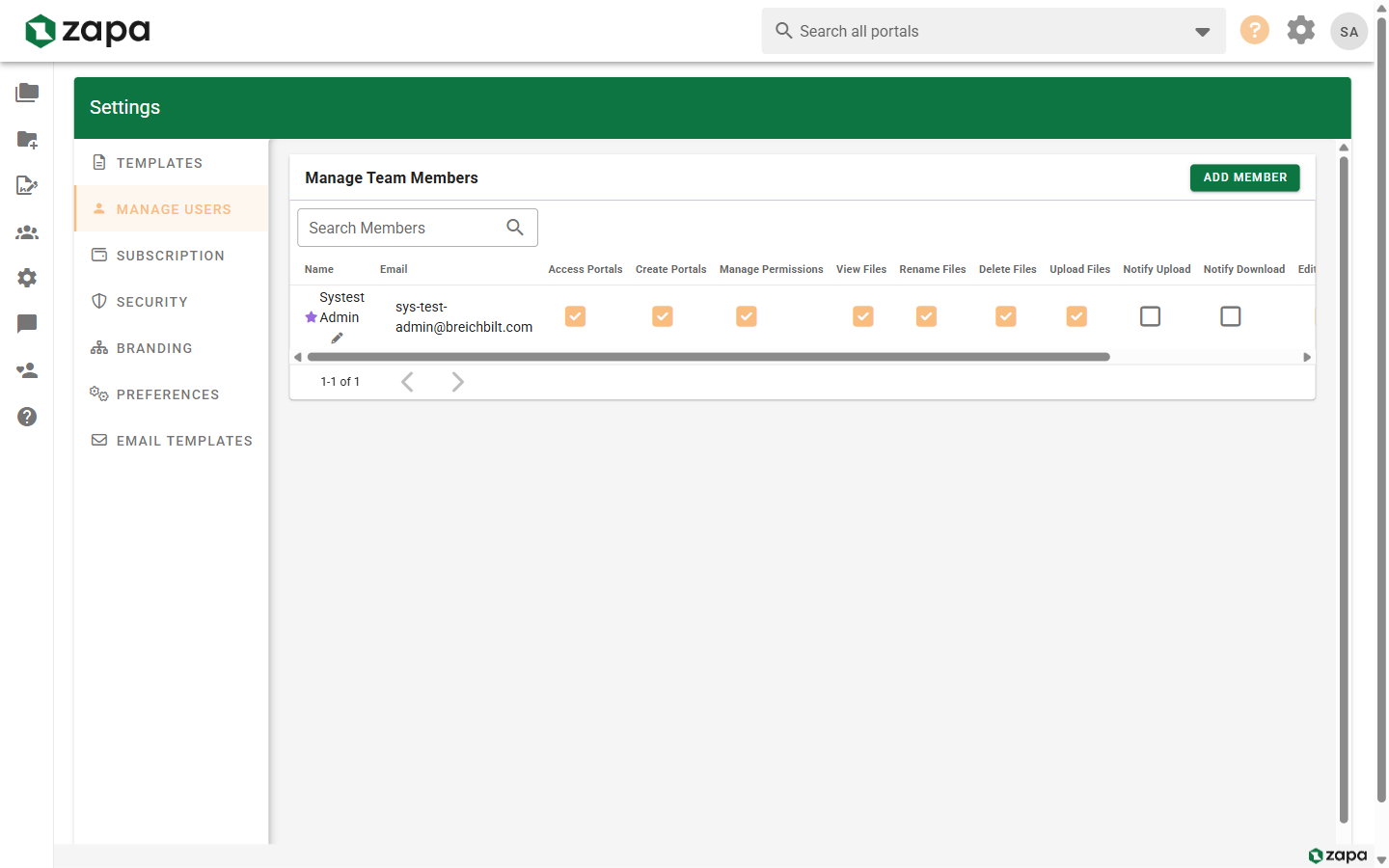
Accessing User Management
- Go to Settings (gear icon or from profile menu)
- Click the Manage Users tab
You must have admin or appropriate permissions to manage users.
User Types
Admin
Full access to everything:
- All organization settings
- All portals (including private)
- User management
- Billing and subscription
Member
Team member access:
- Assigned portals
- Create portals (if permitted)
- Limited settings access
Guest
External user access:
- Only invited portals
- No organization settings
- Restricted permissions
Viewing Team Members
The Manage Users page shows:
| Column | Description |
|---|---|
| Name | User's display name |
| Login email address | |
| Role | Admin, Member, or Guest |
| Status | Active, Pending, Disabled |
| Last Active | Most recent activity |
Filtering Users
Filter the user list by:
- Role - Admin, Member, Guest
- Status - Active, Pending, Disabled
- Search - Name or email
Inviting Team Members
Invite a New Member
- Click Invite Member
- Enter their email address
- Enter their name
- Select their role (Admin or Member)
- Click Send Invitation
The invitee receives an email with:
- Organization name
- Invitation to join
- Link to set up their account
Invitation Status
Track pending invitations:
- Pending - Invitation sent, not accepted
- Accepted - User has joined
- Expired - Invitation expired (resend if needed)
Resending Invitations
For pending invitations:
- Find the user in the list
- Click Resend
- A new invitation email is sent
Managing Existing Members
Editing Member Details
- Click on a member's row
- Edit their information:
- Display name
- Role
- Permissions
- Save changes
Changing Roles
To change a user's role:
- Find the user in the list
- Click the role dropdown
- Select the new role
- Confirm the change
Role changes take effect immediately.
Member Permissions
Beyond the basic role, configure specific permissions:
| Permission | Description |
|---|---|
| Create Portals | Can create new portals |
| Delete Portals | Can delete portals |
| Manage Members | Can invite/manage users |
| Edit Settings | Can access org settings |
| View All Portals | Can see all portals |
Disabling Users
To disable a team member:
- Find the user in the list
- Click the menu icon (three dots)
- Select Disable
- Confirm the action
Disabled users:
- Cannot sign in
- Retain their data
- Can be re-enabled later
- Don't count against seat limits (if applicable)
Re-enabling Users
- Filter to show disabled users
- Find the user
- Click Enable
- User can sign in again
Removing Users
To completely remove a user:
- Find the user in the list
- Click Remove or the trash icon
- Confirm removal
Removing a user may affect:
- Their assigned portals
- Tasks assigned to them
- File ownership attribution
Converting Users
Guest to Member
Convert a frequent guest to a team member:
- Find the guest in the user list
- Click Convert to Member
- Assign appropriate permissions
- The user's role updates
Member to Admin
Promote a member to admin:
- Find the member
- Change their role to Admin
- Confirm the promotion
Bulk Actions
Manage multiple users at once:
- Select users using checkboxes
- Choose a bulk action:
- Send reminders
- Change role
- Disable users
- Confirm the action
Organization Info
On the Manage Users page, you may also see:
Organization Name
Edit your organization's display name:
- Click the edit icon next to the org name
- Enter the new name
- Save
The name appears:
- On the dashboard
- In email notifications
- In guest-facing pages
User Count
View your current usage:
- Total team members
- Active vs. disabled
- Seat usage (if limited)
Best Practices
Principle of Least Privilege
- Start with minimal permissions
- Add access as needed
- Review permissions regularly
Regular Audits
- Review user list quarterly
- Disable inactive accounts
- Remove departed team members
Role Assignment
- Limit admin access to necessary personnel
- Use member roles for most team
- Keep guest list manageable
Troubleshooting
User Can't Sign In
- Check if account is disabled
- Verify email address is correct
- Check invitation status
- Have them reset password
Permissions Not Working
- Verify role assignment
- Check specific permissions
- Have user sign out and back in
- Clear browser cache
Can't Remove User
- User may own active portals
- Reassign ownership first
- Then remove the user
Related Topics
- Security Settings - MFA requirements and security
- Portal Permissions - Per-portal access
- Profile Settings - Individual user settings