Email Templates
Custom email templates are available on Large Firm and Enterprise plans.
Customize the emails sent to clients and team members to match your organization's voice and branding.
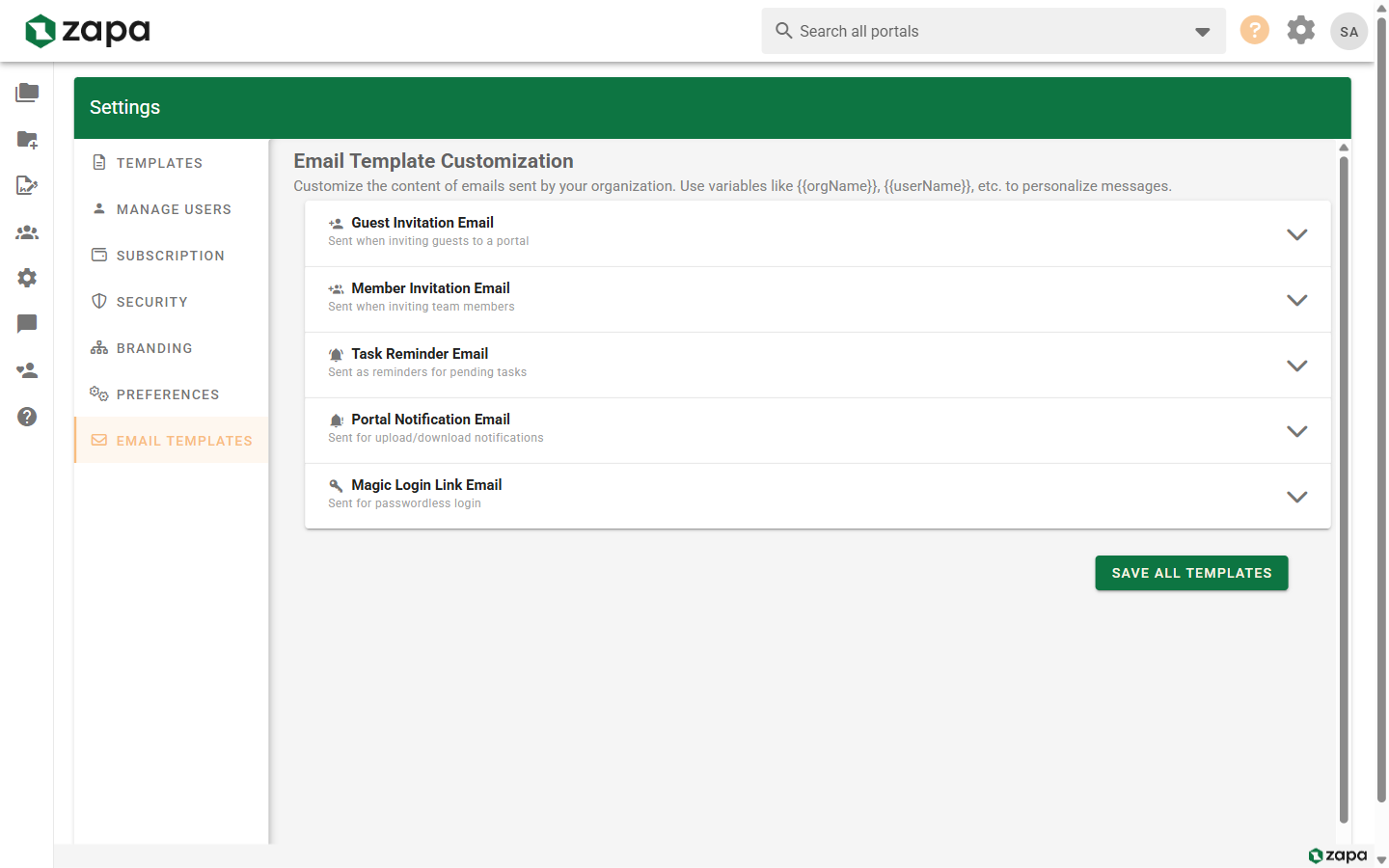
Accessing Email Templates
- Go to Settings
- Click the Email Templates tab
Available Templates
You can customize the following email types:
Guest Invitation
Sent when inviting a guest to a portal.
Default content includes:
- Invitation to access the portal
- Portal name
- Link to accept invitation
- Your organization name
Customizable elements:
- Subject line
- Introduction text
- Custom message area
- Signature/closing
Member Invitation
Sent when inviting team members to the organization.
Default content includes:
- Welcome to the organization
- Organization name
- Link to set up account
- Getting started information
Task Reminder
Sent for upcoming and overdue tasks.
Default content includes:
- Task name and description
- Due date
- Portal link
- Action button
Portal Notification
Sent when files are added or activity occurs.
Default content includes:
- Activity description
- File/folder names
- Portal link
- Action button
Magic Link
Sent for passwordless sign-in.
Default content includes:
- Sign-in link
- Expiration notice
- Security information
Signature Request
Sent when documents require signing.
Default content includes:
- Document name
- Sender information
- Signing link
- Instructions
Editing Templates
Template Editor
- Select a template from the list
- Click Edit or the template name
- Modify the content
- Preview your changes
- Save the template
Available Variables
Insert dynamic content using variables (wrapped in double curly braces):
| Variable | Description |
|---|---|
| recipient_name | Recipient's name |
| organization_name | Your organization |
| portal_name | Portal name |
| sender_name | Person who triggered email |
| action_link | Primary action button URL |
| file_name | File being referenced |
| due_date | Task due date |
In the template editor, wrap variable names with double curly braces to insert them.
Template Structure
Each template has sections:
- Subject Line - Email subject
- Header - Logo and top section
- Body - Main message content
- Call to Action - Primary button
- Footer - Closing and legal text
Customization Tips
Subject Lines
- Keep under 50 characters
- Be specific and clear
- Include relevant context
- Avoid spam trigger words
Good examples:
- "New documents in [portal_name]"
- "[sender_name] needs your signature"
- "Task due: [due_date]"
Replace brackets with double curly braces when entering in the template editor.
Body Content
- Use clear, professional language
- Keep paragraphs short
- Include necessary context
- Provide clear next steps
Call to Action
- Use action-oriented text
- Keep button text short (2-4 words)
- Make the action clear
Good examples:
- "View Portal"
- "Sign Document"
- "Upload Files"
Preview and Test
Preview Mode
Before saving:
- Click Preview
- See how the email will look
- Variables show sample data
- Check formatting and links
Send Test Email
- Click Send Test
- Enter your email address
- Receive a test email
- Verify appearance in your inbox
Resetting Templates
To restore default content:
- Open the template
- Click Reset to Default
- Confirm the action
Resetting removes all customizations for that template.
Email Branding
Emails automatically include:
- Your organization logo (if uploaded)
- Your brand colors (if configured)
- Your organization name
See Branding to configure these elements.
Reply-To Address
Configure where replies go:
- In Email Templates, find Reply-To Settings
- Enter your preferred email address
- Save
Client replies will come to this address instead of a no-reply.
Best Practices
Consistency
- Use consistent tone across templates
- Match your other communications
- Maintain professional language
Clarity
- Make actions obvious
- Explain what to expect
- Provide context for requests
Testing
- Test after every change
- Check on different email clients
- Verify links work correctly
Compliance
- Include required legal notices
- Provide unsubscribe option where needed
- Respect privacy preferences
Troubleshooting
Variables Not Replacing
- Check that variables are wrapped in double curly braces
- Ensure variable is valid for that template
- Variables may be empty if data not available
Formatting Issues
- Preview in multiple email clients
- Avoid complex HTML
- Keep tables simple
- Test on mobile
Emails Not Sending
- Check recipient email is valid
- Verify email settings are configured
- Contact support if persistent
Related Topics
- Branding - Logo and colors
- Team Management - User invitations
- Inviting Guests - Guest invitations