Workflow States
Workflow states help you track the progress of portals through your business process. Each portal can be assigned a state that reflects its current stage.
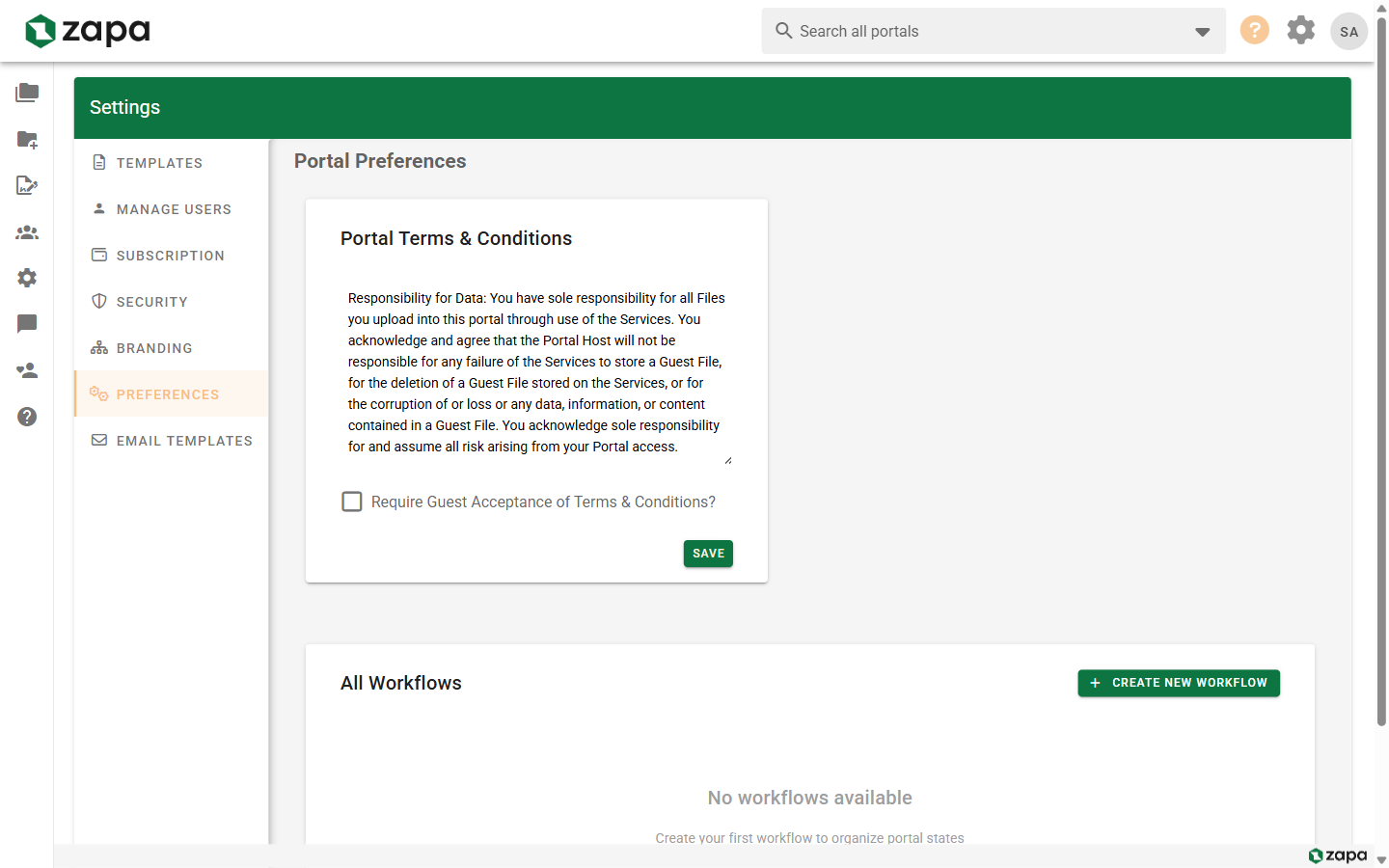
Default Workflow States
All organizations start with standard workflow states:
| State | Purpose |
|---|---|
| New | Just created, not yet started |
| In Progress | Active work underway |
| Review | Awaiting client review or feedback |
| Complete | Work finished |
| Archived | No longer active |
Custom Workflow States
Custom workflow states are available on Large Firm and Enterprise plans.
Create custom states to match your specific workflow:
Creating Custom States
- Go to Settings
- Click the Preferences tab
- Find Workflow States section
- Click Add State
- Enter state details:
- State name
- Color (for visual identification)
- Description (optional)
- Click Save
Example Custom Workflows
Tax Preparation
| State | Color | Description |
|---|---|---|
| Documents Requested | Yellow | Waiting for client docs |
| Documents Received | Blue | Have docs, not started |
| In Preparation | Orange | Actively preparing |
| Ready for Review | Purple | Client review needed |
| E-File Pending | Teal | Ready to file |
| Filed | Green | Complete |
Legal Matter
| State | Color | Description |
|---|---|---|
| Intake | Blue | New matter, gathering info |
| Active | Orange | Ongoing work |
| Awaiting Response | Yellow | Waiting on external party |
| Settlement | Purple | Negotiating |
| Closed | Green | Matter concluded |
Real Estate Transaction
| State | Color | Description |
|---|---|---|
| Listing | Blue | Property listed |
| Under Contract | Orange | Contract signed |
| Due Diligence | Yellow | Inspections, etc. |
| Closing | Purple | Final steps |
| Sold | Green | Transaction complete |
Managing Workflow States
Editing States
- Go to Settings → Preferences
- Find the workflow state to edit
- Click the edit icon
- Modify name, color, or description
- Save changes
Changes apply to all portals using that state.
Reordering States
Drag and drop states to change their order:
- Hover over the drag handle
- Drag to the desired position
- Release to save
Order affects how states appear in dropdowns.
Deleting States
- Find the state to delete
- Click the delete icon
- Choose what to do with portals in that state:
- Move to another state
- Leave unassigned
Deleted states cannot be recovered. Consider archiving or renaming instead.
Assigning States to Portals
When Creating a Portal
- In the new portal dialog, select a workflow state
- Or leave blank to assign later
Updating Portal State
- Open the portal
- Find the workflow state indicator (usually in header)
- Click to open state dropdown
- Select the new state
- State updates immediately
Bulk State Changes
- On the portals list, select multiple portals
- Click Change State in bulk actions
- Select the new state
- Apply to all selected
Workflow State in Views
Portal Cards
Portal cards display:
- Current state name
- State color indicator
- State icon (if configured)
Filtering by State
On the portals list:
- Click Filters
- Find Workflow State
- Select one or more states
- View filtered results
Sorting by State
Sort portals by their current state to group similar work.
Workflow Timeline
Within a portal, view the workflow history:
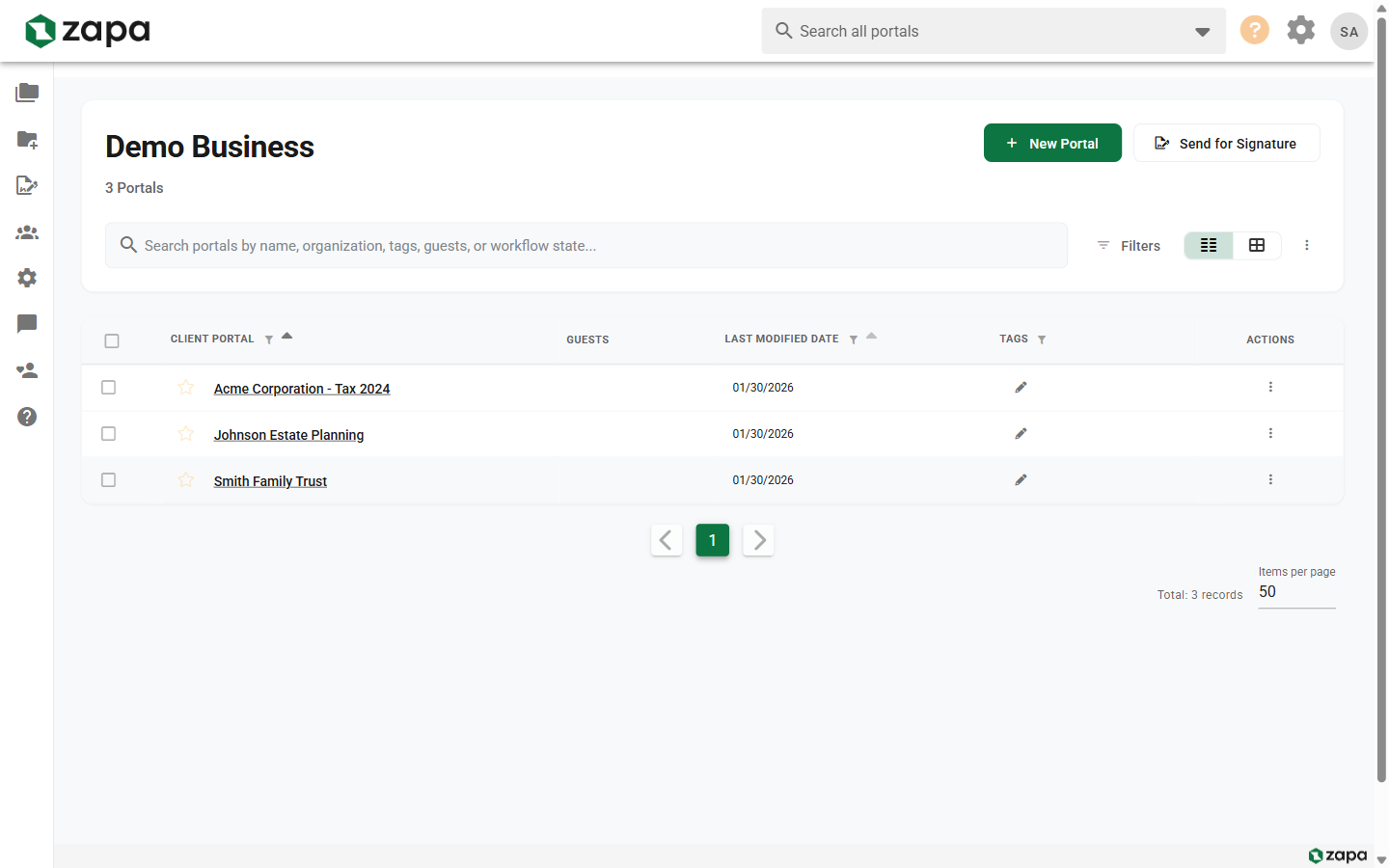
- Open the portal
- Find the Activity or Timeline section
- See state changes with:
- Who changed the state
- When it changed
- Previous and new state
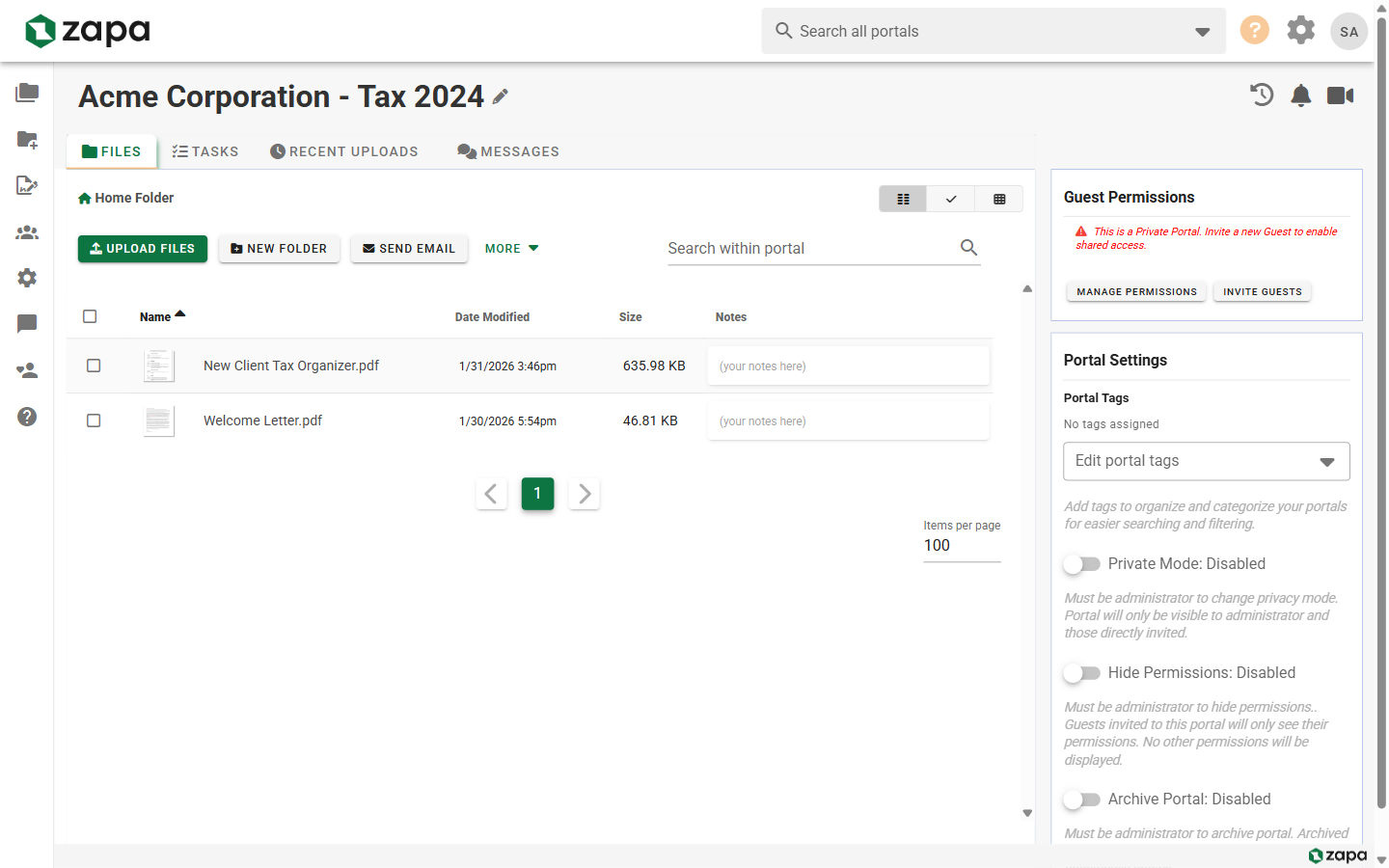
Portal Sidebar Workflow Display
The current workflow state is also displayed in the portal sidebar:
Best Practices
State Design
- Keep states clear and distinct
- Use consistent naming conventions
- Limit to 5-8 states per workflow
- Order from start to finish
Color Coding
- Use colors meaningfully
- Green for complete/positive
- Yellow for waiting/caution
- Red for urgent/problem
- Blue for neutral/in-progress
Transition Rules
Document when to change states:
- What triggers movement to next state
- Who is responsible for updates
- Any required actions before advancing
Team Alignment
- Train team on state meanings
- Review states periodically
- Adjust based on feedback
- Keep documentation updated
Workflow Reporting
Workflow reporting is available on Large Firm and Enterprise plans.
View workflow analytics:
- Portals per state
- Average time in each state
- State transition patterns
- Bottleneck identification
Related Topics
- Creating Portals - Portal setup
- Portal Templates - Default states for templates
- Feature Comparison - Tier features