Branding
Custom branding features are available on Large Firm and Enterprise plans.
Customize Zapa Client Portals with your organization's branding to provide a seamless, professional experience for your clients.
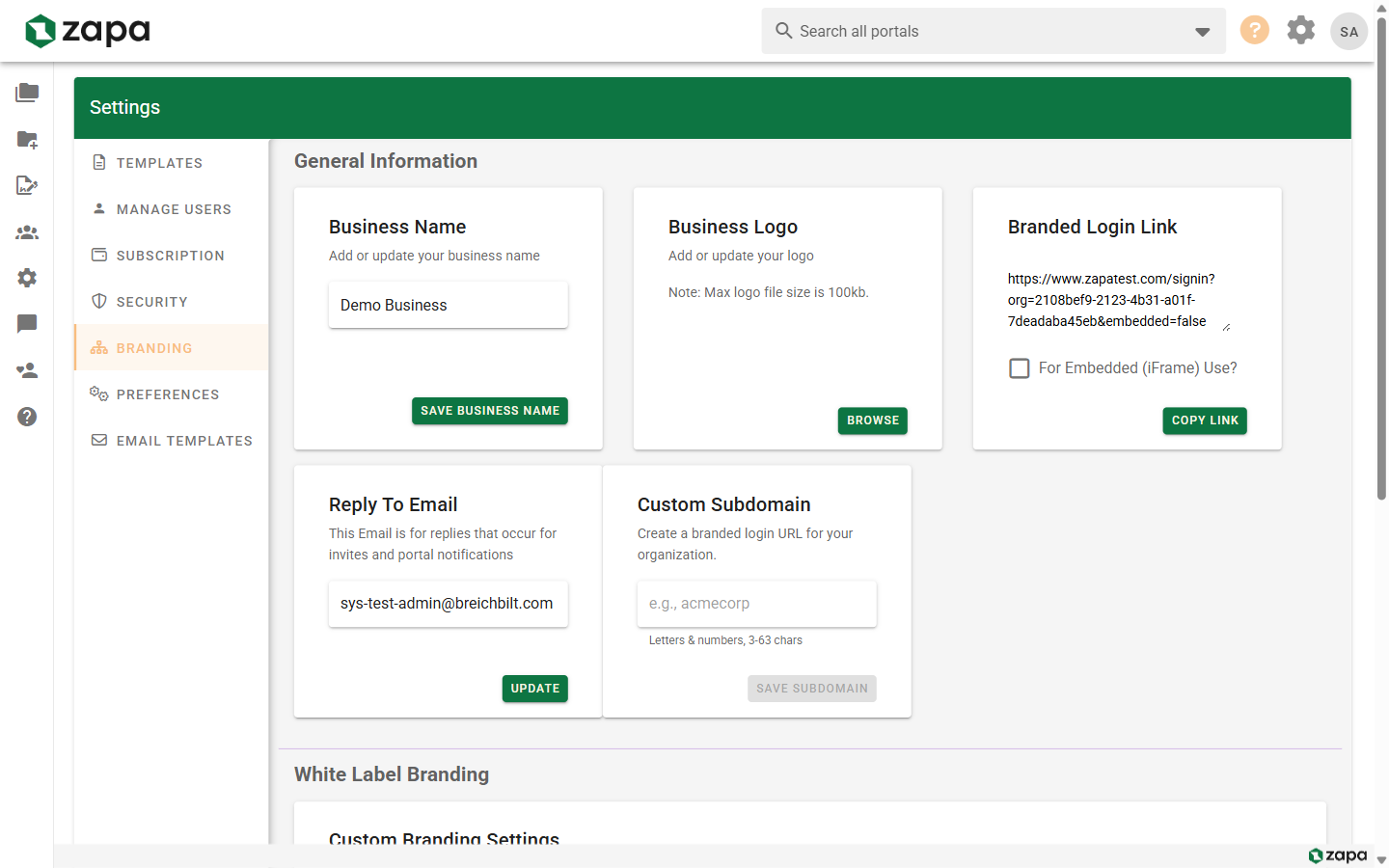
Accessing Branding Settings
- Go to Settings
- Click the Branding tab
Available Branding Options
Organization Logo
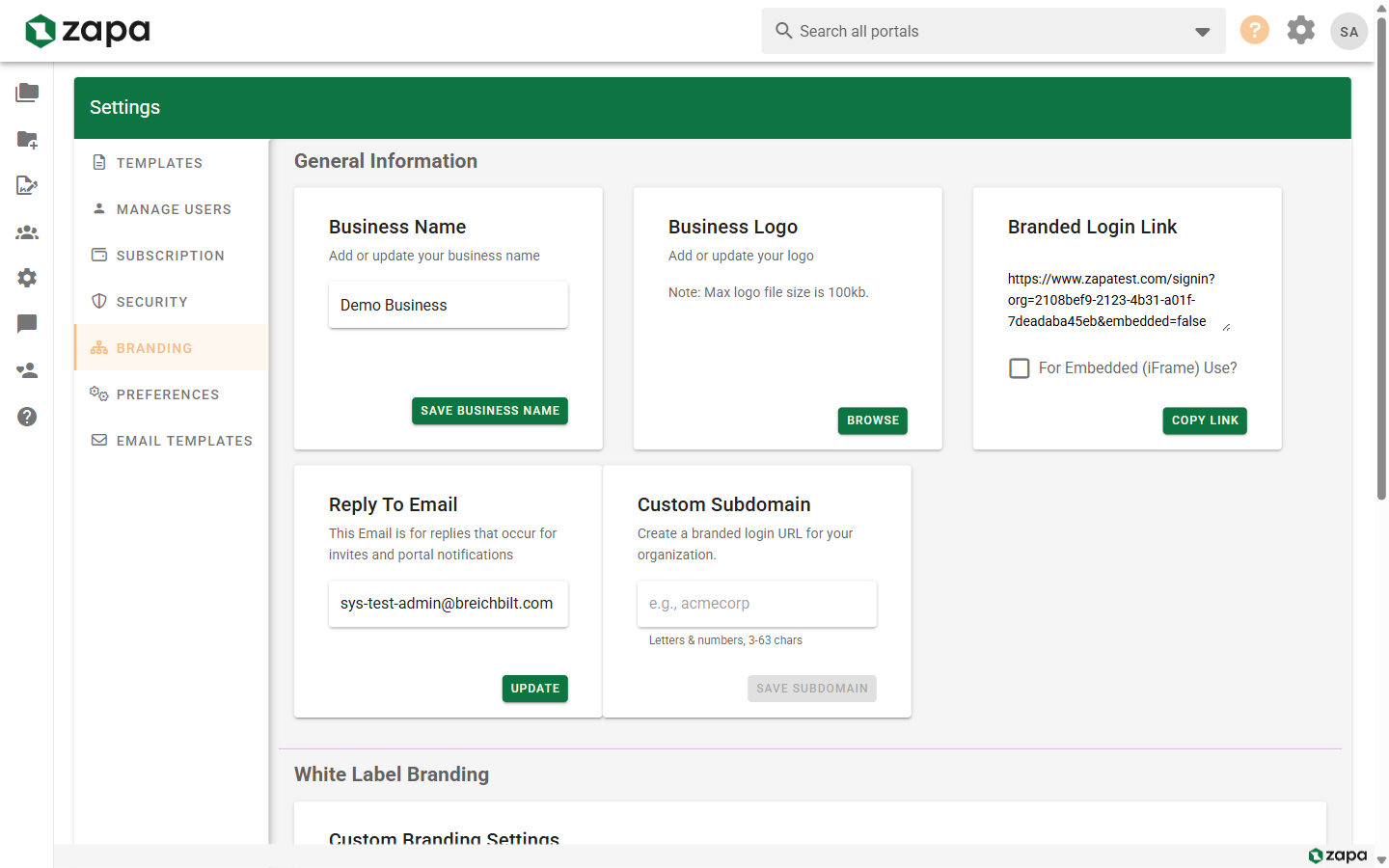
Upload your company logo:
- Click Upload Logo
- Select an image file (PNG, JPG, SVG recommended)
- Crop or adjust if needed
- Click Save
Logo specifications:
- Recommended size: 200x50 pixels
- Max file size: 2 MB
- Formats: PNG, JPG, SVG, GIF
Your logo appears:
- In the navigation header
- On guest-facing pages
- In email headers (optional)
Remove "Powered by Zapa"
Available on Large Firm and Enterprise plans.
Hide the Zapa branding from guest-facing pages:
- Find White Label settings
- Toggle Remove "Powered by Zapa"
- Save changes
When enabled:
- No Zapa branding visible to guests
- Your brand stands alone
- Still visible in admin areas
Custom Brand Colors
Available on Large Firm and Enterprise plans.
Set your primary brand color:
- Find Brand Color settings
- Enter a hex color code (e.g., #1976d2)
- Or use the color picker
- Preview the change
- Save
The brand color is applied to:
- Primary buttons
- Links and accents
- Header elements
- Active states
Custom Subdomain
Available on Large Firm and Enterprise plans.
Use your own subdomain for the portal URL:
- Find Custom Subdomain settings
- Enter your desired subdomain (e.g., "yourcompany")
- Click Check Availability
- If available, click Claim Subdomain
Your portal URL becomes:
yourcompany.zapaclientportals.com
Benefits:
- Professional, branded URL
- Easy for clients to remember
- Branded login page
Subdomain Availability
Subdomains must be:
- Unique across all organizations
- At least 3 characters
- Letters, numbers, hyphens only
- Not reserved or inappropriate
Email Branding
Customize how emails appear to recipients:
Custom Reply-To
Available on Large Firm and Enterprise plans.
Set a custom reply-to address:
- Find Email Settings
- Enter your reply-to email
- Save
When clients reply to notifications, emails go to your address.
Email Templates
Customize email content in the Email Templates tab. See Email Templates for details.
Branding Preview
Preview your branding before saving:
- Make branding changes
- Click Preview
- See how guests will experience your brand
- Adjust as needed
- Save when satisfied
White-Label Experience
With full branding configured, your clients see:
Login Page
- Your logo at the top
- Your brand colors
- Your subdomain URL
- No Zapa branding
Portal Experience
- Your logo in header
- Your brand colors throughout
- Professional, seamless experience
Email Communications
- Emails styled with your brand
- Your reply-to address
- Your custom messages
Best Practices
Logo Design
- Use a horizontal/wide format logo
- Ensure good contrast on light backgrounds
- Test visibility at smaller sizes
- Include transparent background (PNG/SVG)
Color Selection
- Choose a primary brand color
- Ensure good contrast with white text
- Test buttons and links for visibility
- Consider accessibility guidelines
Subdomain Selection
- Use your company name
- Keep it short and memorable
- Match your other online presence
- Avoid hyphens if possible
Troubleshooting
Logo Not Displaying
- Check file format is supported
- Verify file size under limit
- Clear browser cache
- Try a different browser
Color Not Applying
- Verify hex code format (#000000)
- Refresh the page
- Clear browser cache
- Check for conflicting settings
Subdomain Not Working
- Allow time for propagation (up to 24 hours)
- Verify subdomain was saved
- Check subdomain availability
- Contact support if persists
Related Topics
- Email Templates - Customize email content
- Feature Comparison - Tier features
- Team Management - Organization settings