All Portals View
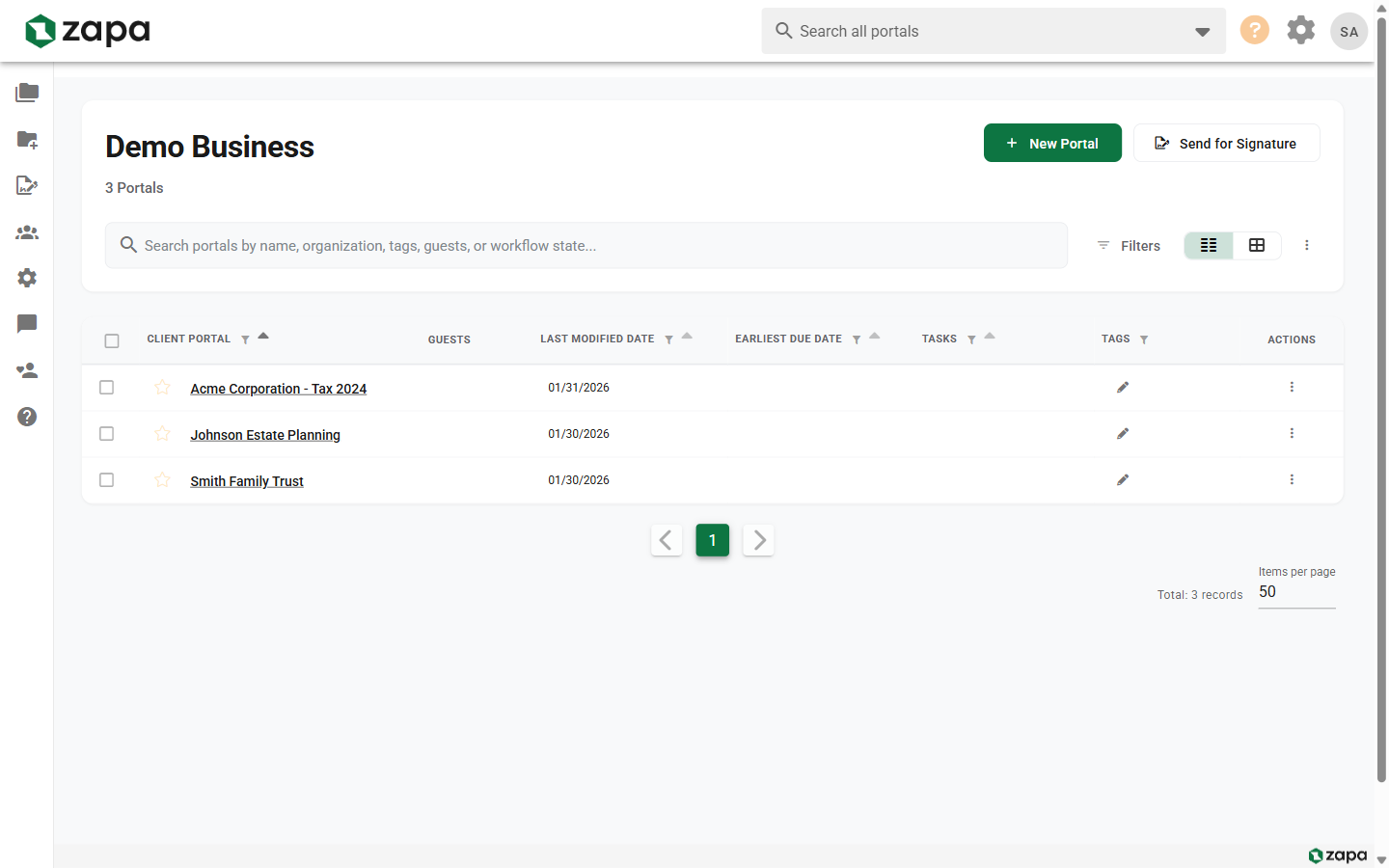
The All Portals view is your main dashboard for managing client portals. This page provides an overview of all portals, search and filtering capabilities, and quick actions.
Accessing the Dashboard
After signing in, you're automatically taken to the All Portals view. You can also:
- Click Portals in the navigation menu
- Navigate to
/vaultsdirectly
Dashboard Layout
Header Section
The top of the dashboard displays:
- Organization Name - Your company name (members/admins)
- Portal Count - Total number of active portals
- Remaining Portals - How many portals you can still create (if near limit)
Primary Actions
Two main action buttons appear in the header:
- New Portal - Create a new client portal
- Send for Signature - Start a signature request on any document
Search and Filters
The unified toolbar provides powerful search and filtering:
Search Bar
Search across multiple fields:
- Portal name
- Guest names
- Tags
- Workflow state
Type to filter the list in real-time.
Filter Panel
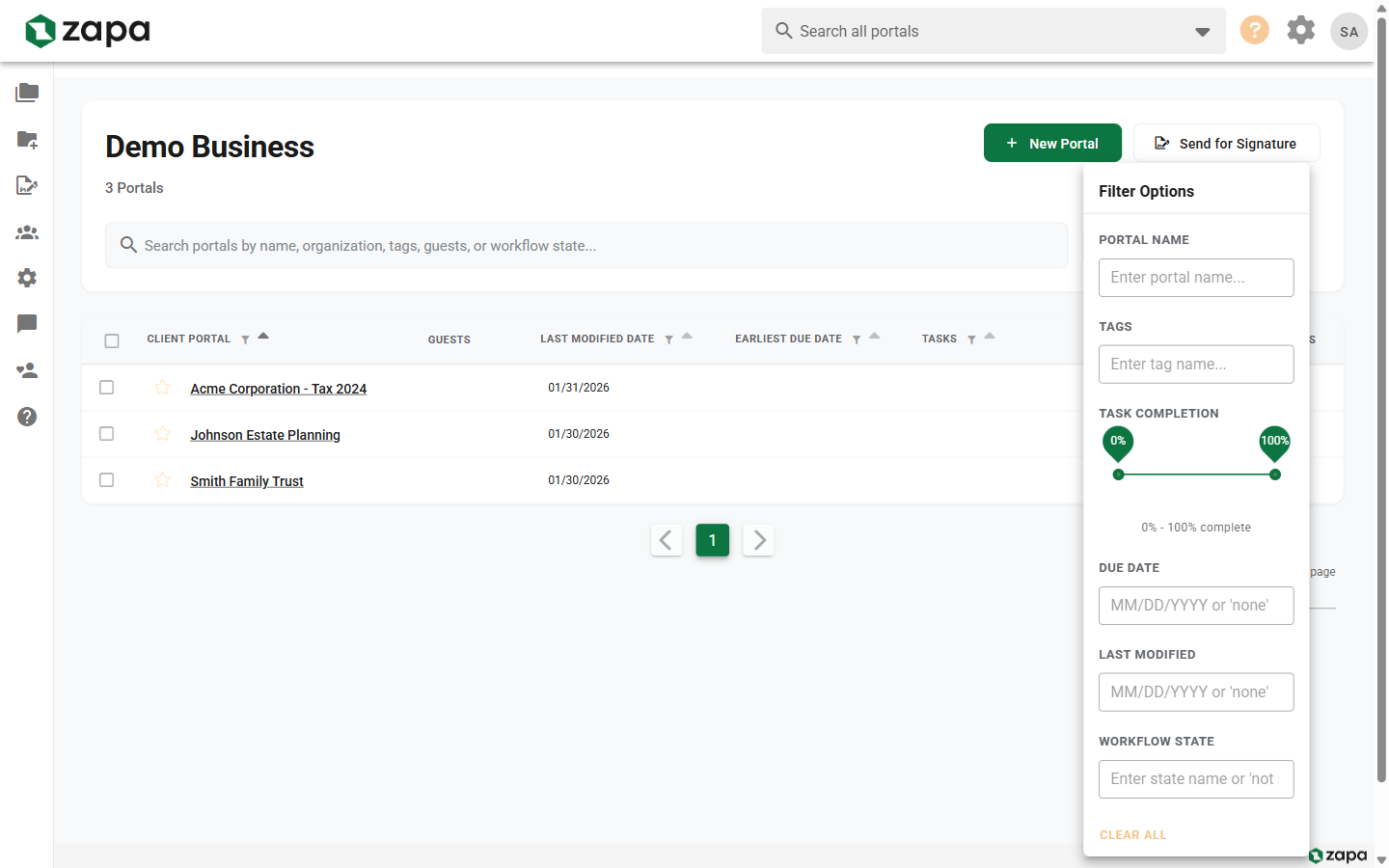
Click Filters to access advanced options:
| Filter | Description |
|---|---|
| Portal Name | Match by portal name |
| Tags | Filter by one or more tags |
| Workflow State | Show specific workflow states |
| Open Tasks | Filter by task count range |
| Date Range | Filter by last activity date |
A badge shows when filters are active.
View Modes
Switch between different display modes:
- Card View - Visual cards showing portal details and status
- List View - Compact table for viewing many portals
- By Guest - Portals organized by guest user
Portal Cards
In card view, each portal displays:
- Portal Name - Click to open the portal
- Workflow State - Current status with color indicator
- Tags - Applied tags as chips
- Guest Count - Number of invited guests
- Unread Files - Badge for new/unread files
- Task Count - Number of open tasks
- Last Activity - When the portal was last updated
- Favorite Star - Toggle to mark as favorite
Working with Portals
Opening a Portal
Click any portal card or row to open it and access:
- Files and folders
- Tasks
- Guest management
- Settings
Quick Actions
Hover over a portal card for quick actions:
- Open - Navigate to the portal
- Archive - Archive the portal
- Delete - Remove the portal (admin only)
Multi-Select (Desktop)
Select multiple portals for bulk operations:
- Click the checkbox on portal cards
- Selected count appears in the toolbar
- Available bulk actions:
- Send Reminders - Send task reminders to all selected
- Upload Files - Upload files to multiple portals
- Archive - Archive multiple portals
- Change State - Update workflow state
Favorites
Star portals to mark as favorites:
- Click the star icon on any portal
- Favorites appear at the top of the list
- Use the Favorites filter to show only starred portals
Filtering Portals
By Status
Quick filter buttons may include:
- All - Show all portals
- Active - Non-archived portals
- Archived - Only archived portals
- Favorites - Starred portals
By Workflow State
Filter to show portals in specific workflow states:
- Click Filters
- Select workflow states
- Only matching portals appear
Show Archived
Toggle to include archived portals:
- Click Filters or find the toggle
- Enable Show Archived
- Archived portals appear with an indicator
Sorting Portals
Sort the portal list by:
- Name - Alphabetical order
- Last Activity - Most recently updated first
- Created Date - Newest or oldest first
- Task Due Date - Earliest deadline first
Click column headers in list view to sort.
Portal Limits and Usage
Portal Count Display
Near the portal count, you may see:
- X Portals - Your current total
- X / Y Portals - Near your limit
- X remaining - Portals you can still create
Upgrade Prompt
When approaching limits, an upgrade banner appears:
- Shows remaining capacity
- Links to subscription settings
- Highlights features of higher tiers
MFA Reminder Banner
If your organization requires MFA and you haven't set it up:
- A warning banner appears at the top
- Shows days remaining to complete setup
- Links directly to MFA setup page
Navigation
Sidebar Navigation
The sidebar provides access to:
- Portals - All Portals view (this page)
- By Guest - Portals organized by guest
- Signatures - Signature tracking
- Settings - Organization settings (admin)
Profile Menu
Click your name/avatar to access:
- Profile - Personal settings
- Settings - Organization settings
- Sign Out - End your session
Guest View
Guests see a simplified dashboard:
- Only their invited portals
- "My Portals" header instead of org name
- No create portal button
- Limited actions
Tips and Best Practices
Organization
- Use consistent naming conventions
- Apply tags for categorization
- Set workflow states to track progress
- Archive completed portals
Efficiency
- Use search for quick access
- Mark frequently-used portals as favorites
- Use filters to focus on specific work
- Try multi-select for bulk operations
Maintenance
- Review archived portals periodically
- Remove old tags no longer in use
- Update workflow states as work progresses
Related Topics
- Creating Portals - Set up new portals
- Portal Templates - Use templates for consistency
- Workflow States - Configure custom states