Managing Files
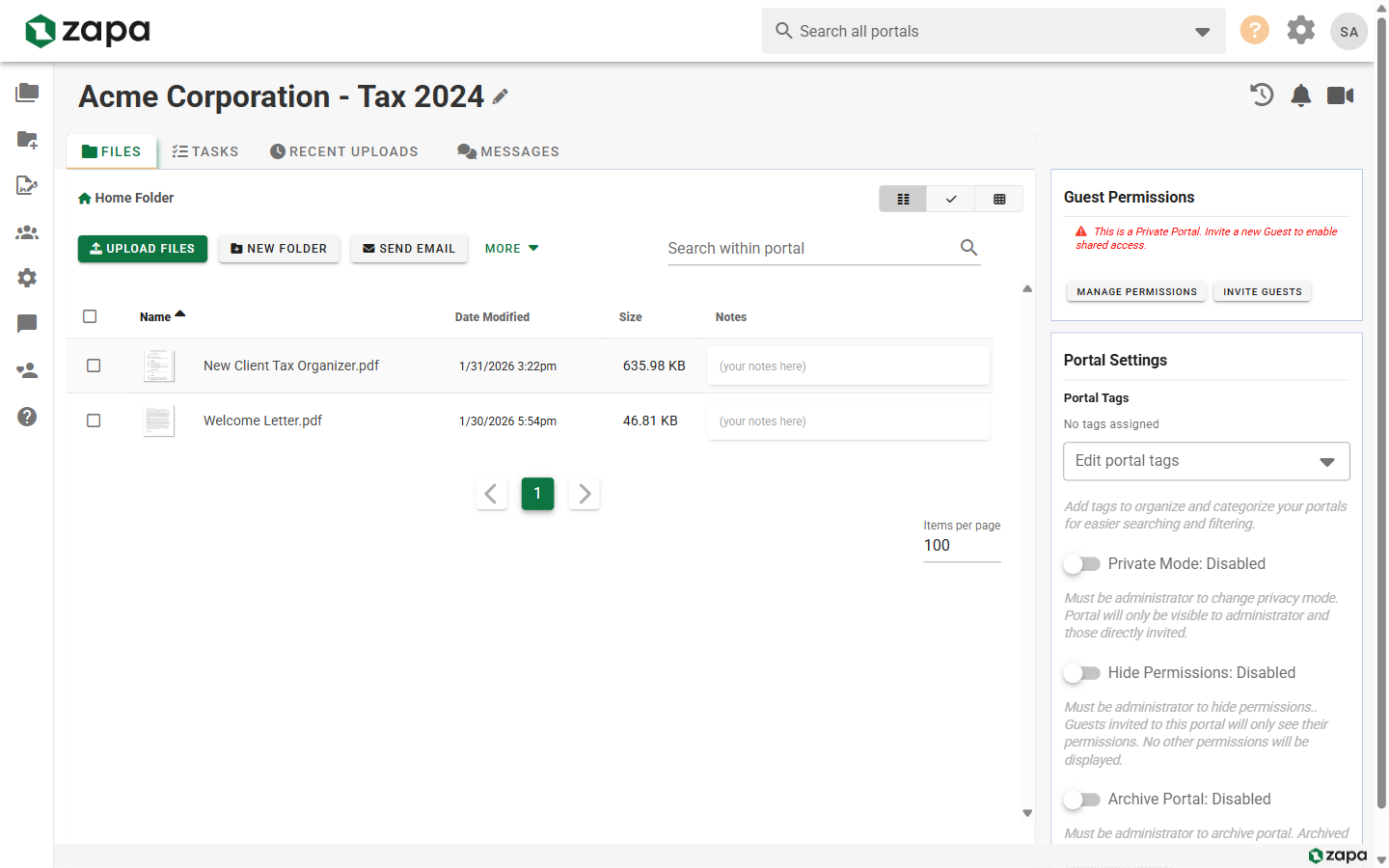
Portals provide secure file storage with upload, download, preview, and organization capabilities.
Uploading Files
Drag and Drop
The easiest way to upload:
- Open a portal
- Drag files from your computer onto the file area
- Files upload automatically with progress indicators
You can drag multiple files or entire folders.
Upload Button
- Click the Upload button in the toolbar
- Select files from your computer
- Click Open to start uploading
Bulk Folder Upload
Upload complete folder structures:
- Drag a folder onto the upload area
- All files and subfolders are uploaded
- Folder hierarchy is preserved
File Limits
Maximum file sizes by tier:
| Tier | Max File Size |
|---|---|
| Professional | 2 GB |
| Large Firm | 5 GB |
| Enterprise | 50 GB |
Organizing Files
Creating Folders
- Click New Folder in the toolbar
- Enter a folder name
- Click Create
Navigate into folders by clicking them.
Moving Files
- Select one or more files (checkbox or Ctrl+click)
- Click Move in the toolbar
- Select the destination folder
- Click Move
Or drag files between folders.
Renaming Files
- Right-click the file (or click the menu icon)
- Select Rename
- Enter the new name
- Press Enter or click Save
Copying Files
- Select files to copy
- Click Copy in the toolbar
- Navigate to the destination folder
- Click Paste
Downloading Files
Single File Download
- Click the file to preview it
- Click the Download button
- Or right-click and select Download
Bulk Download
- Select multiple files using checkboxes
- Click Download in the toolbar
- Files are downloaded as a ZIP archive
Download All
- Click the menu icon in the toolbar
- Select Download All
- All files in the current folder are zipped and downloaded
Previewing Files
Click any file to open the preview panel:
Supported Previews
- PDF - Full PDF viewer with navigation and zoom
- Images - JPG, PNG, GIF, WebP with zoom
- Office Documents - Word, Excel, PowerPoint
- Video - MP4, WebM playback
- Audio - MP3, WAV playback
PDF Features
The PDF viewer supports:
- Page navigation
- Zoom controls
- Search within document
- Fullscreen viewing
Advanced PDF features like annotations, form filling, and redaction are available on Large Firm and Enterprise plans.
File Indicators
Visual indicators help track file status:
Unread Files
New or updated files show an indicator:
- Blue dot on unread files
- Counter showing unread count in folder
Click a file to mark it as read.
Recent Files
Recently uploaded files are highlighted to help you find new content quickly.
Signature Status
Files with signature requests show status badges:
- Pending - Awaiting signatures
- Completed - All signatures received
- Cancelled - Request cancelled
File Actions
Right-click a file or use the menu icon for actions:
- Download - Download the file
- Rename - Change the filename
- Move - Move to another folder
- Copy - Copy to another folder
- Send for Signature - Start a signature request
- Delete - Remove the file
Deleting Files
Delete Single File
- Right-click the file
- Select Delete
- Confirm the deletion
Bulk Delete
- Select multiple files
- Click Delete in the toolbar
- Confirm the deletion
Recovering Deleted Files
Deleted files may be recoverable for a limited time. Contact your admin or support.
File Notes
Add notes to files for internal tracking:
- Hover over a file and click the action menu (⋮)
- Select Edit Note
- Type your note
- Click Save
Notes help you track file status and add reminders.
For more on file notes, see File Notes.
Bulk File Selection
Select multiple files for bulk operations:
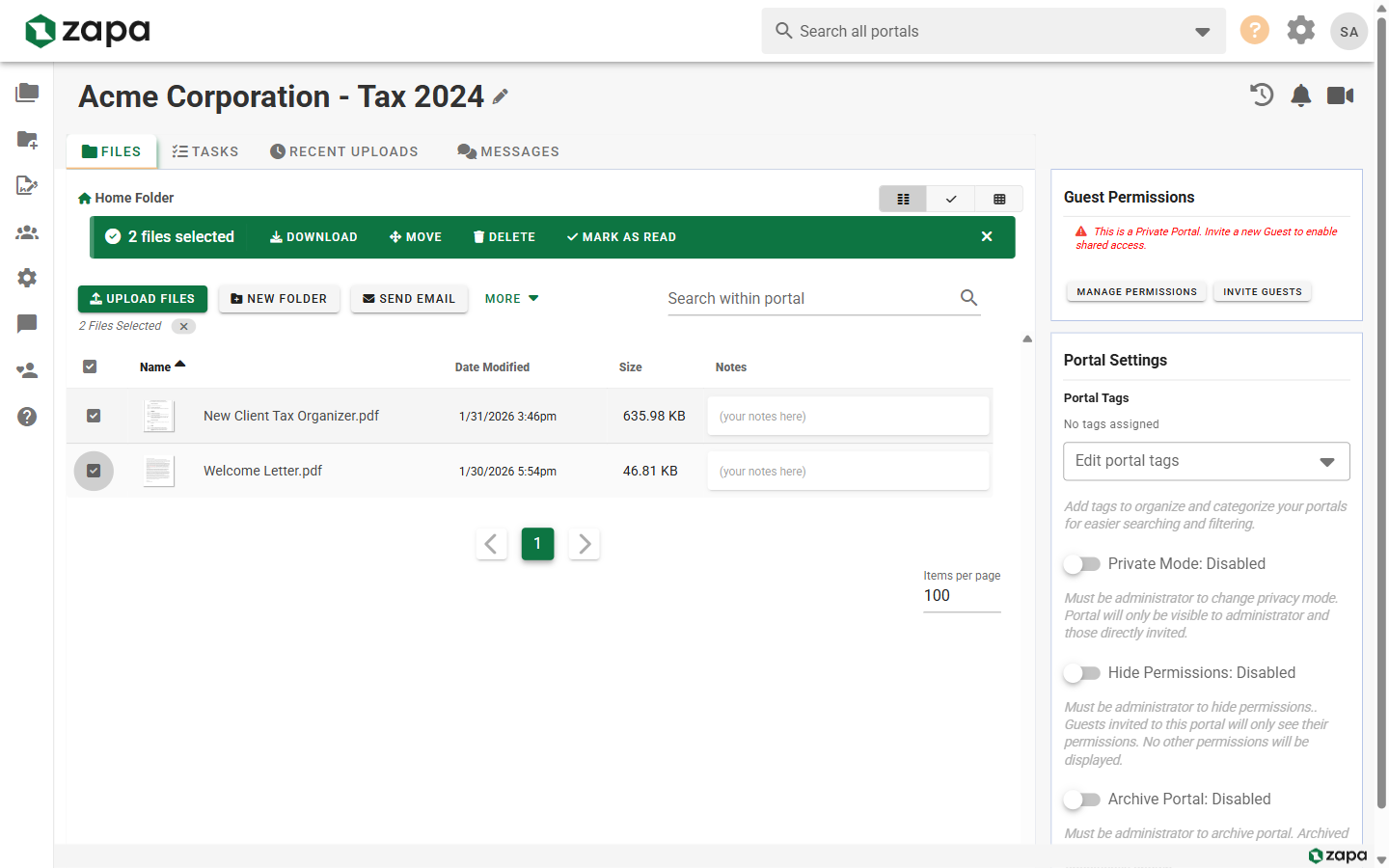
For more on bulk operations, see Bulk Operations.
Sharing File Links
Generate secure links to share files:
- Right-click a file
- Select Copy Link
- Share the link with portal members
Links require portal access. Non-members cannot access files via link.
Storage Usage
View your organization's storage usage:
- Go to Settings → Subscription
- View current storage usage and limits
Storage limits by tier:
| Tier | Storage |
|---|---|
| Professional | 1 TB |
| Large Firm | 10 TB |
| Enterprise | Unlimited |
Related Topics
- Creating Portals - Set up new portals
- Sending for Signature - Request signatures on files
- File Comments - Collaborate on files