File Notes
File notes enable you to add annotations and internal reminders to specific documents within a portal.
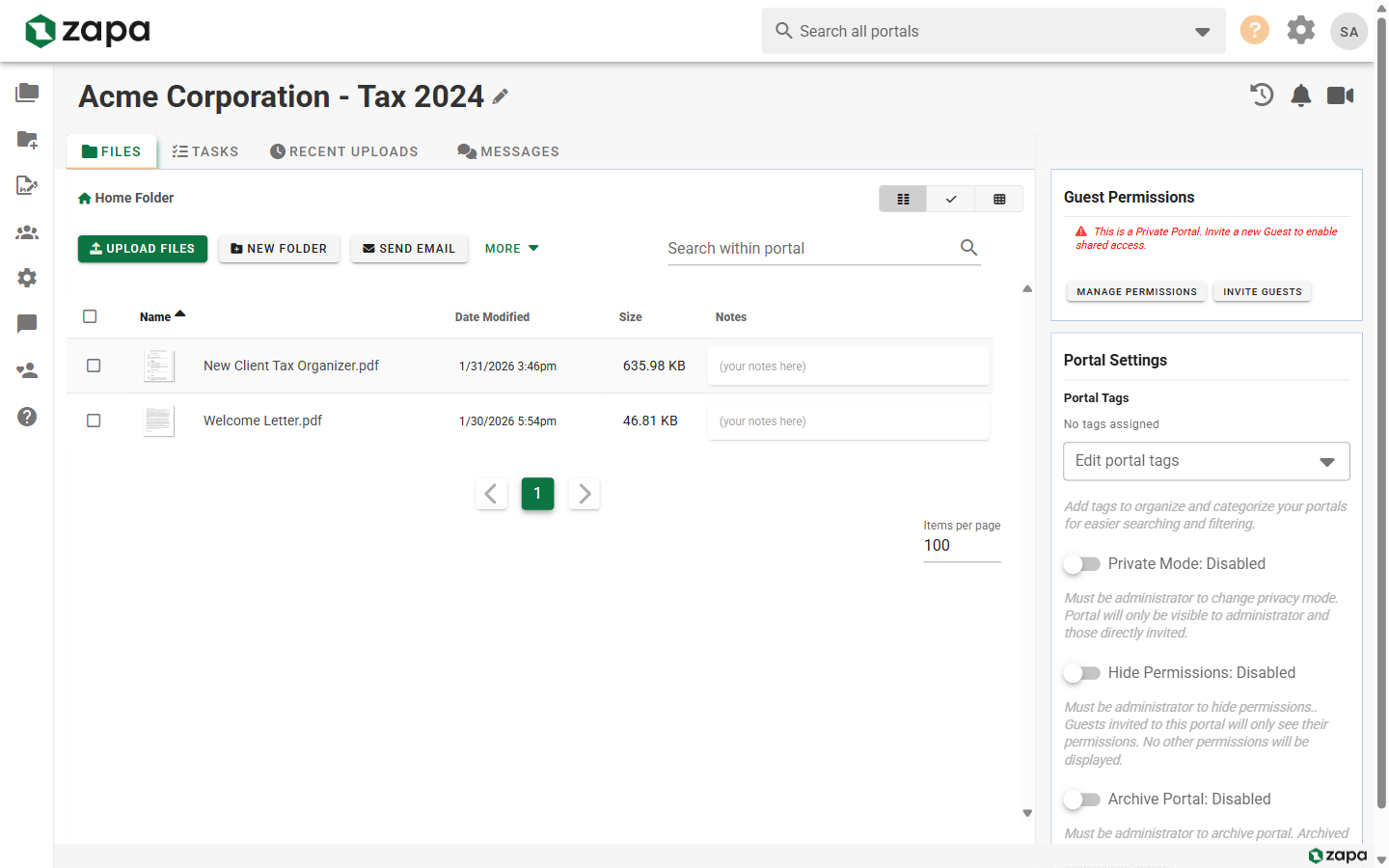
Adding Notes
Notes are attached to individual files and can be used for internal tracking, reminders, or communication.
From File Actions Menu
- Hover over a file to reveal the actions menu
- Click the ellipsis (⋮) button
- Select Edit Note
- Type your note and save
Quick Notes
For brief annotations:
- Right-click a file
- Select Edit Note
- Type and save
Viewing Notes
Note Indicator
Files with notes show an indicator in the file list:
- Note icon visible on the file row
- Hover to see note preview
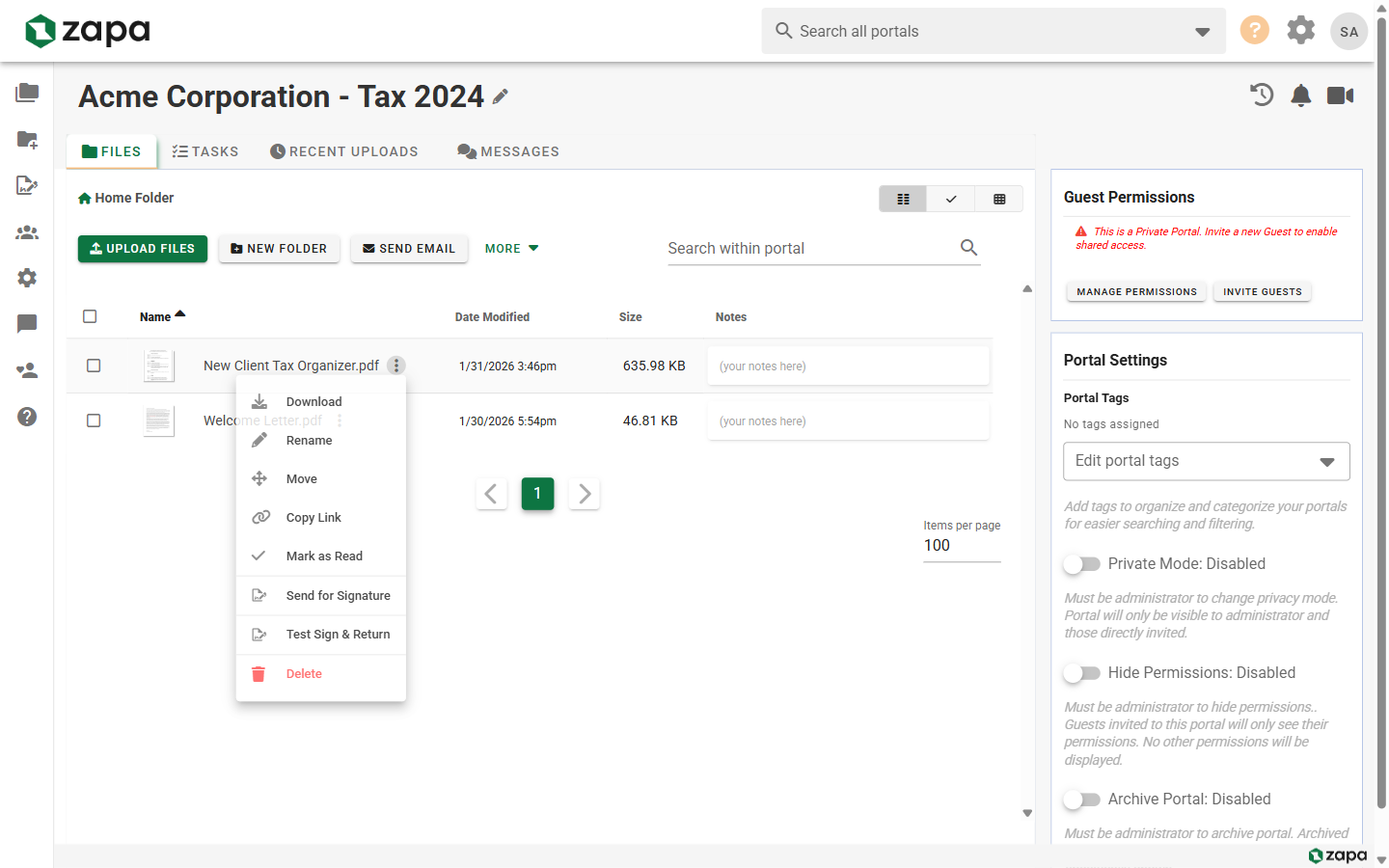
Reading Notes
- Hover over a file with a note indicator
- The note preview appears as a tooltip
- Click to edit the full note
Note Features
Editing Notes
- Click on the file's action menu (⋮)
- Select Edit Note
- Modify the note text
- Click Save
Deleting Notes
- Open the Edit Note dialog
- Clear the note text
- Save to remove the note
Use Cases
Document Tracking
Track document status:
- "Pending client review"
- "Approved - ready for signature"
- "Needs revision - see email 1/15"
Internal Reminders
Add reminders for your team:
- "Follow up with client by Friday"
- "Waiting on legal approval"
- "Ready for final review"
File Organization
Use notes to categorize or tag files:
- "Q4 2024 Financials"
- "Contract Amendment v2"
- "Client signed copy received"
Best Practices
Be Concise
Keep notes brief and actionable:
- "Review by 1/20"
- "Waiting on signature"
- "Final version - approved"
Use Consistent Format
Develop a consistent note format for your team:
- Status first: "PENDING: awaiting client feedback"
- Date stamps: "[1/15] Sent to client for review"
- Action items: "TODO: send reminder Friday"
Regular Review
Periodically review and update notes:
- Remove outdated notes
- Update status changes
- Archive completed items
Related Topics
- Managing Files - File operations
- Task Management - Task comments
- Video Chat - Real-time discussion