Portal Permissions
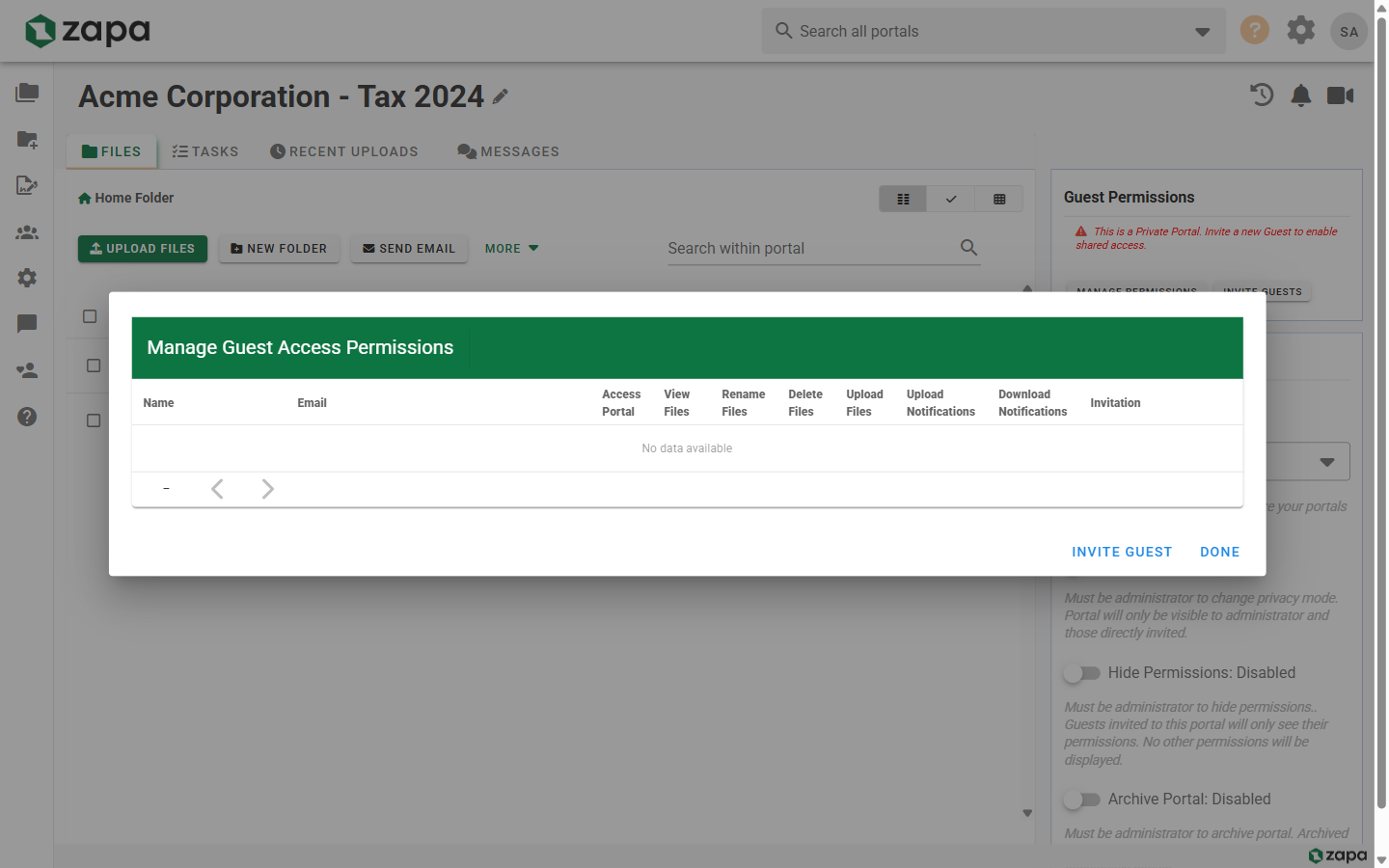
Permissions control what each user can do within a portal. Zapa Client Portals offers granular permission settings to match your security and workflow needs.
Permission Types
View
- See portal in their list
- Browse files and folders
- Preview documents
Download
- Download individual files
- Download bulk files as ZIP
- Access file links
Upload
- Add new files to the portal
- Create folders
- Drag and drop content
Delete
- Remove files and folders
- Permanently delete content
Comments
- Add comments to files
- View existing comments
- Reply to comments
Tasks
- View tasks in the portal
- Create new tasks
- Assign tasks to others
- Complete tasks
Default Permissions by Role
| Permission | Admin | Member | Guest |
|---|---|---|---|
| View | ✓ | ✓ | ✓ |
| Download | ✓ | ✓ | ✓ |
| Upload | ✓ | ✓ | ✓ |
| Delete | ✓ | ✓ | - |
| Comments | ✓ | ✓ | ✓ |
| Tasks | ✓ | ✓ | ✓ |
Default permissions can be customized per portal and per user.
Setting Portal Permissions
View and manage all portal members and their permissions:
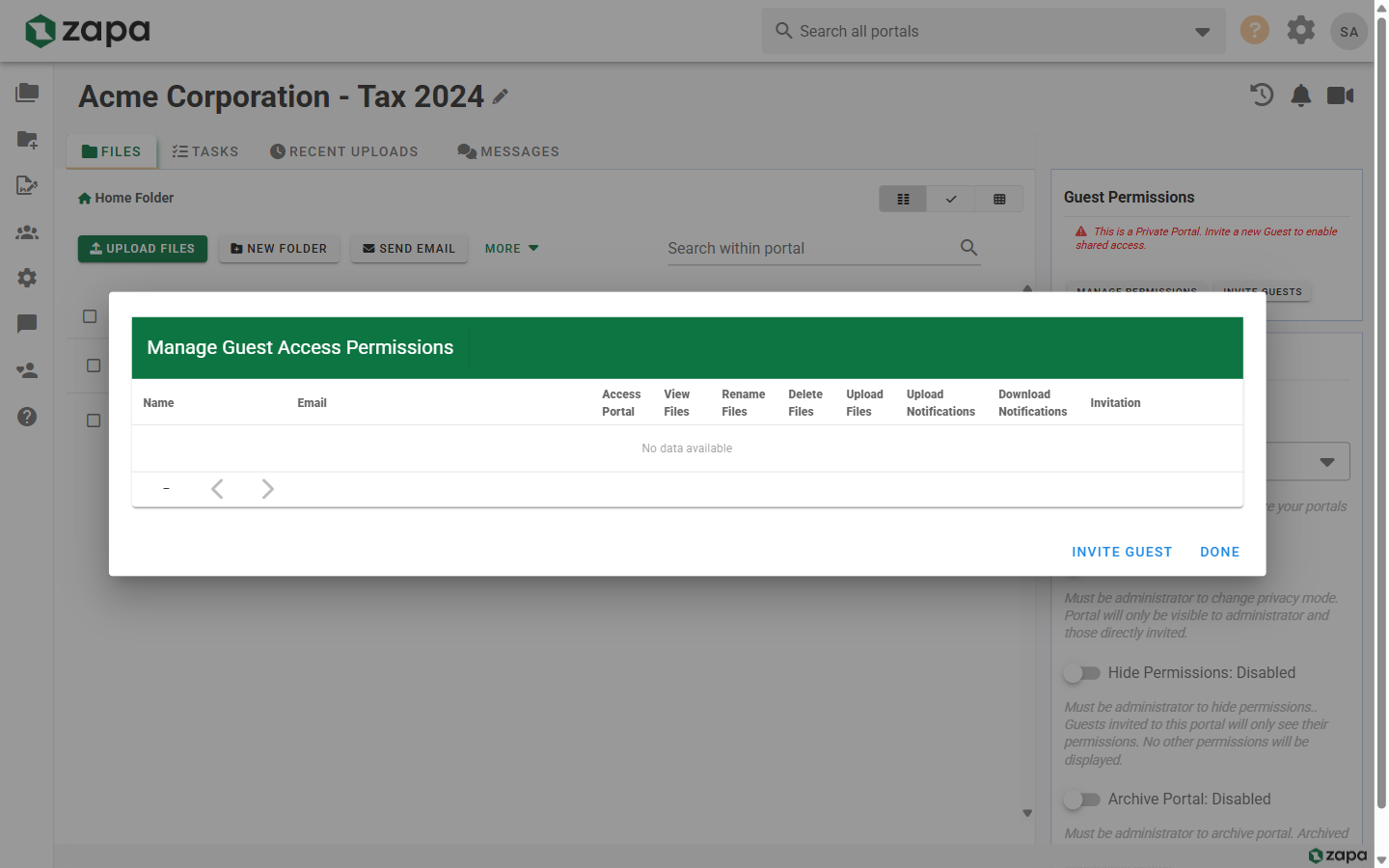
For Individual Users
- Open the portal
- Go to Members
- Click the settings/permissions icon next to a user
- Toggle individual permissions
- Click Save
For All Guests (Portal-Wide)
- Open portal settings
- Find Guest Permissions
- Set default permissions for all guests
- Individual guest settings can still override
Permission Scenarios
Read-Only Access
For guests who should only view files:
- ✓ View
- ✓ Download
- ✗ Upload
- ✗ Delete
- ✗ Comments
File Collection
For portals where clients upload documents:
- ✓ View
- ✓ Download
- ✓ Upload
- ✗ Delete
- ✓ Comments
Full Collaboration
For active project collaboration:
- ✓ View
- ✓ Download
- ✓ Upload
- ✓ Delete
- ✓ Comments
- ✓ Tasks
Private Portals
Private portals are available on Large Firm and Enterprise plans.
Private portals add organization-level visibility control:
Standard Portal
- Visible to all organization members
- Guest access still controlled by invitations
Private Portal
- Only visible to specifically assigned members
- Completely hidden from other organization members
- Ideal for sensitive matters or confidential clients
To make a portal private:
- Open portal settings
- Enable Private Portal
- Assign specific team members
Hide Guest Permissions
This feature is available on Large Firm and Enterprise plans.
Control whether guests can see permission levels:
- Show - Guests see their permission levels
- Hide - Permissions are hidden from guests
This provides a cleaner guest experience while maintaining control.
Permission Inheritance
Permissions apply at the portal level and affect all content:
- Folder permissions match portal permissions
- Subfolder permissions match parent folder
- No per-file permission settings
Audit Trail
Track permission usage through the audit log:
- Open the portal
- Go to Activity or Audit
- View who accessed, downloaded, or modified files
Audit logs show:
- User and timestamp
- Action performed
- File or folder affected
- IP address (if enabled)
Extended audit logs with more detail are available on Large Firm and Enterprise plans.
Best Practices
Principle of Least Privilege
Grant only the permissions users need:
- Start with view-only for new guests
- Add upload permission when file collection needed
- Reserve delete for trusted users
Regular Permission Reviews
Periodically review portal access:
- Remove guests who no longer need access
- Adjust permissions as projects evolve
- Archive completed portals
Separate Sensitive Content
For highly sensitive documents:
- Use private portals
- Limit download permissions
- Enable comprehensive audit logging
Troubleshooting
User Can't Upload Files
- Check their upload permission
- Verify storage limits aren't exceeded
- Check file size limits for their tier
User Can't See Portal
- Verify they've been invited
- Check if portal is private and they're assigned
- Confirm invitation was accepted
Permissions Not Taking Effect
- Have user sign out and back in
- Clear browser cache
- Verify permission changes were saved
Related Topics
- Inviting Guests - Add users to portals
- Team Management - Organization-wide permissions
- Security Settings - Security configurations