Bulk Operations
Perform actions on multiple portals or files at once to save time and streamline your workflow.
Portal Bulk Operations
Select multiple portals to perform bulk actions.
Selecting Multiple Portals
- Navigate to the All Portals view
- Use list view (table view) for multi-select
- Click the checkbox next to each portal you want to select
- Or click the header checkbox to select all
Available Bulk Actions
When multiple portals are selected, a floating action bar appears with:
- Send Task Reminders - Send reminder emails to all guests with open tasks
- Bulk Upload Files - Upload the same files to all selected portals
- Send for Signature - Create signature requests across portals
- Archive - Archive all selected portals
Bulk Task Reminders
- Select portals with open tasks
- Click Send Task Reminders
- Review the list of recipients
- Confirm and send
Bulk File Upload
- Select target portals
- Click Bulk Upload Files
- Drag and drop files or browse
- Optionally specify a subfolder path
- Click Upload
Files are uploaded to the same location in each selected portal.
File Bulk Operations
Select multiple files within a portal for bulk actions.
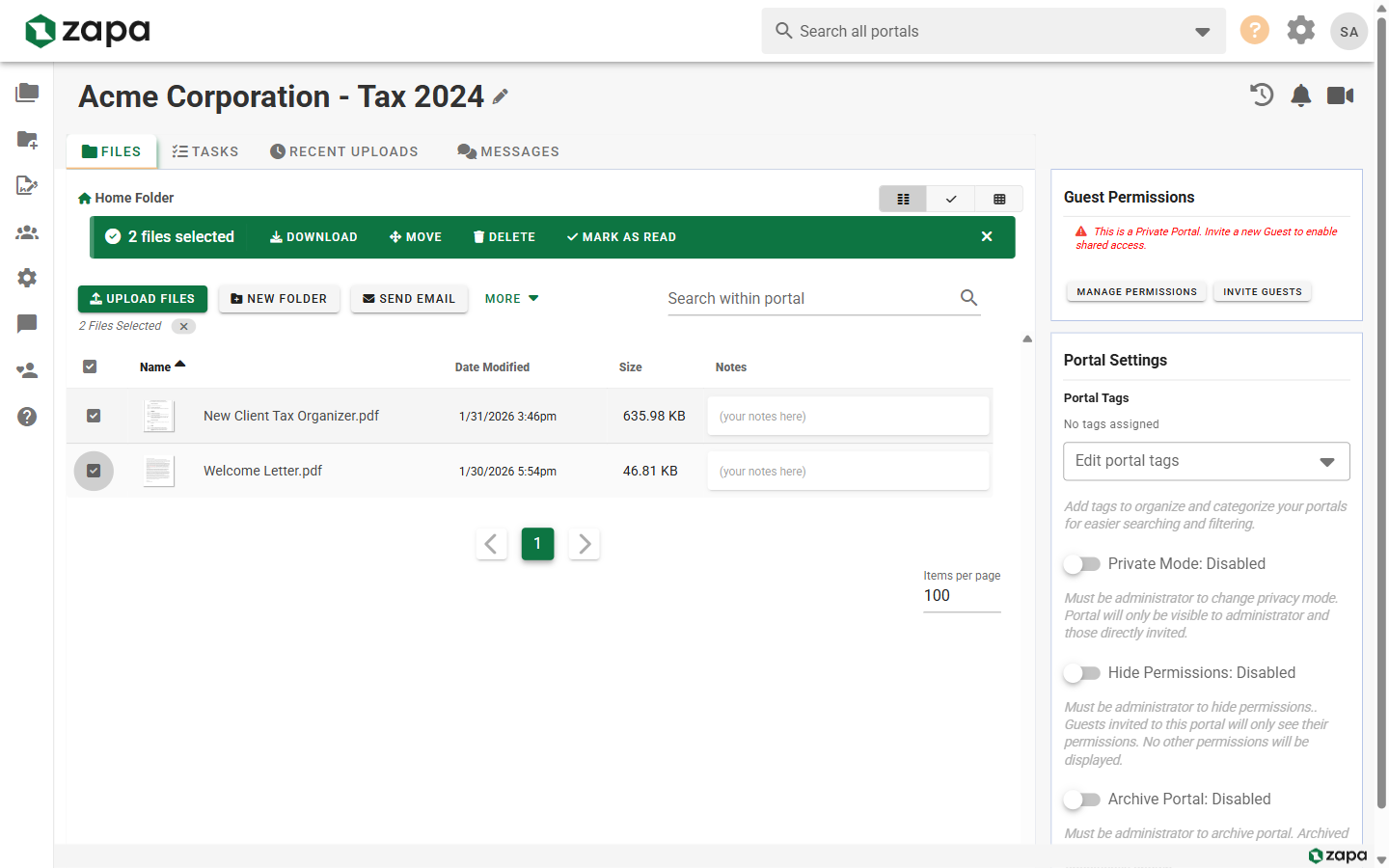
Selecting Multiple Files
- Open a portal
- Click the checkbox next to each file
- A selection banner appears showing the count
Available File Actions
When files are selected:
- Download - Download all selected files as a ZIP
- Move - Move files to a different folder
- Delete - Delete all selected files
- Rename - (single file only) Rename the file
Single File Actions
Select a single file for additional options:
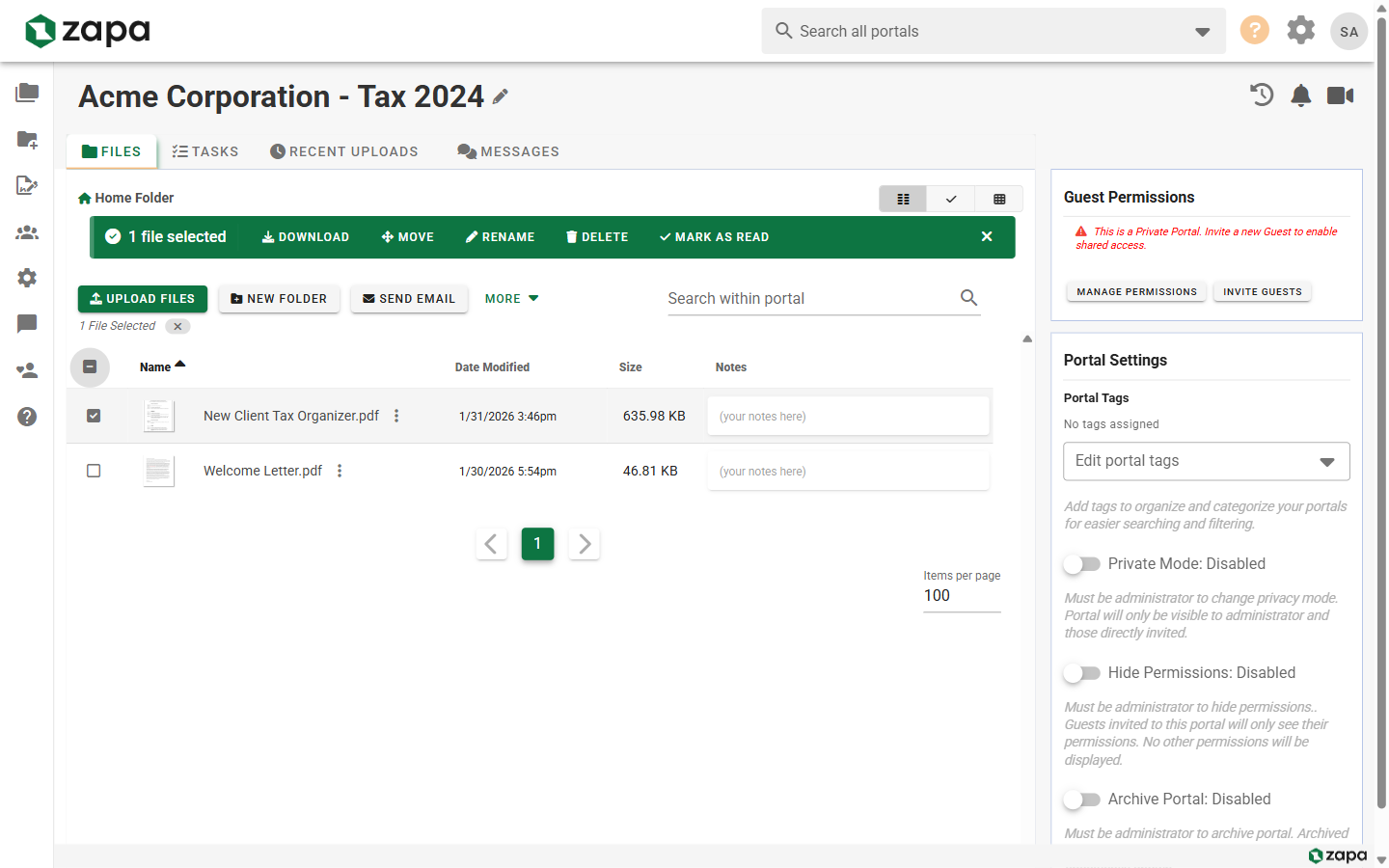
The file action menu (⋮) provides:
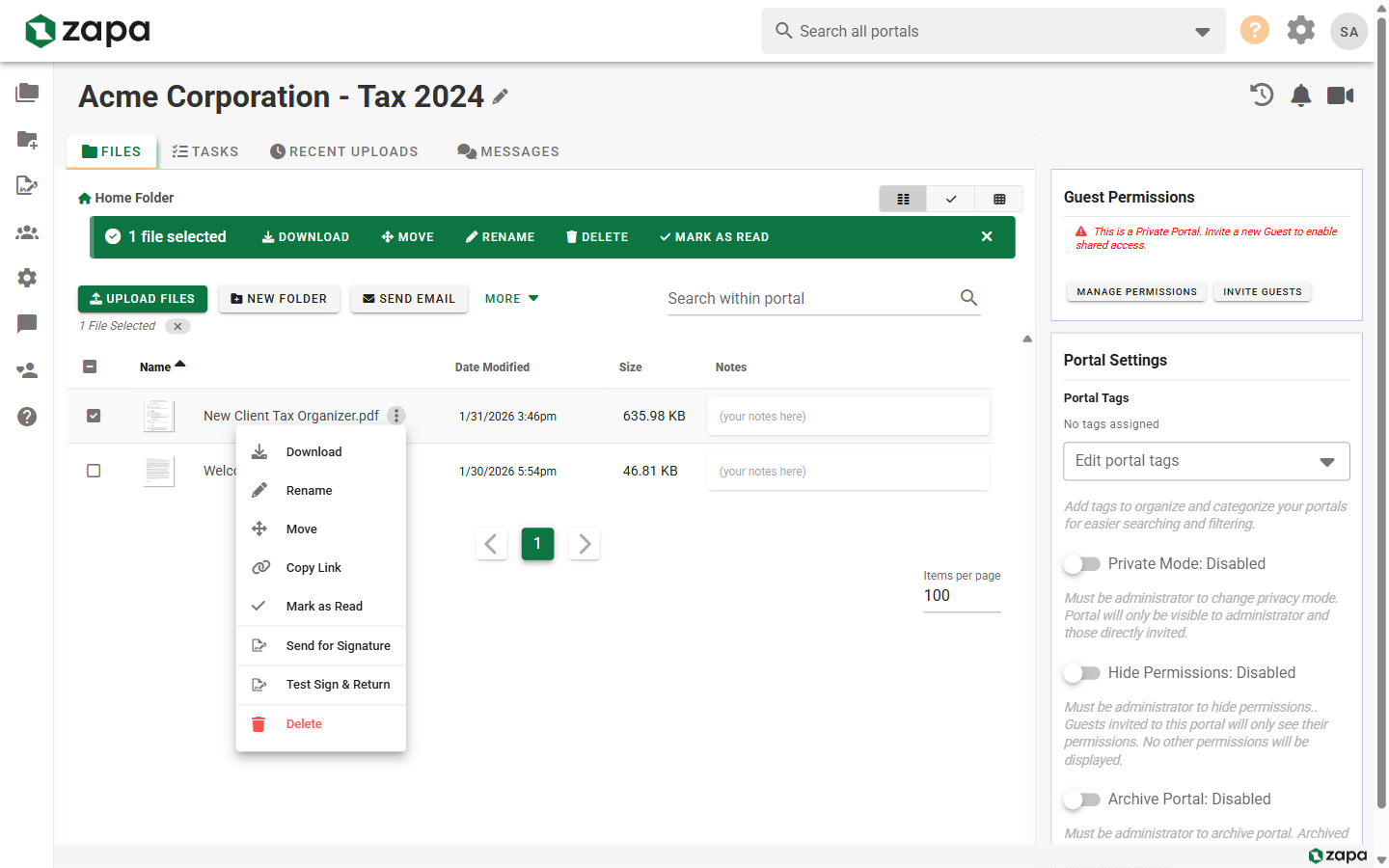
- Download
- Rename
- Move
- Delete
- Edit Note
- Send for Signature
- View History
Best Practices
Organize Before Bulk Operations
- Group similar portals together
- Use consistent folder structures
- Apply templates for consistency
Verify Before Acting
- Review the selection count
- Check the action preview
- Confirm before destructive actions
Use for Routine Tasks
Bulk operations are ideal for:
- Monthly statement distribution
- Quarterly document updates
- Annual compliance uploads
Related Topics
- Managing Files - Individual file operations
- Creating Portals - Portal setup
- Portal Templates - Consistent portal structure