Tracking Signatures
Monitor the status of all your signature requests from the Signatures page.
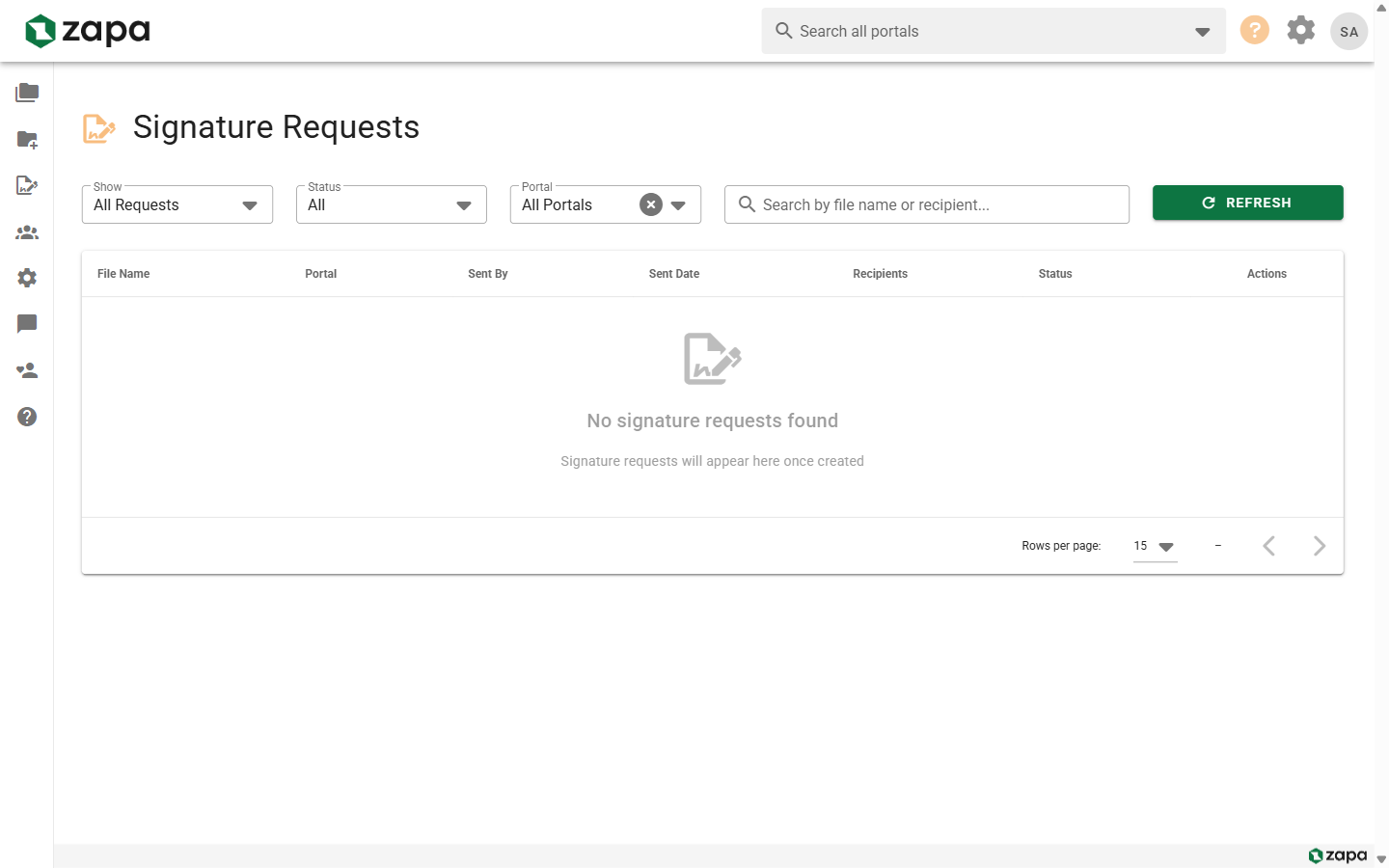
Accessing Signature Tracking
Navigate to the Signatures page:
- Click Signatures in the main navigation
- Or go to
/signaturesdirectly
Signature Request Status
Each request shows its current status:
| Status | Description |
|---|---|
| Pending | Waiting for one or more signatures |
| Completed | All signatures received |
| Cancelled | Request was cancelled |
| Expired | Request expired without completion |
The Signatures Dashboard
List View
See all signature requests with:
- Document name
- Recipients and their status
- Date sent
- Current status
- Quick actions
Filtering
Filter requests by:
- Status - Pending, Completed, Cancelled
- Date range - Custom date filters
- Portal - Requests for specific portals
- Recipient - Find by signer email
Sorting
Sort by:
- Date sent (newest/oldest)
- Status
- Document name
- Completion date
Request Details
Click a request to see details:
Document Information
- Original filename
- File size and pages
- Portal association
- Upload date
Recipient Status
For each recipient:
- Email address
- Signing status (Pending/Completed)
- Date signed (if completed)
- View their signature
Timeline
- Request created
- Emails sent
- Reminders sent
- Signatures completed
- Request completed/cancelled
Managing Requests
Resending to Recipients
If a recipient hasn't signed:
- Open the request details
- Find the pending recipient
- Click Resend
- A new email is sent with the signing link
Useful when:
- Email went to spam
- Recipient lost the email
- Link expired
Cancelling Requests
To cancel an active request:
- Open the request details
- Click Cancel Request
- Confirm cancellation
After cancellation:
- Recipients can no longer sign
- Status changes to Cancelled
- You can send a new request if needed
Deleting Requests
To remove a request from your list:
- Open the request details
- Click Delete
- Confirm deletion
caution
Deleting removes the request from your tracking but may not delete signed documents from portals.
Downloading Signed Documents
Single Document
- Open the completed request
- Click Download or the download icon
- Get the fully signed PDF
With Audit Trail
The downloaded PDF may include:
- All signatures embedded
- Audit trail page with signing details
- Certificate of completion
Notifications
Email Notifications
You receive emails when:
- Signature completed - A recipient signs
- All complete - Final signature received
- Request declined - Recipient refuses to sign
In-App Notifications
The Signatures page shows:
- Badge with pending count
- Recent activity indicators
- Status change highlights
Bulk Actions
Manage multiple requests at once:
- Select requests using checkboxes
- Choose bulk action:
- Download All - Download all signed documents
- Resend All - Resend pending requests
- Cancel All - Cancel selected requests
Reporting
Signature Activity
View your signature activity:
- Requests sent this month
- Completion rate
- Average time to sign
- Pending vs completed
Export
Export signature data for:
- Compliance records
- Client reporting
- Internal tracking
Portal Integration
Signature status appears in portals:
File Indicators
Files with signature requests show:
- Status badge (Pending/Completed)
- Signature icon
- Click to view details
Completed Signatures
When all signatures are complete:
- Original file is updated (or new version added)
- Status shows as Completed
- Signed PDF is available
Best Practices
Follow Up
- Check pending requests weekly
- Resend after 3-5 days
- Call or message for urgent requests
Organization
- Use consistent naming
- Track by portal for client-based work
- Archive completed requests periodically
Compliance
- Download signed documents promptly
- Store copies in secure locations
- Maintain audit trails for compliance
Troubleshooting
Request Not Appearing
- Refresh the page
- Check filters (may be filtering it out)
- Verify you sent the request
Status Not Updating
- Refresh to get latest status
- Check if recipient actually signed
- Allow a few minutes for processing
Download Not Working
- Check your browser's download settings
- Try a different browser
- Contact support for large files
Related Topics
- Sending for Signature - Create new requests
- Signing Documents - Recipient signing process
- Managing Files - File management